Think of your thumbnail as the digital welcome mat for your church's short videos. Before anyone hears a single word of your sermon clip or announcement, they see that tiny image. It’s the visual handshake that invites your community and potential visitors to step inside and engage.
Why Your Thumbnail Is Your Digital Welcome Mat
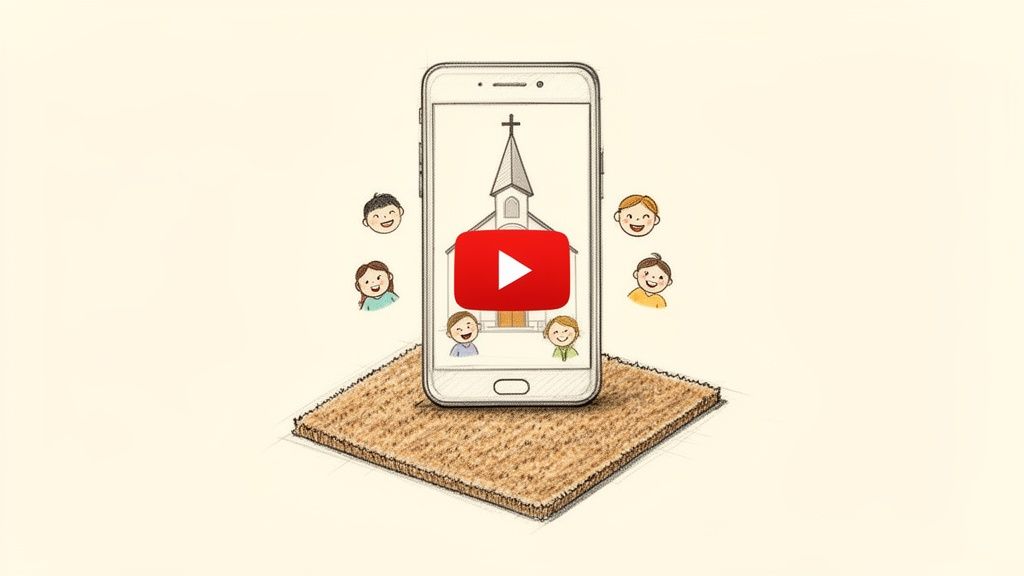
Editing a thumbnail is simple—it’s just a matter of picking a great frame from your video or uploading a custom cover image before you hit publish. But that simple action can dramatically increase your video's views and engagement. It’s what stops the scroll.
When you start seeing thumbnails as a ministry opportunity instead of just another tech chore, your whole approach changes. In a crowded feed on Instagram or YouTube, a clear, compelling thumbnail is your best chance to stand out, spark curiosity, and earn that all-important tap.
The Challenge for Churches
We get it. For busy church staff and volunteers, social media already feels like a mountain of work. The thought of adding one more thing—like designing a custom thumbnail for every Reel—can feel completely overwhelming.
But skipping this step means missing a huge opportunity to connect. A great thumbnail can be the difference between a sermon clip that gets ignored and one that touches hundreds of hearts.
That’s why having a streamlined process is so critical. The goal isn't just to learn how to edit short thumbnail images, but to do it quickly and effectively.
A well-designed thumbnail isn't just decoration; it's a strategic tool for communication. It primes the viewer for the message they are about to receive, making your content more impactful from the very first second.
With the right tools, this is far simpler than you might think. We built ChurchSocial.ai to remove these exact barriers. You can create AI-generated reels from your sermons, use our graphic templates and editor for photos, and manage everything on a simple drag-and-drop calendar. You can take a sermon clip and turn it into a professional-looking Reel—complete with an engaging thumbnail—all in one place.
If you're looking to level up your visuals across the board, check out our guide on church graphic design.
Thumbnail Rules are Different Everywhere (Here's What to Know)
Every social media platform has its own set of rules for short-form video thumbnails, and honestly, it can be a real headache for your church’s media team. Getting a handle on these little quirks is the key to creating content that actually gets noticed. What works beautifully for an Instagram Reel just won't fly on a YouTube Short.
This is where a lot of time gets wasted. You might design the perfect, eye-catching thumbnail, only to realize the platform you're posting to won't even let you use it. Knowing the specifics for each channel before you start helps you plan smarter, not work harder.
Instagram Reels vs. YouTube Shorts
The biggest split you need to know about is between Instagram and YouTube.
Instagram Reels gives you the most creative control, letting you upload a completely custom cover image. This is a huge win for churches. You can design a branded graphic with your sermon title or a thought-provoking question that makes people stop scrolling.
YouTube Shorts, however, plays by a different rulebook. You cannot upload a custom image at all. Your only move is to pick a single frame from the video itself when you're uploading on the mobile app. This means you have to be intentional about capturing a clear, compelling moment in the video that can double as your thumbnail.
The ability to add a custom cover to an Instagram Reel is a game-changer for ministry. It allows your church to create a cohesive, branded look on your profile grid and ensures every video starts with a clear, intentional message.
What About TikTok?
TikTok is a lot like YouTube Shorts in this department. When you're about to post, TikTok lets you scrub through your video and choose a cover frame that you think best captures the vibe. You can also add some stylized text titles right on top of that frame inside the app.
To make this super clear, here’s a quick-glance table to help you keep track of what’s possible where.
Short-Form Video Thumbnail Capabilities by Platform
This little cheat sheet breaks down what you can and can't do on the big three platforms. It's a handy reference to have before you start creating your next video clip.
Knowing these differences is crucial for your workflow. For churches using an all-in-one tool like ChurchSocial.ai, this lets you work much more efficiently. You can create one sermon clip, then immediately design a custom thumbnail specifically for Instagram, all in one place. It’s all about making sure your message is optimized for every channel you're on.
A Simple Workflow for Custom Thumbnails
You don’t need to be a professional graphic designer to make a short-form video thumbnail that gets noticed. For busy church staff and volunteers, all you really need is a simple, repeatable process that lets you create powerful visuals without eating up your whole week.
It all starts with picking a strong visual base. This could be a compelling still frame you pull directly from your video—maybe a shot of a joyful moment from a church event or a thoughtful expression from the speaker. Another great option is to use a related graphic that fits the video's theme, like a branded image from your current sermon series.
Adding Your Message
Once you have that base image, it's time to add your text. This is where you can really spark some curiosity. Use bold, clear text to highlight the sermon title or ask an intriguing question that ties into the video’s content. The goal is to make someone stop scrolling and think, "I want to know more about that."
Remember, brand consistency is what builds a recognizable presence online. Weave in simple elements like your church's main color for the text or add a small, non-intrusive logo in one of the corners. Before you know it, your community will start to instantly recognize your content in their feeds. If you're just getting started, exploring some of the best video editing software for beginners can make it much easier to fine-tune both your videos and their thumbnails.
The chart below breaks down the different rules you’ll run into when you upload thumbnails on the major platforms.
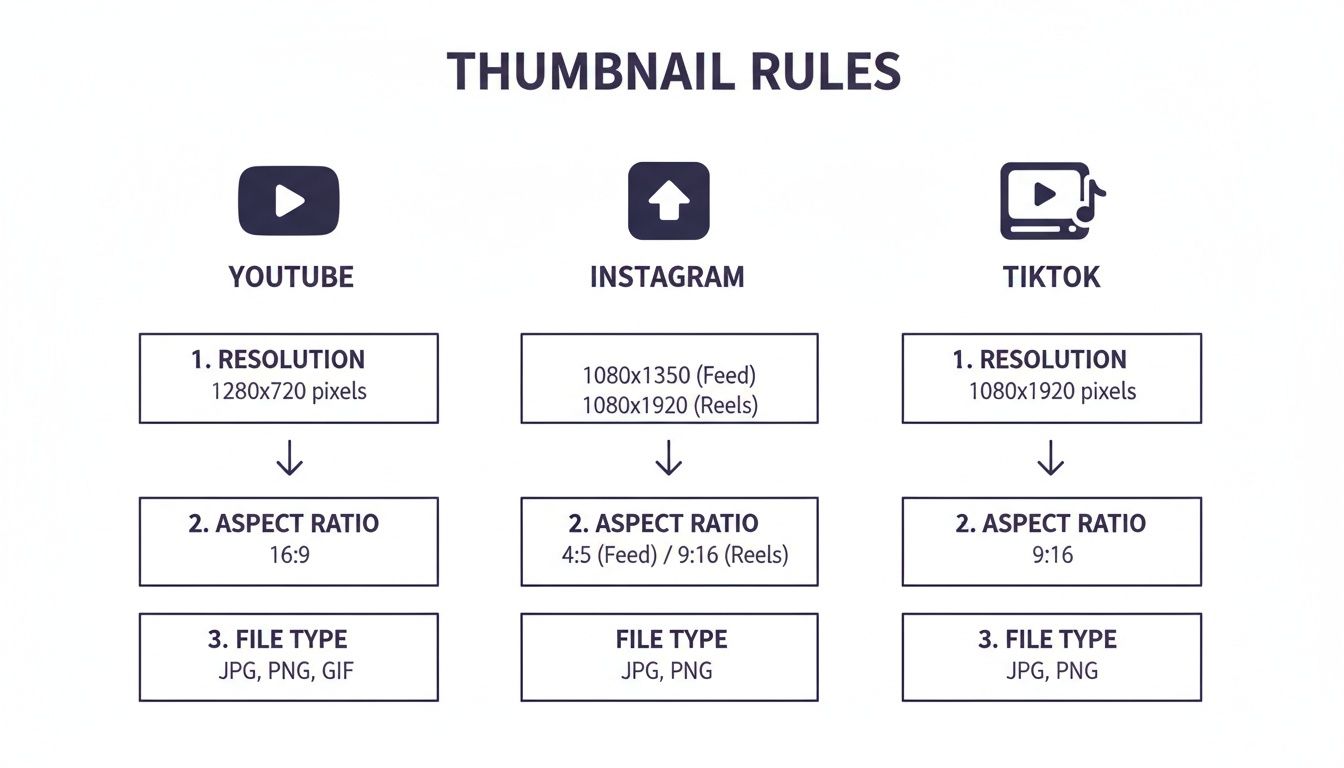
As you can see, Instagram gives you the most freedom with custom uploads, while YouTube and TikTok have you select a frame directly from the video itself.
Making It Effortless
This whole workflow gets so much easier when you can do it all in one place.
Imagine turning a powerful quote from an AI-generated sermon clip into a scroll-stopping thumbnail in just a few clicks, all without leaving the same screen where you scheduled the post. That's the power of a unified system.
Inside ChurchSocial.ai, our built-in graphic templates and editor are designed to do exactly that. You can pull an AI-generated clip from your sermon, pop open our editor, and apply your branding to a pre-sized template in minutes. This completely removes the headache of jumping between different apps and keeps your entire church social media process streamlined.
For more on visual creation, check out our guide to free graphic design software for beginners.
Creative Best Practices for Thumbnails That Connect
What actually makes someone stop their scroll and tap on your church's video? A lot of the time, it comes down to the split-second decision they make based on that tiny thumbnail. To really connect, your visuals have to be crystal clear, intentional, and designed for how people actually use their phones.
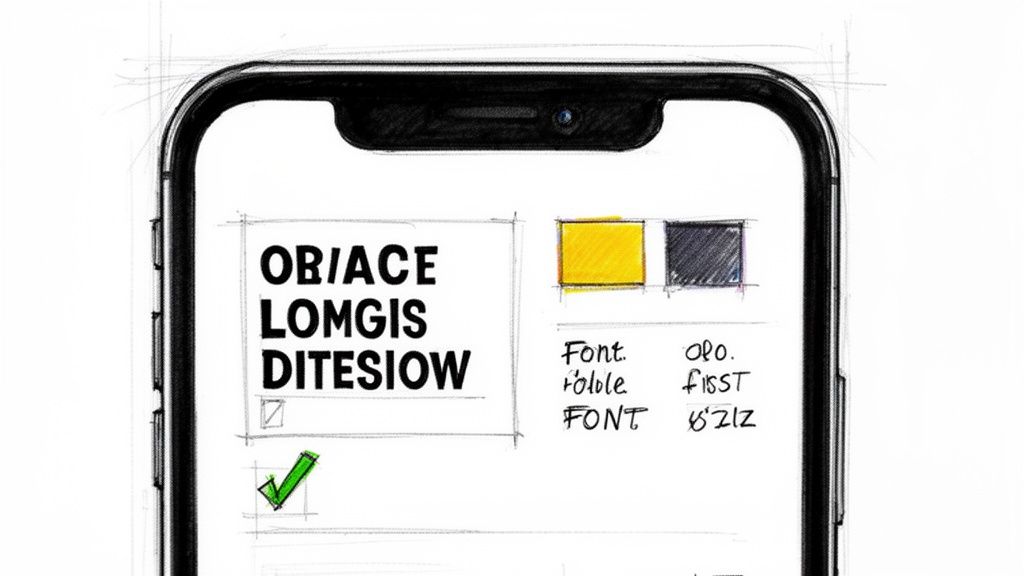
It all starts with high-contrast colors and clean, legible fonts. That beautiful, subtle design that looks great on your big desktop monitor? It'll probably look like a blurry smudge on a phone screen. Think bold, think pop, and use simple fonts that people can read without squinting. Giving your content a professional post-production glow up can also make a huge difference in how polished and eye-catching your final thumbnail frame appears.
Crafting a Minimal Yet Powerful Message
The text on your thumbnail needs to be short and punchy. You’re not trying to write a sentence; you're trying to spark curiosity with just a few words.
- Stick to three to five words. "Hope in Hard Times" grabs attention way better than a full sermon title.
- Ask a question. A simple "What is True Joy?" makes people want to find out the answer.
- Focus on the feeling. Tell viewers what they’ll gain or how they'll feel after watching.
This is a core part of effective visual storytelling, where every little piece—the image, the color, the text—works together to tell a tiny story. While hard data on thumbnail clicks can be all over the place, the trend is undeniable: clear, compelling visuals drive engagement on social media.
Always design for mobile first. If your thumbnail isn't clear and compelling on your own phone screen, it's not going to work. Pull it up on your phone before you even think about hitting publish.
This is exactly where a specialized tool for churches can save you a ton of frustration. When you use something like ChurchSocial.ai, our graphic templates are already built with these mobile best practices baked in. We use proven layouts, color combos, and font sizes that are optimized for small screens. It takes the guesswork out of the equation so your message can connect instantly.
Putting It All Together in Your Workflow
Knowing how to whip up a quick thumbnail is one thing, but actually fitting that task into a sustainable process that doesn't burn out your team? That's a different beast altogether. For busy church staff and volunteers, the real victory is found when you can unify the entire content creation process, turning a bunch of separate, clunky steps into one smooth, fluid motion.
This is exactly where having a dedicated platform like ChurchSocial.ai makes all the difference for churches.
Picture this: you upload your sermon file once. From that single upload, ChurchSocial.ai can automatically create AI-generated reels from your sermons. At the same time, it can generate AI-generated content like social posts, blogs, and more from the sermon transcript.
From Sermon to Scheduled Post, All in One Place
From there, you just hop over to the built-in graphic editor. You can grab one of those AI-generated video clips, apply a pre-branded template, and create a sharp, custom thumbnail for it in just a couple of clicks. No more juggling different apps or fighting with complicated design software.
This is what that clean, intuitive content calendar looks like inside ChurchSocial.ai. Our simple drag-and-drop calendar allows churches to easily manage and update all of their social media.
As you can see, the visual calendar makes scheduling a breeze and gives you a bird's-eye view of your entire social media plan. It lets you see exactly how your sermon clips, event promos, and daily encouragement posts all fit together.
The whole point is to spend less time figuring out the how so you can invest more energy into the why. When your tools just work together, you’re freed from the technical headaches to focus on what really matters: crafting a message that connects with your community.
And this integrated approach goes way beyond just sermons. We also integrate with Planning Center and other church calendars to create content for events. ChurchSocial.ai can automatically pull in your upcoming church events, generate promotional posts, and even create matching graphics. It helps ensure your entire communication strategy is cohesive, professional, and—most importantly—actually manageable.
We Get These Thumbnail Questions a Lot
When we talk to church leaders, the same questions about short-form video pop up time and time again. Let's get you some quick, direct answers so your team can start making better thumbnails right away.
What’s the Best Size for a Short Video Thumbnail?
Stick with 1080x1920 pixels. That’s the standard 9:16 aspect ratio you see everywhere.
This size ensures your thumbnail fills the entire vertical screen on a phone, giving your content a polished, professional look right from the start. You want it to feel immersive, not tacked-on.
You don't need to memorize these numbers, by the way. The graphic templates inside ChurchSocial.ai are already set to these exact dimensions, so your team can just focus on creating.
Can I Add a Custom Thumbnail to an Instagram Reel?
Yes, you absolutely can! But there's a catch: you have to do it before you publish. Once a Reel is live, you can't change the cover image.
This is a huge opportunity that so many churches miss. A custom "cover image" (that's what Instagram calls it) lets you maintain a branded, cohesive, and inviting grid on your church's profile page.
Our pro-tip? Design the thumbnail in the ChurchSocial.ai editor first. Then, just save it to your phone so it’s ready to go when you're about to post the Reel.
How Can I Make Thumbnails Fast When I Have No Time?
The secret weapon here is templates, but not just any templates. You need them inside an all-in-one platform built for churches.
Instead of starting from a blank canvas for every single video, a tool like ChurchSocial.ai gives you a library of ready-made designs that already have your church's logo, fonts, and colors applied.
The real time-saver is keeping everything in one place. When you can generate an AI sermon clip, design its thumbnail, write the caption, and schedule it without ever leaving the app, you cut out all the wasted time from switching between different tools. Your whole workflow gets simpler.
Ready to stop juggling multiple apps and start creating stunning content in just a few minutes? With ChurchSocial.ai, you can turn sermons into shareable clips, design beautiful graphics, and manage your entire content calendar from one spot. Start your free trial of ChurchSocial.ai today and see how easy it can be.