Sunday morning arrives, the worship team is ready, and the volunteer assigned to Facebook Live is still searching for the right button. A phone gets passed around, the opening announcement runs long, and the stream begins after the first hymn. People watching from home miss the greeting, while the tech team starts the service already behind.
Scheduling Facebook Live changes that pattern. It gives your church a planned event, a clear start time, an announcement post, and a repeatable handoff from communications to production. This guide shows how to schedule Facebook Live for a church, prepare the encoder, choose the right Meta workflow, and turn one service into useful content throughout the week.
Why Churches Are Scheduling Their Live Broadcasts
A scheduled broadcast gives your congregation something to respond to before the service begins. Instead of discovering an unexpected live video in the feed, followers can see the service title, date, start time, description, and announcement post in advance. People who've opted into relevant notifications can receive reminders, and your worship team can share the event as part of a countdown.
That matters for more than Sunday worship. A scheduled event works well for midweek prayer, Christmas services, congregational meetings, baptisms, and special teaching sessions. The broadcast has a defined place on the church's Facebook Page, so your communications volunteer can promote it without creating a separate post from scratch.
Practical rule: Treat the Facebook Live event like a service bulletin item, not like an emergency button.
Facebook's scheduling workflow has been part of the platform's publishing model since October 18, 2016, when Facebook first rolled out live video scheduling for verified Pages, with wider Page availability expected afterward according to TechCrunch's report on the original rollout. The feature has matured from an immediate broadcast option into a planned-event format with an announcement, reminders, audience settings, and a future start time.
What scheduling solves on Sunday
A fixed event gives each person a defined responsibility:
- The communications volunteer prepares the title, description, cover image, and promotion.
- The worship team knows when the broadcast will begin and can share the announcement.
- The producer has a scheduled event to connect to, instead of improvising from a personal phone.
- The pastor or host can arrive knowing the broadcast has already been announced.
- Homebound members get a clear invitation and reminder rather than an uncertain promise that the stream will appear.
Churches using a calendar-first social workflow can also connect service planning with promotion. Planning Center Calendar can surface upcoming events inside a social media content calendar, and ChurchSocial.ai's Facebook post scheduling workflow gives churches a drag-and-drop place to plan reminder posts around the broadcast.
Scheduling also makes an encoder-based sanctuary setup more practical. A connected camera, audio feed, and encoder can wait for the planned event, which is usually more dependable than asking a volunteer to hold a phone for the entire service. The next step is checking whether the Page and the assigned volunteer are allowed to create that event.
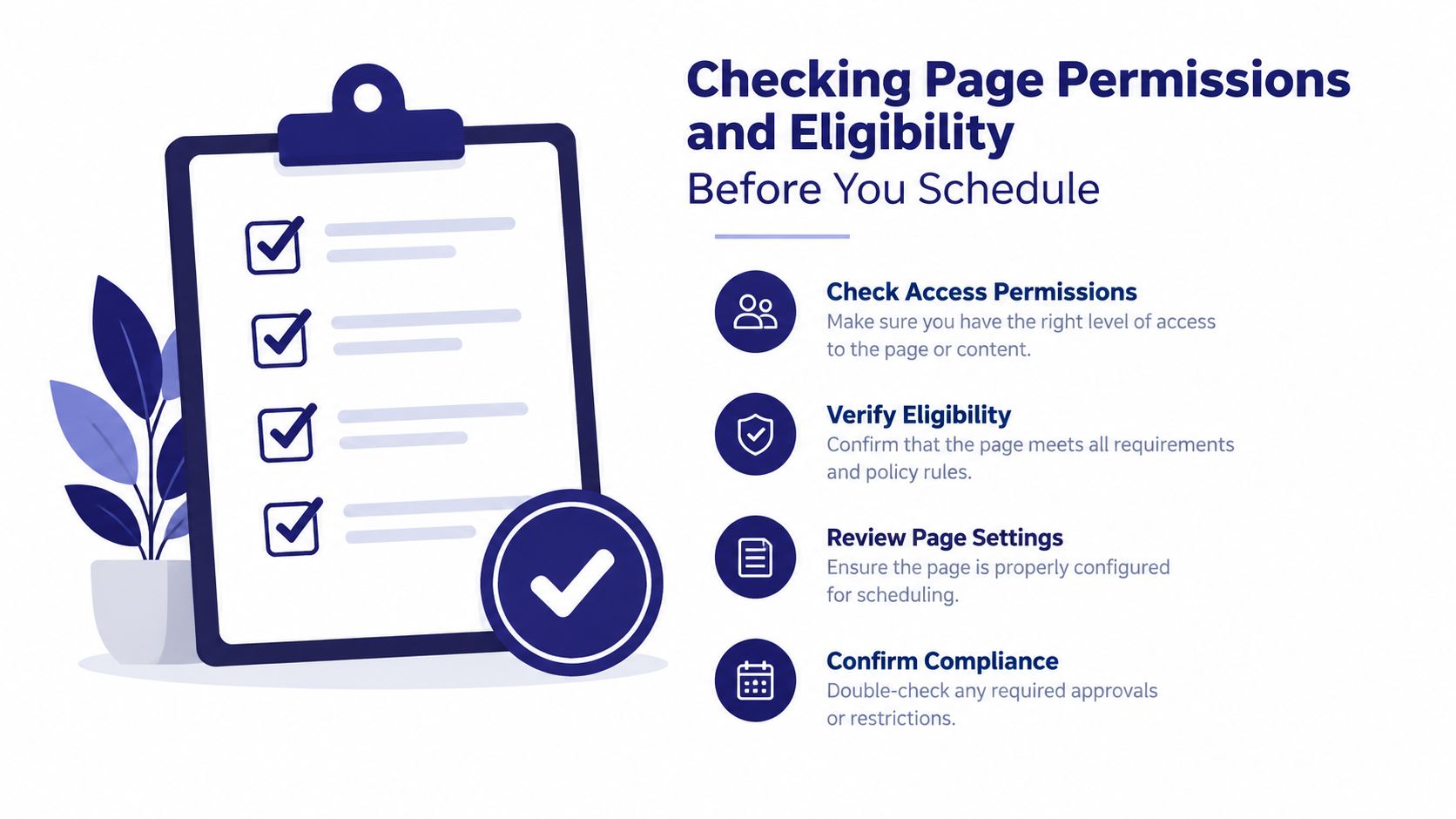
Checking Page Permissions and Eligibility Before You Schedule
Run this checklist before anyone prepares graphics or sends an announcement. It takes only a few minutes, and it prevents the common Sunday discovery that the assigned volunteer can see the Page but can't create a live event.
Verify the Page and the person
Start with the church's Facebook Page, not a personal profile. Confirm that the Page is published, accurately categorized, and in good standing. Facebook's eligibility rules can vary by account and profile type, so check the Live dashboard itself rather than relying on what worked for a previous volunteer.
Then confirm the person's Page role. An Admin or Editor generally needs to create and schedule the broadcast, while a Moderator may be able to respond to comments or interact with an existing broadcast without having the required publishing access. This role mismatch is especially common when a youth pastor, intern, or rotating volunteer receives a task without the correct Page permission.
Use a documented process for adding and removing access. Churches with several staff members or rotating volunteers may benefit from guidance on implementing permission management, particularly when responsibilities change between ministry seasons.
Check Live access and account security
Meta's technical guidance identifies 60 days of account age and 100 followers as minimum eligibility thresholds for some profiles or Pages, so review the applicable status before scheduling from a newer or smaller account in Meta's Live eligibility and technical requirements. A Page's clean standing, country availability, two-factor authentication, and connected Meta Business Suite access can also affect what the scheduler sees.
If the church uses an encoder, confirm that the streaming key and connected production setup are available to the person creating the event. Don't assume that access to Business Suite automatically grants every Live permission.
Finally, open the Live dashboard and look for the Schedule Live button. If the button isn't visible, stop there and resolve the access issue before building the event. A missing button is useful information. It's far better to find it during planning than minutes before worship begins.
Scheduling a Facebook Live Event in Live Producer
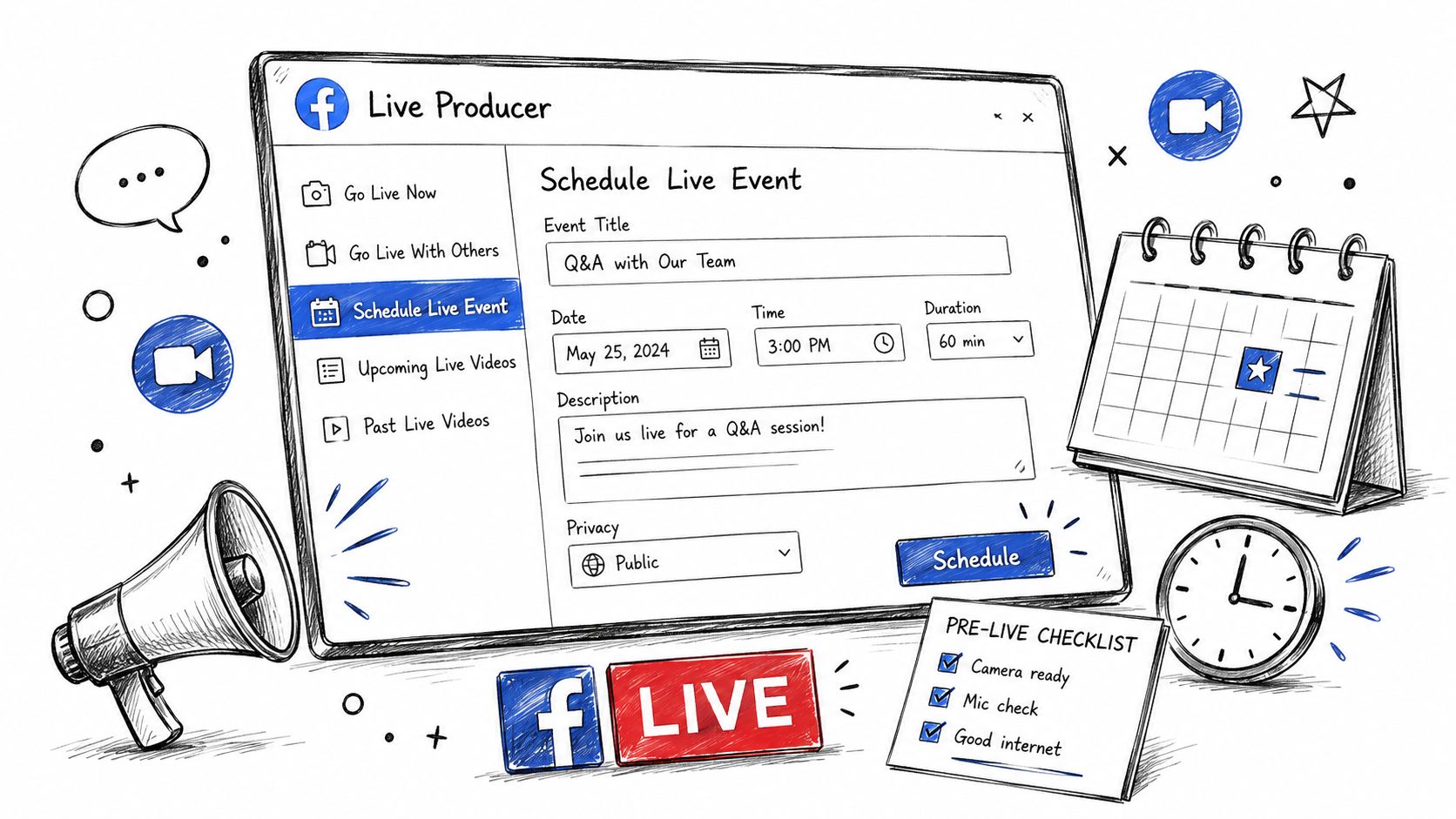
For most churches, Live Producer is the clearest place to create the event. Begin on the church's Facebook Page, select Live under the post composer, and choose Live Producer rather than Use Camera. The exact labels can change as Meta updates its interface, but the distinction matters. Use Camera is designed for a direct browser or device broadcast, while Live Producer is built for production sources and encoder connections.
Create the event details
Choose Schedule Live Event instead of Start Live. Enter a service title that a member will understand in a feed, such as “Sunday Worship and Sermon,” followed by the service date and local time. Include the church's time zone in the internal production notes, especially when the team serves people across regions or schedules around daylight-saving changes.
Add a short description with the practical information viewers need. Mention the service type, any access instructions, and where people can ask for help. Then add a cover photo or illustration. Facebook's desktop help flow supports a cover image for the event announcement, and if you don't provide one, it may use the Page's default cover photo as described in Facebook's scheduling help. Use a clean image with a clear focal point. Avoid placing text on random objects or busy backgrounds. If words are necessary, use a deliberate overlay or place them on a natural surface such as a printed bulletin or whiteboard.
Meta documents that a Live video can be scheduled in Live Producer up to 24 hours in advance through its current business help documentation. That restriction applies to the Live Producer path described here, so don't confuse it with the longer event window available through connected cameras and encoders.
Connect the production setup
Select the camera or encoder source, then confirm the broadcast orientation. A landscape frame usually suits sanctuary video viewed on televisions and computers. A portrait frame can make sense when the church's main viewing behavior is mobile-first, but test the composition before service day so the pastor, worship area, lyrics, and lower-third graphics don't land in awkward crops.
Paste the streaming key from the church's encoder into the production software. For recurring services, a persistent key can reduce weekly setup, but it also increases the importance of access control. Only authorized production volunteers should have it, and the team should know how to replace it if access changes.
Add co-hosts if the workflow calls for more than one person to manage the event. The worship leader, pastor, or deacon may need access to comments and event controls, but don't add people just because they're involved in the service. Give each person only the access needed for their role.
Finish the publishing settings
Review the audience or privacy setting, announcement copy, start time, and any post-event behavior available in the interface. Depending on the church's workflow, the recording can remain on the Page, be used for a Watch Party, or be configured to expire.
Save the event and confirm that it appears on the Page. Check that the announcement and notification options are visible before asking the encoder team to run a private test. For churches coordinating multiple posts, church live stream software planning guidance can help place the event, reminders, and follow-up content in one calendar.
Choosing Where to Schedule From
Church volunteers usually encounter three entry points. They overlap, but they aren't equally useful for every congregation.
| Tool | Best For | Scheduling Window | Key Limitation |
|---|---|---|---|
| Facebook Live Producer | Most single-Page churches and encoder-led sanctuary broadcasts | Live Producer supports scheduling up to 24 hours in advance according to Meta | The interface and permission model can be confusing for volunteers |
| Meta Business Suite | Staff managing Facebook and Instagram content together | Depends on the connected Live workflow and event type | Live controls may be less direct than in Live Producer |
| Creator Studio | Churches that still have the legacy Live tab active and already trained staff | Depends on the available Page workflow | The legacy interface may not be available or consistently maintained |
Facebook Page and Live Producer
The familiar path is Page > Live Videos > Schedule Live Video, or the Page composer's Live button followed by Live Producer. This is usually the best choice for a single-site church that has one Facebook Page, one production team, and a volunteer who needs direct access to the stream settings.
Live Producer also makes the encoder connection visible, which reduces the risk that a volunteer schedules an event in one tool while the producer is preparing a different destination.
Meta Business Suite
The Business Suite path is Business Suite > Planner > Create > Live. Use it when the communications staff already manage Facebook and Instagram content there, need shared access, or want scheduling and analytics alongside the rest of the social calendar. It can be a better administrative home for a larger team, but production volunteers may still prefer Live Producer for stream keys, sources, and technical checks.
Creator Studio
The older path is Creator Studio > Create > Live. Choose it only if the Page still exposes that workflow and your team already knows it. Training volunteers on a legacy path that may disappear creates unnecessary dependency on one person.
For connected cameras and encoders, Facebook's Live documentation supports scheduling up to one week in advance, and the Live Video API guide describes creating broadcasts for a future start time up to seven days from creation using a UNIX timestamp in the API event parameters. That longer window is useful for churches planning seasonal services or recurring production blocks, but it requires a connected encoder and stream key.
My recommendation is simple. A small church with a rotating volunteer team should use Live Producer. A mid-sized church with shared social responsibilities can use Business Suite for the calendar and Live Producer for production. A multi-site team should standardize the workflow that its central communications staff can support, rather than letting each campus invent a different path.
Encoder and Streaming Settings Churches Get Wrong
Most failed church broadcasts don't fail because the camera is expensive. They fail because the encoder settings, audio routing, network connection, or event permissions were never tested together.
Meta recommends RTMPS, H.264 video, a 2-second keyframe interval that must not exceed 4 seconds, AAC stereo audio at 44.1 or 48 kHz, and a maximum recommended bitrate of 15 Mbps in its Facebook Live technical guidance. For 1080p at 30 frames per second, Meta gives a recommended range of 3,000 to 6,000 Kbps. It gives 4,500 to 9,000 Kbps for 1080p at 60 frames per second.
Those settings don't mean every church should push the highest available quality. Meta also advises subtracting about 20% from measured upload speed before setting encoder bitrate in the same troubleshooting guidance. If the sanctuary connection can't sustain the chosen bitrate, use a lower resolution such as 720p rather than producing a beautiful local image that repeatedly buffers for viewers.
The Sunday failures worth preventing
- Wrong orientation: A vertical phone feed can crop the worship area and make slides unreadable. Decide on horizontal or vertical before the event and lock the composition.
- Unstable resolution: Changing source resolution during the service can disrupt caption synchronization and create visible jumps.
- Tiny worship slides: A copyrighted song slide may be technically present but impossible to read when the camera view and slide are squeezed together.
- Bad audio gain: A soundboard feed that peaks will make preaching and music painful to hear, even if the video looks sharp.
- Unsupported format: Meta's accepted codec and protocol requirements are specific, so don't substitute a random streaming format because it worked on another platform.
- Weak network path: Connect the audio booth or encoder laptop through hardwired Ethernet when possible. Wi-Fi adds another failure point in a room full of phones and devices.
A stream key should be treated like access to the church's broadcast channel. Rotate it after a volunteer leaves the production team or after the church suspects it has been shared too widely.
Run a short private test before service day. A few minutes of real camera, audio, encoder, and network traffic will expose problems that a written checklist can't. Also confirm that the Page is Live-eligible. Meta's guidance identifies account age, follower, format, aspect-ratio, and technical requirements that can block a broadcast when the team discovers them too late in its eligibility documentation.
Turning One Broadcast Into a Full Week of Content
A live service shouldn't be the end of the content process. It should be the source recording for the next several communications decisions.
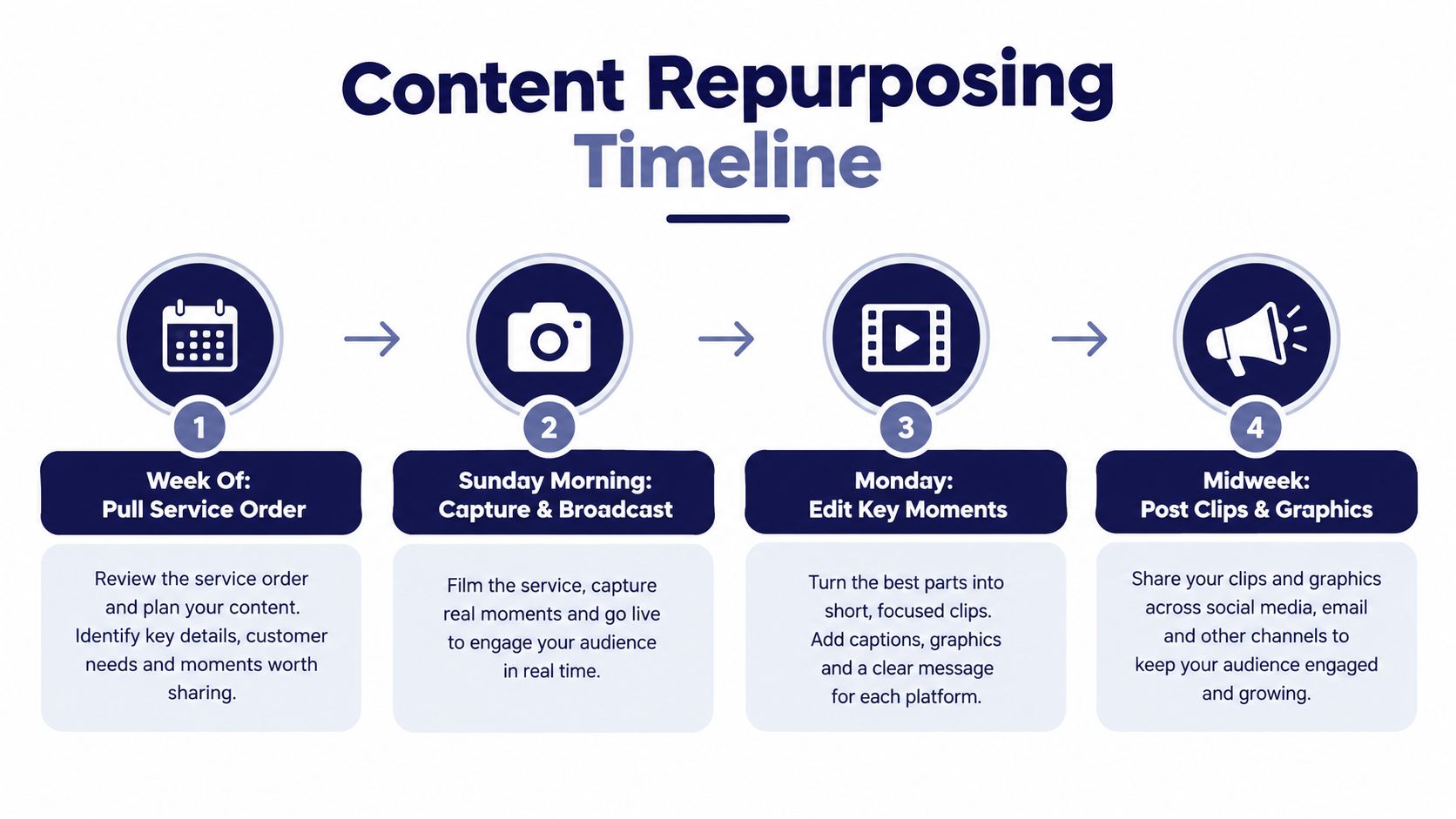
Start with the church calendar. Planning Center Calendar can feed upcoming events into a social media content calendar, and ChurchSocial.ai specifically documents connecting a Planning Center Calendar to view hidden and published events in a church social media calendar through its Planning Center integration information. Pull the service order into the broadcast run sheet, then mark the sermon, prayer, announcements, worship moments, and closing benediction as possible follow-up assets.
Build the week around the service
The workflow can look like this:
- Sunday: Broadcast the service and save the recording on the Page.
- Monday: Publish a recap post with the sermon theme and a clear invitation to watch.
- Wednesday: Share a captioned devotional clip or prayer prompt drawn from the message.
- Friday: Publish a reminder graphic for the coming service, with the next Live event already scheduled.
The point isn't to force every moment of worship into a social post. Select moments that serve people who weren't present, help members revisit the teaching, or invite a neighbor into the next gathering.
Let AI handle the repetitive editing
A sermon transcript gives the communications volunteer a workable source for follow-up content. AI-assisted tools can identify strong passages, create a short quote clip, burn captions into a vertical version for Reels, and draft a static quote graphic for a midweek prayer post. A person still needs to check names, Scripture references, theological wording, captions, and permissions before publishing, but the volunteer doesn't have to begin with a blank timeline.
ChurchSocial.ai provides AI-generated sermon reels, transcript-based social posts and blog drafts, graphic templates, a graphics editor, and a drag-and-drop calendar for managing church social accounts. That makes it possible to connect the source service with the promotional posts, clips, carousels, and event reminders without moving between disconnected spreadsheets and editing tools.
Use images carefully. A clean sanctuary detail, pulpit, Bible, communion table, or abstract branded background often works better than a crowded group photo. Avoid adding text to random parts of an image. Put words in a deliberate overlay or use text that naturally belongs on a printed bulletin, whiteboard, or sign.
The strongest rhythm is predictable. Schedule the next Facebook Live while the current service is still in the planning session, then assign the follow-up assets before Sunday arrives. The broadcast becomes one part of a sustainable church communications system rather than another weekly emergency.
Troubleshooting and Your Recurring Broadcast Plan
A repeatable schedule removes most last-minute decisions. Confirm the Page role on Monday, draft the Live Producer event on Tuesday, schedule the event during the church's planning window, run a short encoder test on Friday, and keep a phone hotspot available as an emergency connection on Sunday.
Keep the following reference next to the production laptop:
| Problem | Likely Cause | One-Minute Fix |
|---|---|---|
| Stream key won't connect | Encoder clock or event time is wrong | Set the encoder and computer to the correct local time, then refresh the event connection |
| Audio is peaking | Soundboard feed is too hot | Lower the feed at the mixer or encoder and verify the meters before reconnecting |
| Scheduled event is unpublished | The event lost activity or was never fully saved | Reopen Live Producer, confirm the event status, and publish the announcement again |
| Viewer count stays at zero | Privacy or unlisted setting is restricting the audience | Check the event audience and Page visibility, then save the public setting |
| iOS Go Live button is greyed out | The volunteer isn't an Admin or approved Live publisher | Switch to an authorized Page role or have an Admin start the broadcast |
The practical sequence is straightforward: permission first, event second, encoder third, content repurposing fourth. Once those pieces are assigned to named people, your church can stop treating Facebook Live as a Sunday morning gamble and start treating it as a dependable publishing channel.
Use ChurchSocial.ai to connect your church calendar, Facebook Live promotion, sermon repurposing, graphics, reels, and follow-up posts in one drag-and-drop workflow. Set up next Sunday's broadcast plan alongside the reminders and post-service content so your volunteers can manage the whole week without rebuilding the process from scratch.