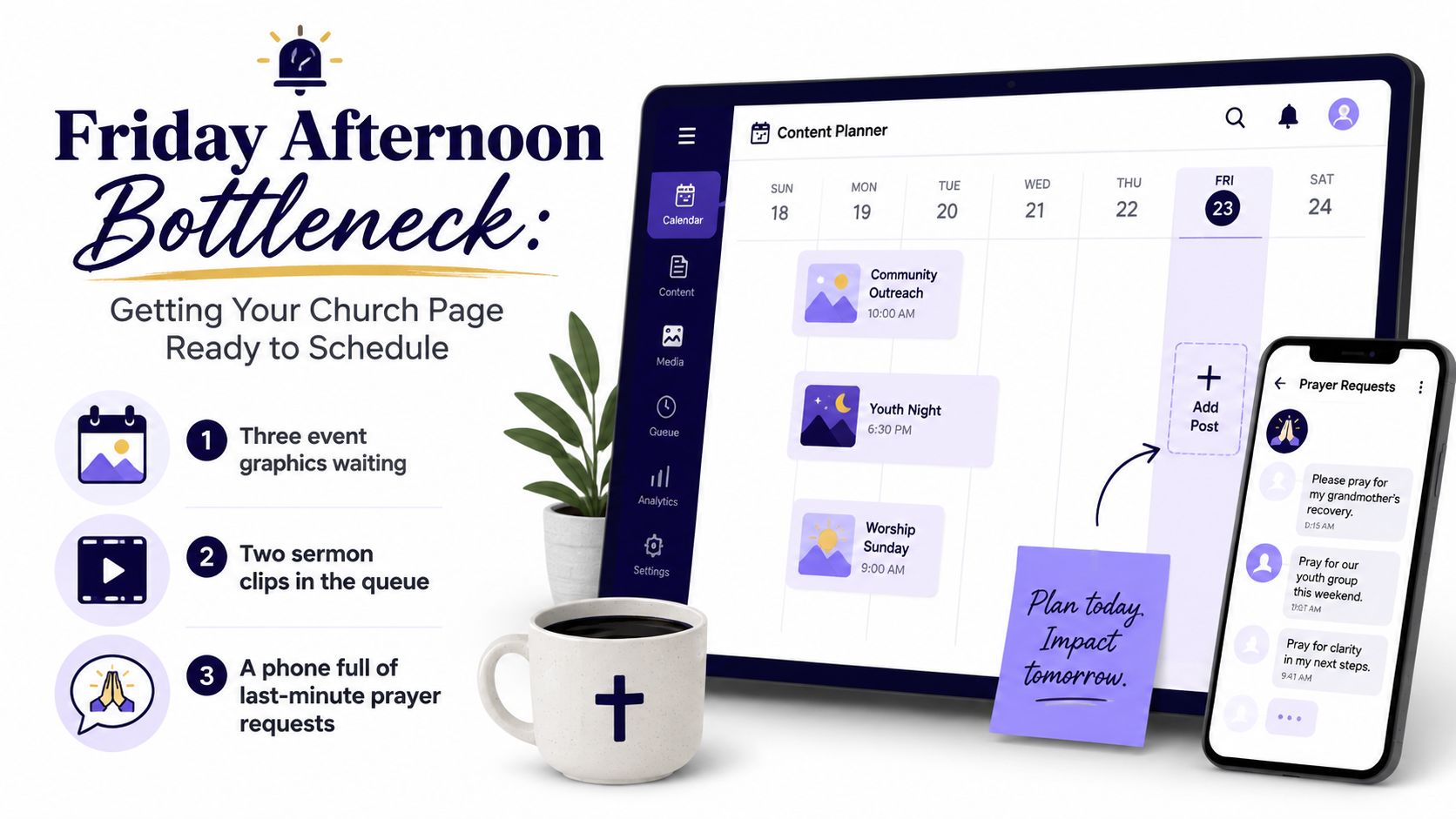
Friday afternoon, the church office is quiet, but your social calendar is not. Three event graphics are waiting, two sermon clips are still in the queue, and your phone is crowded with last-minute prayer request screenshots. You meant to prepare everything earlier. Instead, you're trying to publish from a laptop between volunteer messages and Sunday-prep tasks.
Learning how to schedule Facebook posts solves the calendar problem, but it doesn't solve every communications problem. A scheduled post still needs the right Page access, a clear owner, suitable visuals, and someone ready to respond after it goes live. The workflow below is designed for church volunteers and staff who need to batch content without turning every publishing task into a fresh emergency.
Getting Your Church Page Ready to Schedule
Before opening a scheduling tool, make sure the Facebook Page itself is ready. A personal Facebook login isn't enough. The person doing the work should hold an Admin or Editor role on the church Page, with permission to create and manage posts.
Next, confirm that the Page is connected to a Meta Business Portfolio, formerly called Business Manager. That connection gives your team access to Meta Business Suite and makes cross-posting workflows easier to manage. If several people publish for the church, check the default Page posting identity as well. Consistent attribution makes later analytics easier to interpret and prevents volunteers from accidentally posting through the wrong identity.
Complete the access check
Run this short setup review before your first batch:
- Page permissions: Confirm the volunteer can switch into the church Page and publish as the Page.
- Business connection: Verify the Page appears inside Meta Business Suite.
- Security settings: Review two-factor authentication and Page notifications before automated publishing begins.
- Posting identity: Check which Page identity appears in the composer when more than one administrator has access.
- Calendar cleanup: Remove abandoned drafts and organize the upcoming content so the Planner opens to a usable view.
Security and notifications matter because scheduling changes the work. You'll spend less time clicking Publish, but you'll still need to watch what happens after publication. A phone notification that reaches the right responder is more useful than an elaborate calendar nobody monitors.
For broader guidance on voice, content pillars, and sustainable ministry publishing, review these church social media strategy tips before building a larger calendar. Churches that establish those decisions early avoid rewriting every caption during batch sessions.
Keep your Page workflow separate from your personal profile workflow, and use Facebook engagement practices for churches to shape captions that invite genuine replies rather than passive scrolling.
Scheduling a Facebook Post in Meta Business Suite
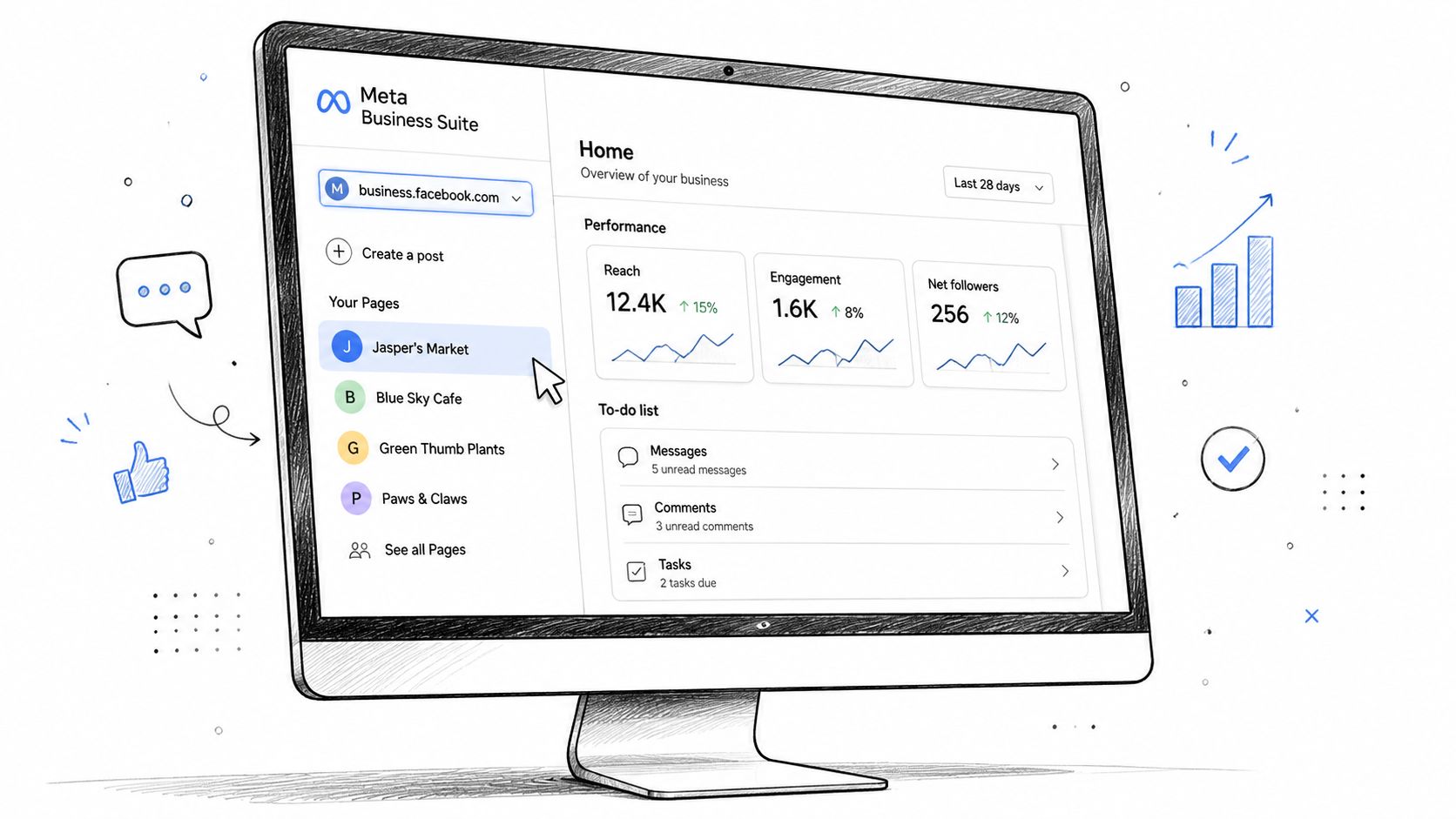
Meta Business Suite is the most practical starting point for a church that manages one Facebook Page and wants a native workflow. The names below are the controls volunteers should look for on desktop.
Follow the desktop path
- Open
business.facebook.comand select the correct church Page from the left sidebar. - Click the green Create post button in the shared composer.
- Choose Add to your feed for a standard Page post.
- If Instagram should receive the same post, use the Page selector to choose the connected destination.
- Paste the caption, then click the media tile and upload the prepared image or video from the church's asset folder.
- Click the blue arrow beside Publish.
- Select Schedule from the dropdown.
- Choose the date from the calendar grid, set the time in the available 30-minute increments, confirm the correct time zone, and save.
The time-zone check matters for churches with multiple campuses or volunteers working from different locations. A post intended for a local congregation should not depend on whichever time zone a volunteer's browser happens to use.
Verify the queue
Facebook says scheduled posts can be set only 20 minutes to 29 days in advance, as documented in its Page scheduling guidance. That limit changes how you plan holiday series, sermon campaigns, and volunteer handoffs. Keep long-range ideas in a planning document or church calendar, then move them into Meta Business Suite when they fall inside the available window.
After saving, open the Planner tab and locate the new post. Confirm the caption, media, date, time, destination, and small clock icon. Facebook also says the Planner can be viewed by week or month, which makes it useful for spotting gaps and crowded publishing days.
For a broader workflow that covers scheduling across social channels, see this guide on how to schedule social media posts. The native Meta route works well when your process is simple. It becomes less comfortable when several volunteers need review, handoffs, and shared ownership.
Choosing the Right Scheduling Stack for Your Team
The right tool depends less on the church's size than on the bottleneck. A solo volunteer with one Page needs speed and reliability. A staff team needs review controls. A multi-campus organization needs a shared system for sermons, event calendars, recurring publishing, and handoffs.
Meta Business Suite is the sensible native choice for a solo volunteer. It's built into the Facebook ecosystem, but it doesn't provide the same depth of recurring content or approval coordination that a larger team may expect. Buffer adds a content calendar and supports up to three accounts on its free tier, which can fit a church Page, Instagram account, and pastor profile, but churches should confirm current plan terms before choosing it.
Hootsuite is more suitable when a team needs draft approval and bulk scheduling. Its Professional plan introduces those functions, but seat costs become a practical issue when another staff member or part-time youth pastor needs access.
ChurchSocial.ai is designed for church teams that need a more specialized workflow. It combines a drag-and-drop calendar with sermon-clip creation, church-oriented templates, volunteer handoffs, and connections to Planning Center and other church calendars. It can also generate social posts and other content from a sermon transcript, while its graphic templates and editor support photos and carousels.
| Tool | Starting Price | Recurring Posts | Approval Workflow | Sermon-Clip Templates | Best Team Size |
|---|---|---|---|---|---|
| Meta Business Suite | Free native option | Limited for the workflow described here | Basic Page access | Manual preparation | Solo volunteer |
| Buffer | Free tier available, plan terms vary | Depends on plan | Team features depend on plan | Manual preparation | Solo or small team |
| Hootsuite | Plan pricing varies | Available through plan features | Draft approval available on Professional | Manual preparation | Two-to-three-person team |
| ChurchSocial.ai | Starts at $15/month, with modular add-ons | Built for church content workflows | Volunteer and team handoffs | Sermon-clip tools and templates | Multi-campus or specialized church team |
Decision rule: If the problem is batching one Page's monthly content, start native. If the problem is volunteer coordination and sermon video, use a specialized church stack.
Whichever tool you choose, keep captions useful and tagging restrained. Guidance on how to boost reach without spam is helpful when church teams are tempted to add every ministry, location, and community keyword to one post.
Best Times to Schedule Facebook Posts in 2026
Timing advice changes because audience behavior changes, and large datasets don't always point to the same hour. Buffer's early 2026 analysis examined 14 million Facebook posts and identified Thursday at 9 a.m. local time as the single strongest time in its analysis. It also found that weekday mornings from 6 a.m. to 11 a.m. consistently outperformed afternoons, Wednesday was the strongest day overall, Thursday and Tuesday followed closely, and Saturday was weakest for engagement. See the full Buffer Facebook timing analysis for the methodology and context.
Sprout Social's 2026 research analyzed nearly 2 billion engagements across roughly 307,000 profiles between November 2025 and February 2026. Its Facebook results favored Tuesdays and Wednesdays from 12 p.m. to 8 p.m. local time, with narrower Monday and Thursday windows. That disagreement is useful. It proves that generic timing benchmarks should guide your first calendar, not dictate every future post.
| Time Slot | Generic 2026 Benchmark | Church Page Recommendation | Best Post Type |
|---|---|---|---|
| Midweek morning | Buffer favors weekday mornings | Use as the core starting window | Sermon insight or ministry reminder |
| Tuesday or Wednesday afternoon | Sprout Social identifies strong afternoon activity | Test against Page Insights | Discussion prompt or event reminder |
| Thursday morning | Buffer identifies Thursday at 9 a.m. | Reserve for a high-priority post | Sunday invitation or sermon clip |
| Saturday | Buffer reports Saturday as weakest overall | Use selectively for local event context | Family event or service reminder |
Start with a Tuesday through Thursday morning cadence, then compare it with your Page's own Active times and “When Your Fans Are Online” information. If local audience activity conflicts with the benchmark, use the local evidence. A congregation that works unusual shifts, gathers in the evening, or includes multiple campuses may behave differently from a broad sample.
A practical first calendar can use one midweek morning post, one event-focused post before the weekend, and a Sunday reflection recap after worship. Review performance after 30 days, then adjust based on reach, comments, shares, and the quality of conversations, not just the posting clock. The church-specific reasoning behind this approach is also covered in the best times to post on Facebook.
Recurring Posts, Cross-Posting, and Sermon Clips
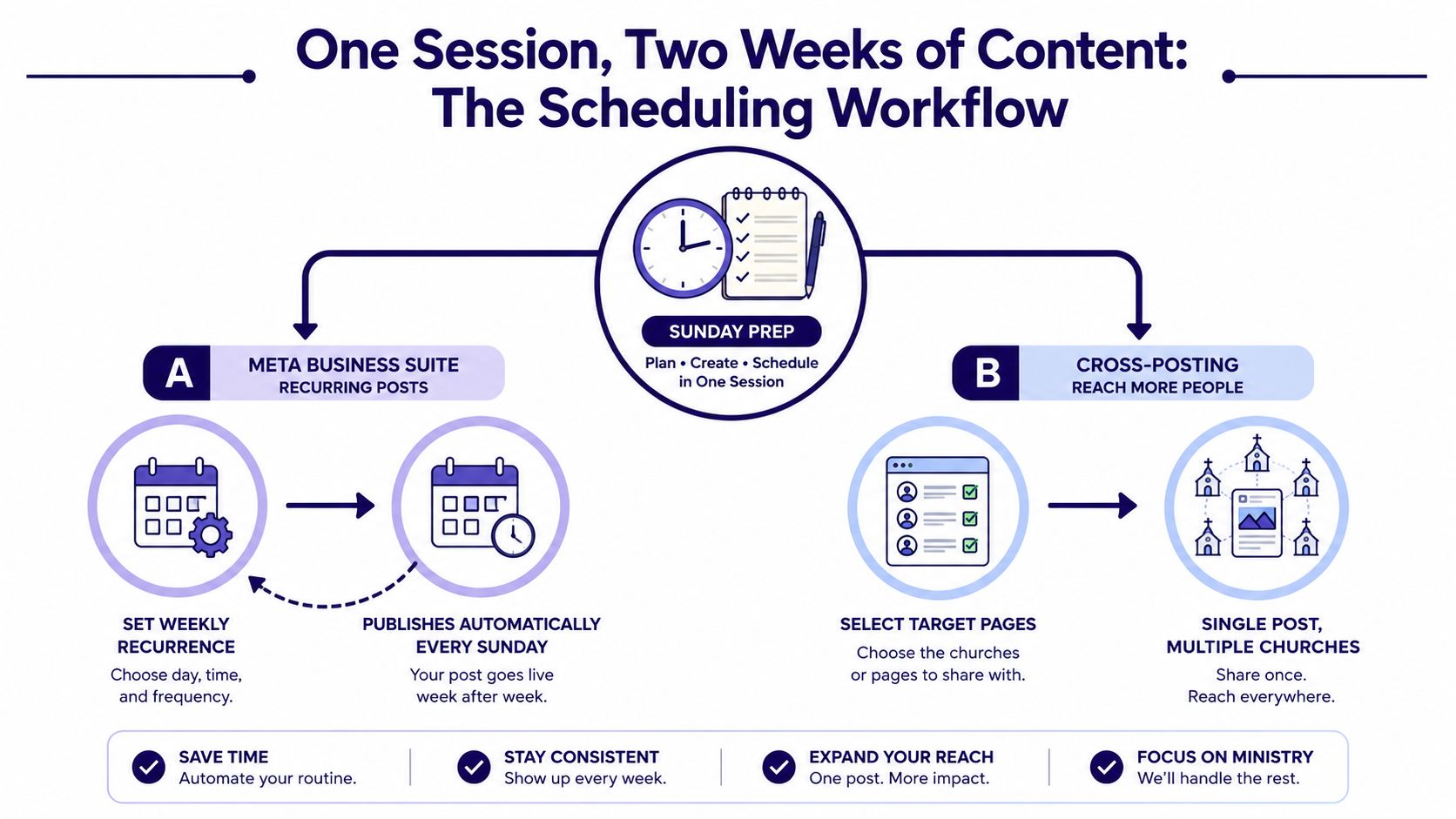
Batching works when you separate repeatable information from content that needs a human touch. A weekly service reminder, small-group notice, or recurring ministry announcement can follow a repeat pattern. A prayer request, sermon excerpt, or pastoral response needs a fresh review before it goes live.
Meta Business Suite supports the scheduling workflow described by Facebook, but recurring content needs careful handling. Set the recurrence pattern, choose an end date, and confirm the time zone. Review the queue whenever seasonal time changes or campus schedules affect the service time. Don't assume a recurring announcement will stay accurate just because the system can publish it automatically.
Build the two-week batch
Use one preparation session to create a balanced queue:
- Evergreen announcement: Prepare the recurring service or group reminder.
- Sermon material: Select several distinct moments from the sermon transcript.
- Ministry invitation: Add one event or volunteer opportunity with a clear next action.
- Conversation post: Write a question that invites members to share an experience or reflection.
ChurchSocial.ai can help churches turn sermon transcripts into social posts, blogs, discussion questions, and other formats. Its AI-generated Reels workflow is also relevant when the team wants to create sermon clips without starting the editing process from scratch every week.
Treat each placement as its own message
For sermon clips, cut short moments in Canva or CapCut, upload them as Reels through the available Meta publishing tools, and write a caption for each placement. A Tuesday clip can focus on the teaching idea, a Thursday clip can connect the message to Sunday, and a Saturday clip can invite people to attend or watch.
Cross-posting to Instagram can reduce duplicate work, but paired placements don't always behave identically. Check the destination selector before scheduling, and treat Stories as a separate publishing task rather than assuming the same post will appear there automatically.
Images should support the message instead of competing with it. Use graphics, church spaces, objects, scenery, or carefully composed details without people whenever possible. If text appears in an image, place it where it makes sense, such as on a paper sign, whiteboard, bulletin, or a deliberate overlay. Don't scatter words randomly across the image. Facebook's current guidance has moved away from a hard text rule, while still saying images with less than 20% text tend to perform better, according to this explanation of Facebook's updated image-text guidance.
What Scheduling Cannot Do for Your Church
A scheduled post is not a finished ministry task. It's a prepared invitation that still needs a person nearby when the community responds.
Recent guidance recommends checking and responding within the first 60 to 120 minutes after publishing, as discussed in this Facebook scheduling operations guidance. That window matters because early comments can shape the conversation, answer practical questions, and show visitors that the church is present rather than broadcasting into an empty room.
Assign the live work
Decide ownership before the post enters the queue:
- Prayer requests: Route these to the designated pastoral or care-team responder.
- Visitor questions: Assign someone who can answer service times, location, accessibility, and children's ministry questions.
- Event logistics: Give event posts to the ministry leader who knows registration, parking, arrival, and cancellation details.
- Moderation flags: Make one staff member responsible for reviewing concerns and escalating anything that needs pastoral judgment.
The responder doesn't need to be the person who created the post. Use a shared inbox, a team message, or a comment-as-Page assignment so the handoff is visible. A calendar entry should include the post owner and the person covering replies, especially when publishing crosses weekdays, weekends, and campus schedules.
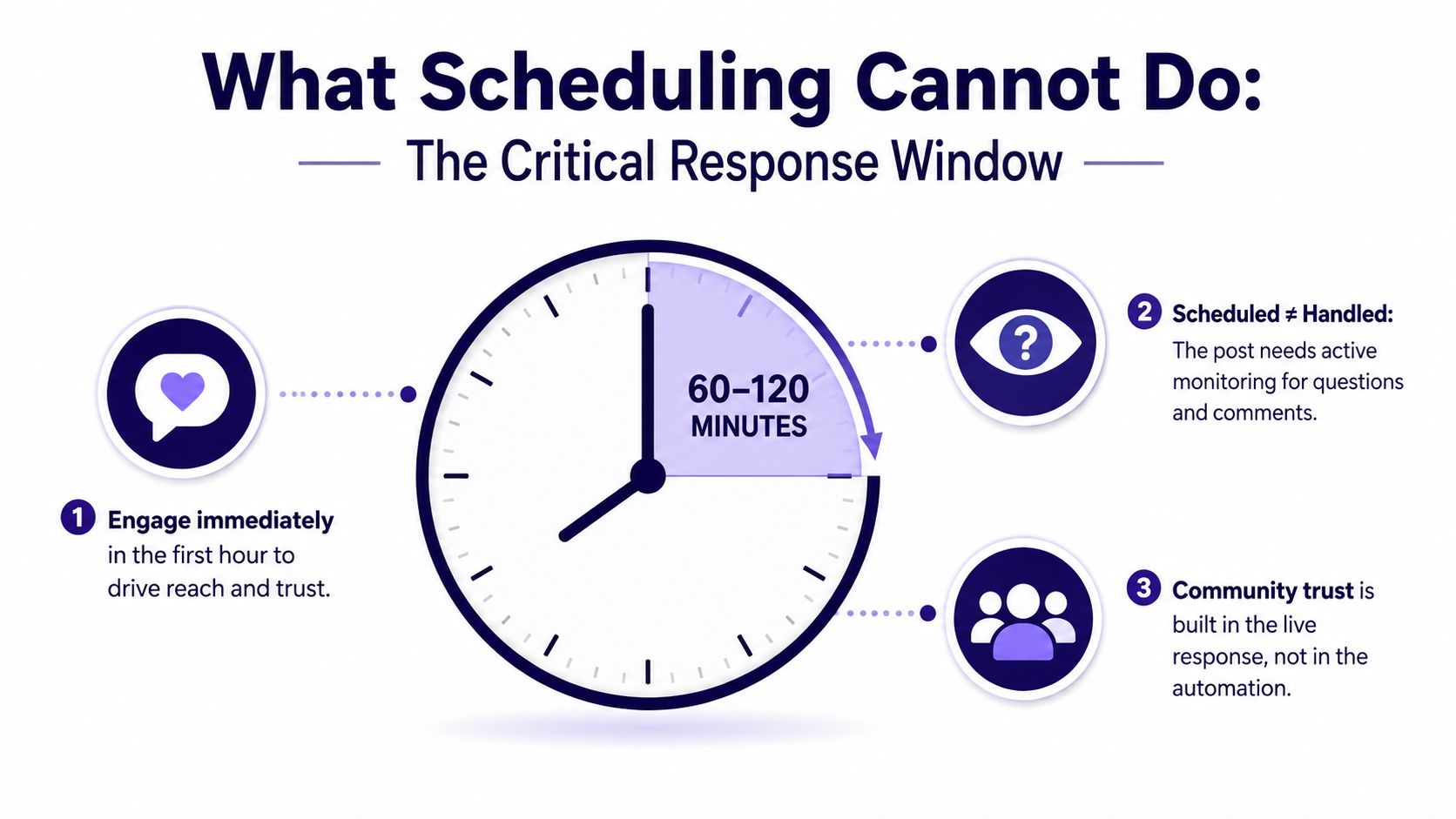
Church teams often lose trust through silence, not through imperfect captions. If a visitor asks whether a child can attend, or someone shares a serious prayer need, an automated publishing system can't provide the warmth, judgment, or follow-through that the response requires.
Scheduling creates space. A named responder turns that space into community.
Treat scheduling as one half of a two-part system. The calendar protects the volunteer from constant last-minute publishing, while the response rotation keeps the Page human after the post appears.
A One-Page Scheduling Checklist and Next Step
Print this list or keep it beside the laptop used for church communications. It's short enough for a volunteer to follow and specific enough for a communications director to audit.
Before the batch
- Confirm Page access: Verify the volunteer has the right Page role and can publish as the church.
- Open the Business Suite calendar: Select the correct Page, check the time zone, and clear outdated drafts.
- Prepare the assets: Keep sermon clips, event graphics, captions, and links in an organized church folder.
- Protect visual clarity: Prefer images without people when possible, and use text only when it belongs in the scene or works as an intentional overlay.
- Choose a responder: Name the person who will monitor comments after each important post.
During the batch
- Reserve a focused block: Batch one week of content in a single working session instead of rebuilding the calendar every day.
- Set the core cadence: Start with midweek morning publishing, then use Page Insights to make local adjustments.
- Schedule inside the native window: Keep long-range ideas in your planning system and move them into Meta Business Suite when they're eligible for scheduling.
- Add repeatable announcements: Use recurrence where the message stays accurate, with an end date and correct time zone.
- Review destinations: Confirm whether each post belongs on Facebook, Instagram, or both, and handle Stories separately.
- Tailor sermon clips: Give every clip its own caption and purpose instead of recycling one block of copy.
After publishing
- Cover the response window: Reserve the first 60 to 120 minutes for comments, questions, prayer needs, and moderation.
- Record useful signals: Note which posts create meaningful replies, not only which posts receive passive reactions.
- Test the workflow manually: Run it for two weeks before deciding whether the process is stable.
- Evaluate the bottleneck: If volunteer handoffs, sermon video, and cross-channel scheduling consume more than two hours per week, assess a specialized system.
For churches that reach that last point, ChurchSocial.ai brings sermon Reels, transcript-based content creation, graphic templates, a visual drag-and-drop calendar, and Planning Center and church-calendar integrations into one workflow. Visit ChurchSocial.ai to see how your team can plan, create, schedule, and hand off Facebook content without rebuilding the calendar every week.