It's 8:47 p.m. on Saturday. A church volunteer is finishing the bulletin slide, answering two Facebook messages, checking Sunday's Instagram post, and suddenly notices that Google still shows a service time from 2019. The church's Facebook page is active, the YouTube sermon is ready, and the campus calendar is accurate, but the listing a new neighbor may see first is sending the wrong message.
That listing is managed through Google Business Profile, formerly Google My Business. For churches, it's the local-search layer that connects your address, service times, photos, reviews, events, phone number, and directions to Google Search and Google Maps. The challenge isn't understanding why it matters. The challenge is keeping it current without asking one volunteer to operate another disconnected publishing system.
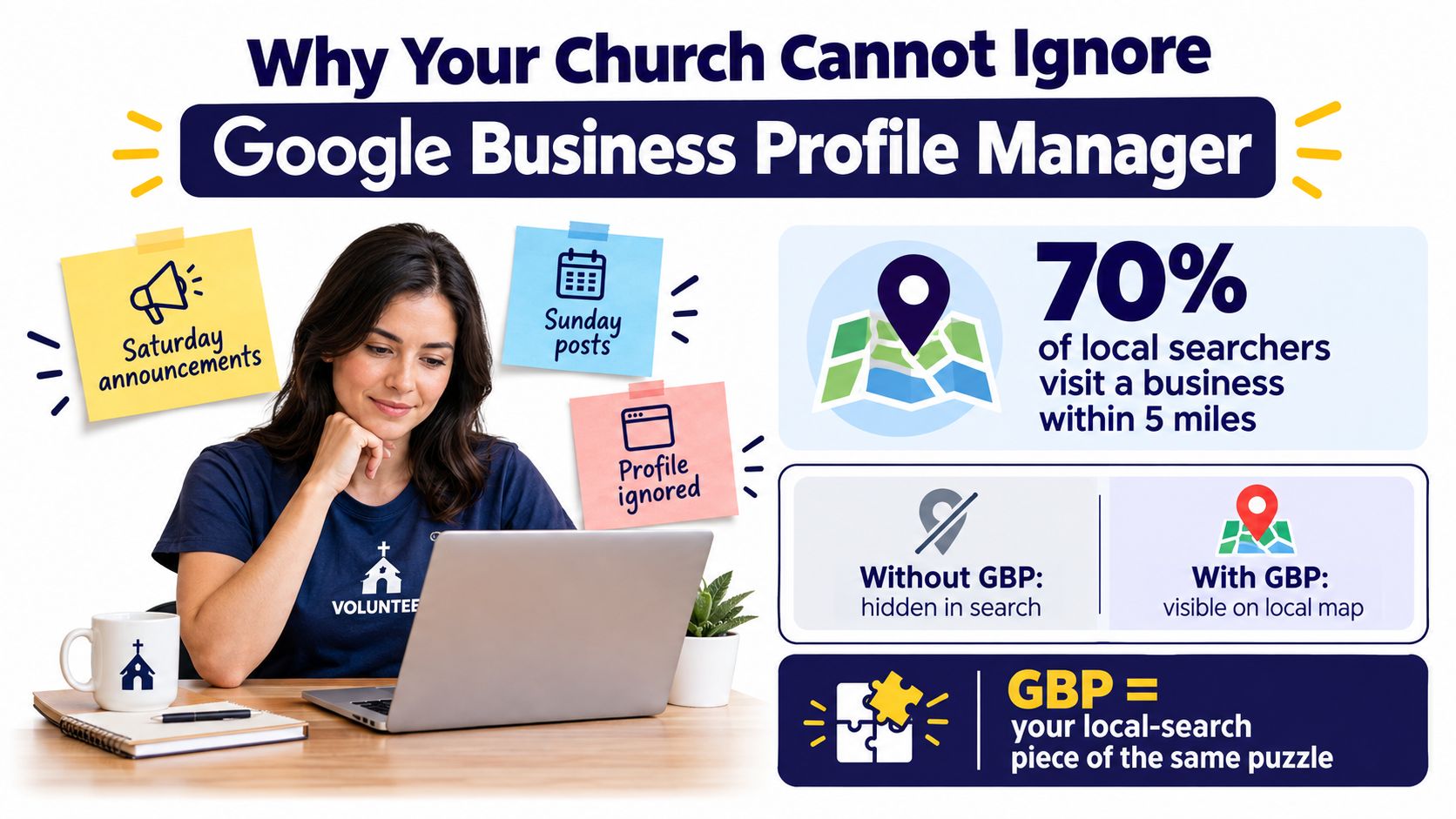
Why Your Church Cannot Ignore Google Business Profile Manager
A church's Google presence often becomes its unofficial welcome desk. Someone searches for “church near me,” checks the map, scans the photos, looks for Sunday hours, and decides whether the building feels open and trustworthy. If the profile is incomplete or stale, that person may never reach the church website, watch a sermon, or see the congregation's carefully planned social content.
Google has taken this business listing product through several major changes. It launched as Google Local Business Center in 2005, became Google Places, then Google My Business, and was renamed Google Business Profile in November 2021. In 2022, Google retired the standalone management app and shifted profile management into Google Search and Google Maps, while the dedicated Business Profile Manager became primarily useful for businesses with 10 or more locations. This product history and workflow shift matters because the system is no longer just a small-business dashboard. It now functions as broader infrastructure for managing local presence.
Know which Google surface to use
There are two experiences to understand before you train a volunteer.
Google Search and Google Maps are the public-facing surfaces. Searchers see the listing there, and a signed-in church administrator can often search for the church's name to edit profile details, add updates, upload photos, or respond to reviews.
Business Profile Manager, found at business.google.com, is the administrative workspace for owners, managers, and site managers. It supports location organization, profile editing, posts, reviews, media, performance information, and user access. Older training documents may point volunteers to the old Google My Business app or outdated URLs. Those instructions may now redirect or fail, so update your internal documentation.
The practical access tiers are Primary owner, Owner, Manager, and Site Manager. Owners handle ownership transfers and user control. Managers generally handle daily profile work without controlling the listing itself. Treat role transfers carefully. If a team removes or mishandles the only Primary owner, recovering the profile can become an urgent operational problem.
Business Profile Manager also isn't Google Ads, Merchant Center, or YouTube Studio. Those products may use the same Google account, but they have separate tools, permissions, and workflows. Review alerts, post activity, and profile performance now belong in the current management experience and optional email notifications, not in the retired app.
Turn local visibility into a repeatable rhythm
The local-search flywheel is straightforward. Accurate information helps a person find the church on Maps. A visible phone number supports calls. Directions help a visitor reach the building. Current photos and thoughtful review responses reduce uncertainty. Recent posts show that the congregation is active.
Google Business Profile has reached enormous scale. For 2026, estimates place worldwide listings at approximately 225 million to 230 million, with roughly 6% to 7% year-over-year growth and about 28,000 new profiles created daily, according to Google Business Profile statistics from WiserNotify. A separate 2025 to 2026 estimate places usage at about 18 million U.S. businesses, approximately half of U.S. businesses with employees, from the same source. For a church, the point isn't to compete like a retail chain. It's to recognize that Google's business identity system is where local discovery increasingly happens.
A dormant listing favors organizations that maintain theirs better. Church teams shouldn't treat GBP as a one-time setup. They need a small operating routine that fits beside Facebook, Instagram, YouTube, and TikTok. ChurchSocial.ai can help churches plan content across those channels, turn sermon material into social assets, use graphic templates and an editor for images and carousels, and place everything on a drag-and-drop calendar so Google doesn't become another orphan tab.
For a broader operational perspective, GMB management strategies for 2026 offers useful context on maintaining profiles as an ongoing management responsibility. Churches should also connect this work to their wider local search optimization approach, rather than treating the listing as separate from their website and social presence.
Open the manager and expect a left-rail navigation that includes Edit profile, Posts, Reviews, Photos, Insights, Users and access, and Ads. Ads may be unavailable or irrelevant for many churches. The rest of the menu is where a volunteer claims, verifies, updates, publishes, replies, measures, and hands off the profile.
Operational rule: If a volunteer has to search for the right dashboard every week, the process is already too fragile. Put the access link, owner details, review routine, and handoff instructions in one shared church document.
Claiming and Verifying Your Church Profile the Right Way
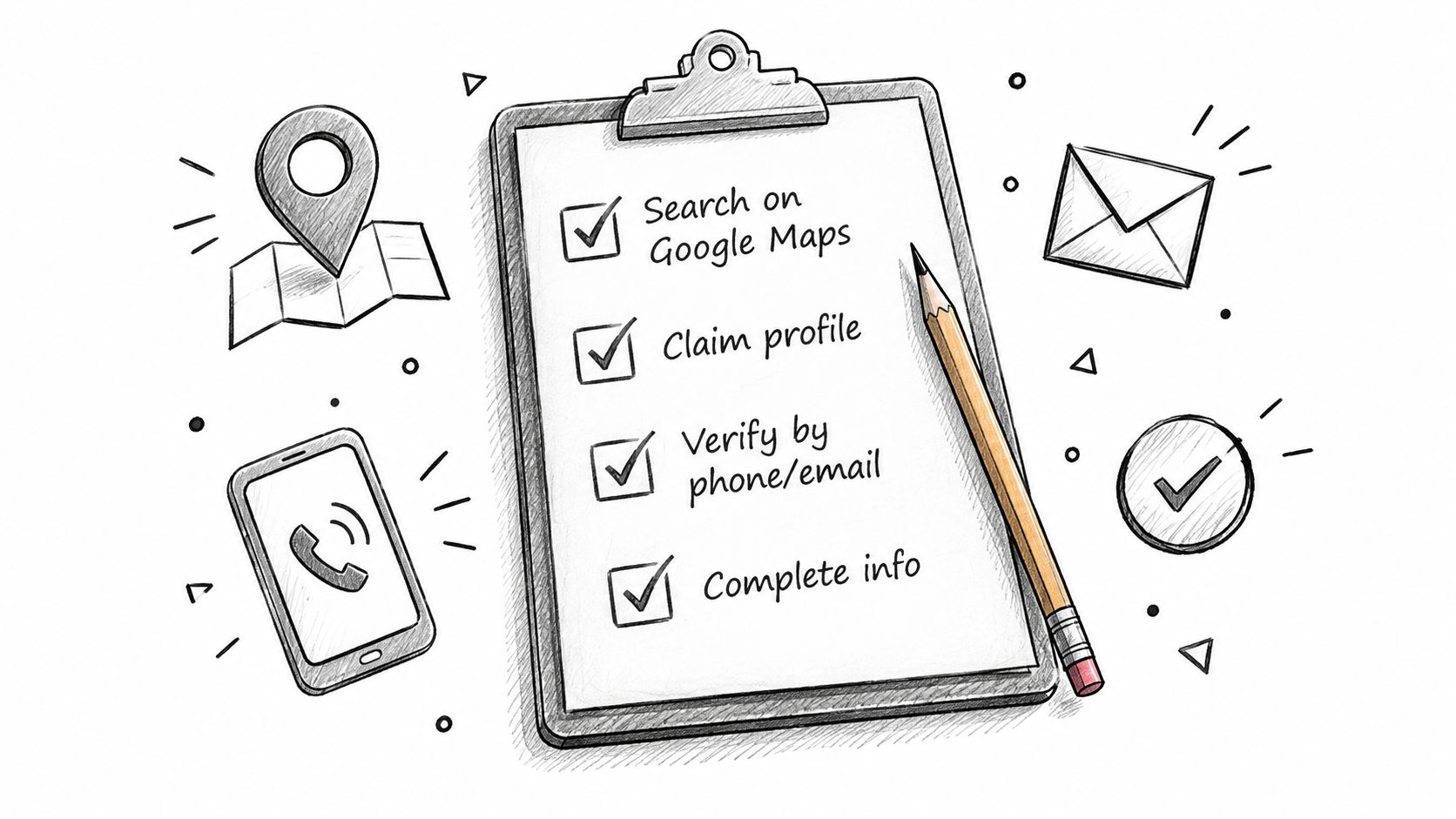
Start with Google Maps, not a blank setup form. Search the church's exact name and address, then inspect the result carefully. If a profile already exists, request management access rather than creating a duplicate. Duplicate listings split information and create confusion for both visitors and administrators.
If no profile exists, use business.google.com/setup and sign in with a church-owned Google Workspace account or dedicated Gmail address. Don't build the church's permanent identity around a volunteer's personal email. When that volunteer moves, the church shouldn't have to reconstruct ownership from memory.
Complete the profile in a fixed order
Use this checklist and give it to every new administrator:
Choose the primary category. Start with Church, Christian Church, or nondenominational church when accurate. Add Religious Organization, Wedding Chapel, or Community Center only if the church provides those services.
Match the NAP data. Enter the exact Name, Address, and Phone number used on the church website and physical signage. Use a number that reaches the church office or an intentionally monitored reception line.
Set the full schedule. Include Sunday services, Saturday gatherings, midweek programs, office hours, and holiday special hours. A visitor who arrives at a locked building because Google displayed the wrong schedule has received a poor first experience before meeting anyone.
Write a useful description. Explain who the church serves, identify the pastor or denomination when relevant, and tell first-time visitors what they can expect. Keep the language factual and welcoming.
Add real media. Upload the current logo, a cover image, and exterior and interior photos. Avoid heavily altered imagery. For technical specifications, Google's Business Profile photo guidance recommends JPG or PNG files between 10 KB and 5 MB, with 720 × 720 pixels recommended and 250 × 250 pixels as the minimum. Images should be focused, well lit, and representative of reality.
Complete verification. Choose the method Google offers, such as postcard, phone, email, or video. A postcard may take 5 to 14 days, so don't begin the process the day before a major outreach event.
Verification delays usually point to mismatched information or weak trust signals, not random bad luck. Google notes that bulk verification can be delayed by errors or quality guideline violations, and missing data, upload limits, or incomplete location feeds can stall the process. This verification troubleshooting discussion also highlights NAP inconsistency, ineligible addresses, edited verification footage, missing signage, and insufficient location proof as recurring operational problems.
For another practical setup perspective, Prescott Google Business Profile help provides a useful walkthrough of claiming and completing a listing. Before submitting verification, make sure the profile details match the church's real-world signs, documents, and website exactly.
Managing Multiple Campuses and User Roles Safely
Multi-campus churches need an ownership map before a volunteer leaves, not after. Open Business Profile Manager, find the location, select the three-dot menu, and choose Manage managers. Invite users by their church Gmail or Google Workspace address, then assign only the access they need.
Owners can add locations, transfer ownership, and remove users. Managers can edit profile information, publish posts, upload photos, and respond to reviews, but they shouldn't control core ownership decisions. A Site Manager can receive narrower access where that role is available.
Build the role structure before launch
Assign a Primary owner to each campus and designate a second trusted Owner as backup. Store the ownership record in a controlled church system, such as a ChurchSocial.ai workspace or Planning Center People record, with recovery contacts documented separately. Never share one password across the team when Google's role system can provide individual access.
Remove departing volunteers promptly. Don't leave an ex-volunteer attached because “they might still help someday.” Also avoid treating bulk verification as a shortcut if it concentrates every campus under one person or one fragile address. Access convenience can become recovery risk.
| Role | Can Edit Listing | Can Post & Reply | Can Manage Users | Recommended For |
|---|---|---|---|---|
| Primary owner | Yes | Yes | Yes, including core ownership actions | Lead pastor, executive administrator, or central church account |
| Owner | Yes | Yes | Yes, within assigned ownership controls | Communications director or campus executive |
| Manager | Yes | Yes | Limited or no ownership control | Campus administrator or trained volunteer |
| Site Manager | Limited, where available | Limited, where available | No | Staff member handling defined local tasks |
Keep the matrix visible in the church's communications documentation. A lead pastor may need continuity and recovery authority. A communications director may coordinate publishing across campuses. A campus admin may handle service times, photos, events, and reviews. A read-only reviewer should inspect accuracy without receiving unnecessary edit privileges.
Access principle: Every profile should have a church-controlled primary owner, an accountable backup, and a documented removal process. Volunteer goodwill isn't an access-control system.
Creating Posts, Handling Reviews, and Uploading Photos
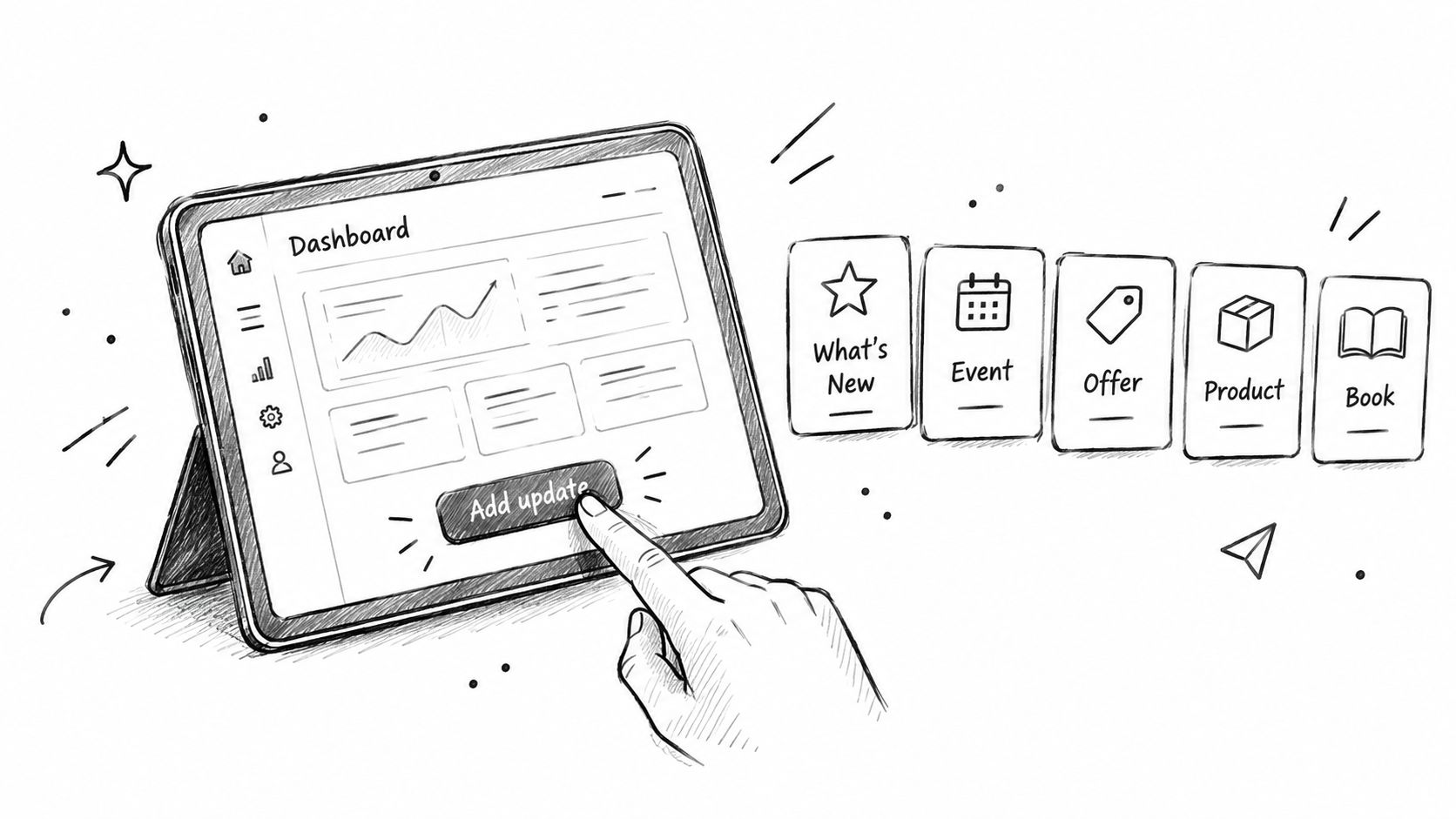
Treat the GBP dashboard as three small habits, not a second marketing department. A volunteer can open Posts, select Add update, and publish timely information that supports the church's broader content plan.
For churches, four post formats are especially practical:
- What's New: Share sermon themes, ministry announcements, community updates, or a new blog post.
- Event: Promote an outreach night, worship gathering, class, or holiday service with the correct date and time.
- Offer: Use this carefully for campaigns such as Christmas or Easter invitations when the content fits an offer-style format.
- Question: Invite a simple response around a common visitor concern or ministry topic.
Write the first sentence for the Search preview, then add one clear action such as Get directions or Call. Don't paste an entire bulletin into a post. Link the post to the most relevant page, not always the homepage.
Make reviews part of pastoral care
Open the Reviews tab and respond consistently. Thank people for specific positive feedback. If someone describes a poor experience, acknowledge the concern without arguing in public, then invite a private conversation through the church office. Never pressure members to manufacture praise or coordinate artificial review activity.
A review response also gives future visitors a glimpse of the church's posture. A calm, gracious reply can communicate more than a defensive explanation, especially when the original complaint remains visible.
Upload authentic photos
Google's photo standards favor clear, well-lit images that show reality. For churches, that usually means the entrance, signage, sanctuary, children's check-in area, worship space, parking approach, and ministry rooms. Images should avoid people whenever possible, especially when permissions are unclear. Use text only when it naturally belongs in the scene, such as lettering on a sign, paper, or whiteboard. If a graphic needs a message, add the text as an intentional overlay rather than placing random words inside the image.
For technical consistency, Google's published standards support a square 1:1 image at 720 × 720 pixels as the recommended size for many profile-image workflows, as described in Google's desktop photo guidelines. Keep a current logo, cover image, and fresh campus photography available for scheduled updates.
A church that needs a repeatable publishing workflow can use this guide to optimizing a Google Business Profile alongside its internal content calendar. The goal is simple: keep the profile current enough that a visitor sees the church as it operates now, not as it existed years ago.
Reading Insights Without Drowning in Data
Most church teams open Insights once, see several charts, and close the tab. That approach wastes the useful part of the data. You only need a small monthly review that connects Google activity to decisions the communications team can make.
The three views that matter
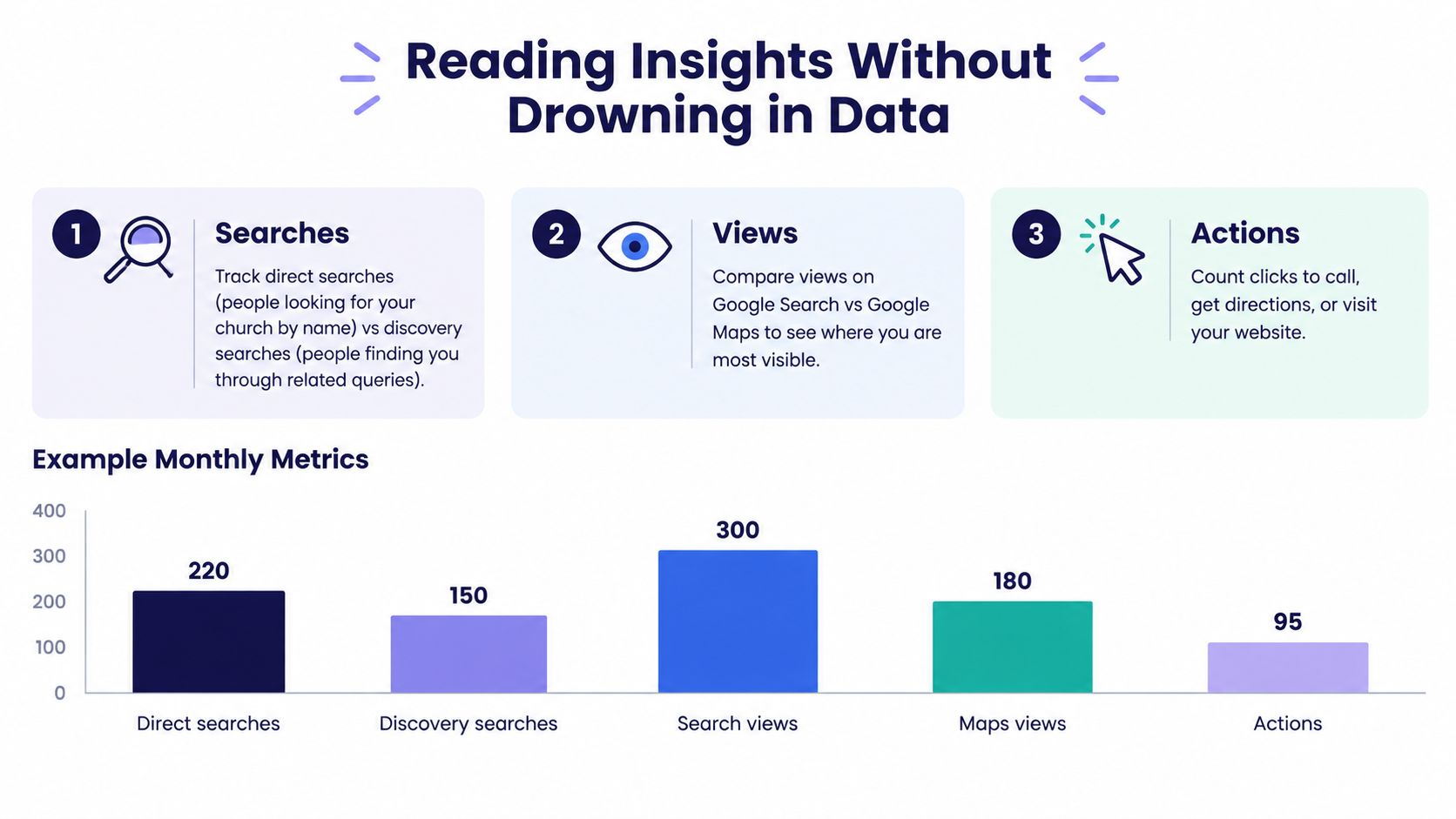
Searches tell you how people found the profile. Direct searches usually reflect people looking specifically for the church by name. Discovery searches indicate that people encountered the church through broader or related searches.
Views show whether people saw the profile on Google Search or Google Maps. A strong difference between the two surfaces can tell you where the listing is receiving attention.
Actions represent practical next steps such as calls, direction requests, and website visits. These matter more than chasing large impression totals because they show movement toward contact or attendance.
Use a 15-minute review
Open Insights once a month and screenshot the Actions totals. Compare the current period with the previous period and, where your reporting history supports it, with the comparable period from the prior year. Look for a meaningful increase, decline, or change in the mix rather than celebrating a vanity total.
Then write one observation in the ChurchSocial.ai content plan. If direction requests rise around event posts, schedule more location-focused event information. If website visits increase after sermon-related updates, connect future Google content to the sermon workflow. If nothing moves, don't automatically publish more. Check whether the profile information, call-to-action, destination page, and service schedule are accurate first.
Connecting GBP to ChurchSocial.ai and Planning Center
The most useful church workflow puts Google Business Posts beside the rest of the weekly communication plan. A volunteer shouldn't have to remember one process for Facebook, another for Instagram, another for YouTube, another for TikTok, and a separate forgotten routine for GBP.
Start by connecting the church's Google Business Profile location to the appropriate ChurchSocial.ai workspace. Use the church-controlled Google account, grant the minimum access required for publishing, and confirm that the correct campus is mapped before scheduling anything. Publish a test update first. Check the public profile, link, image, and call-to-action, then approve live scheduling.
Put every channel on one calendar
ChurchSocial.ai's drag-and-drop calendar can place Google Business Posts alongside Facebook, Instagram, YouTube, and TikTok. That gives the volunteer one weekly view of announcements, sermon content, event reminders, short-form video, and campus updates instead of a collection of disconnected tabs.
The platform can create AI-generated reels from sermons and turn a sermon transcript into social posts, blogs, and other content formats. Its graphic templates and editor support branded photos and carousels. For a church team, the practical use is repurposing one approved message into channel-specific assets, then reviewing those assets before publication.
A sermon clip can become a Google What's New post with a concise caption and a call to action leading to the livestream or sermon page. Keep the Google version focused. Don't copy a long Instagram caption into a listing update because the source material already exists.
Connect Planning Center events
Planning Center Calendar supports importing an iCal file from Google or Outlook, so a church can bring existing calendar information into its workflow instead of recreating every event manually. Planning Center also supports sharing calendar events in Church Center and embedding calendars with layout, campus, and category filters, which helps congregations access the same event information across church-facing channels.
Use the Planning Center integration workflow to map campuses and event categories deliberately. Confirm how service times, addresses, event titles, and special gatherings should appear before enabling recurring updates. A calendar sync should reduce duplicate entry, not distribute an incorrect event everywhere.
The communications director should own an approval queue for multi-campus publishing. Campus admins can draft and propose. The central reviewer checks dates, locations, links, images, and tone. Once approved, the content can move across the selected social channels and Google location without asking a volunteer to retype the same announcement repeatedly.
A 30-Day Church Launch Plan and Handoff Checklist
Use four working weeks to establish control without exhausting one volunteer.
Week one
Claim the existing listing or create the correct profile. Verify the church-owned account, correct Name, Address, and Phone data, add service and office hours, and upload a current logo and representative exterior image. Begin verification early if Google offers a method that requires waiting or additional evidence.
Week two
Assign the Primary owner, backup Owner, campus Managers, and any limited Site Managers. Enroll the responsible accounts in two-factor authentication, record recovery contacts, and remove former volunteers. Document the campus-to-profile mapping in the church's shared administration records.
Week three
Publish the first three Google updates. Use different purposes, such as a service invitation, a community event, and a sermon or ministry update. Establish the review response routine, decide who handles concerns privately, and capture a baseline Insights screenshot for later comparison.
Week four
Turn on the ChurchSocial.ai scheduling workflow, connect Planning Center event information, and build an approved AI caption library for recurring church content. Test the approval queue before assigning a volunteer full publishing responsibility.
Print or store a final handoff checklist containing:
- Login custody: Primary owner, backup owner, recovery contacts, and current managers.
- Content cadence: Who drafts, who approves, and where the weekly calendar lives.
- Review routine: Who monitors reviews and how concerns are escalated.
- Monthly reporting: The date for checking Searches, Views, and Actions.
- Core decisions: Search appearance direction, direction requests to the building, and phone calls during office hours.
Repeat the handoff after every volunteer transition. The church should retain its access, calendar logic, content templates, and reporting history even when the person managing them changes.
ChurchSocial.ai gives church teams one place to turn sermons into reels and written content, design branded photos and carousels, schedule Google Business Posts beside Facebook, Instagram, YouTube, and TikTok, and connect event information from Planning Center. Visit ChurchSocial.ai to organize your church's next 30 days of local and social communication without leaving GBP as another forgotten tab.