There’s nothing worse than crafting the perfect Reel for your ministry, saving it as a draft for later, and then… it’s gone. Poof. Vanished after an app update or a simple log-out. For any church communications team, that’s not just a minor annoyance; it’s a frustrating loss of valuable time and creative effort.
While Instagram doesn’t exactly give you a big, shiny “download draft” button, getting that video off the app and onto your device is essential. It’s the key to better approval workflows, smarter content repurposing, and frankly, a lot less stress.
Why Your Church Needs a Solid Reels Draft Workflow
Let’s be real: for most church staff and volunteers, social media is just one of many hats you wear. You’re already stretched thin. The last thing you need is to lose a beautifully edited sermon clip or a powerful testimony video and have to start from scratch.
Having a dependable way to download your Reels drafts is more than just a backup plan. It’s a core piece of an effective digital ministry strategy.
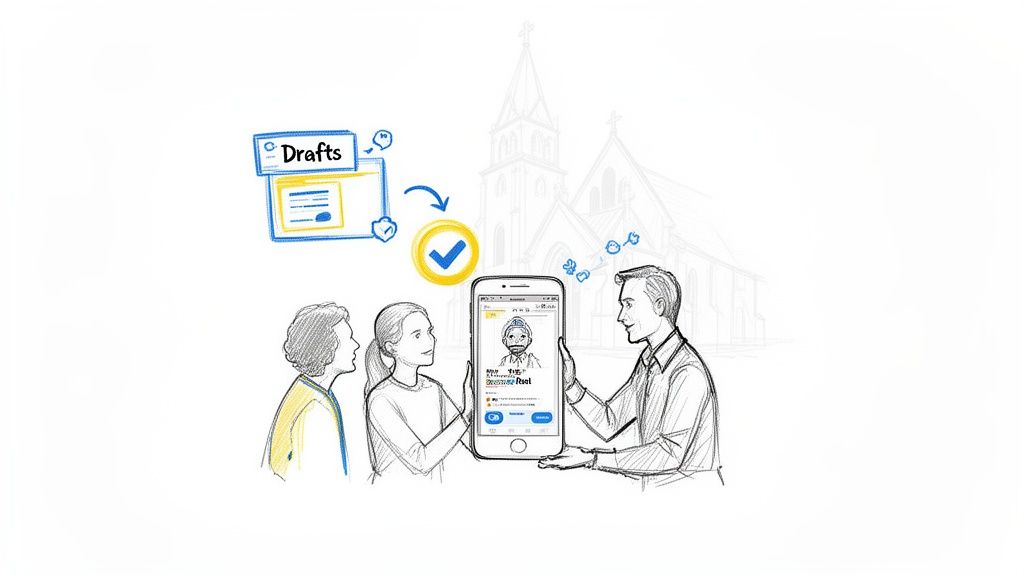
Think about the practical side of things. A volunteer creates an amazing Reel for the upcoming youth event, but it needs the pastor's final look-over. Instead of juggling account logins and passwords (which can be a security nightmare), they can just download the draft and send the video file directly for approval. Simple, secure, and efficient.
It’s Way More Than Just a Backup
Once you have a local copy of that Reel, it unlocks a ton of potential for your church's message. That one video file can now be used for:
- TikTok and YouTube Shorts: Take your content to different audiences where they’re already scrolling.
- Your Church Website: Add some life to your homepage or events page with an engaging video.
- Email Newsletters: Drop a short clip into your next email to boost engagement and point people back to your social channels.
This multi-platform mindset is crucial. In a recent study, while the frequency of Reels posts shot up by 35%, the average reach per post actually dropped. This means every single piece of content has to work harder for you. You can dig into more trends like this over on Metricool's blog. A smart drafting and downloading process ensures your hard work makes the biggest possible splash for the Kingdom.
A downloaded Reel draft is the first step toward building a centralized content library. Instead of being trapped on one person's phone, your church's stories become a shared asset, ready to be used whenever and wherever they're needed most.
Ultimately, turning this simple task into a regular habit helps amplify your ministry's voice. When your drafts are safe, you can spend less time re-creating lost work and more time planning what’s next. With ChurchSocial.ai, churches can create AI-generated Reels from sermons, develop social posts from the transcript, and use a simple drag-and-drop calendar to manage everything. This is where tools that offer content automation can be a game-changer.
The "Official" Way to Download Your Reels Drafts
Instagram actually has a built-in way to save your video masterpiece before you send it out into the world. This should always be your first stop when you need to get a copy of your work, whether it’s a quick sermon highlight or an announcement for the upcoming potluck.
It's a pretty simple process, which is great because it means any volunteer or staff member can handle it without a ton of training.
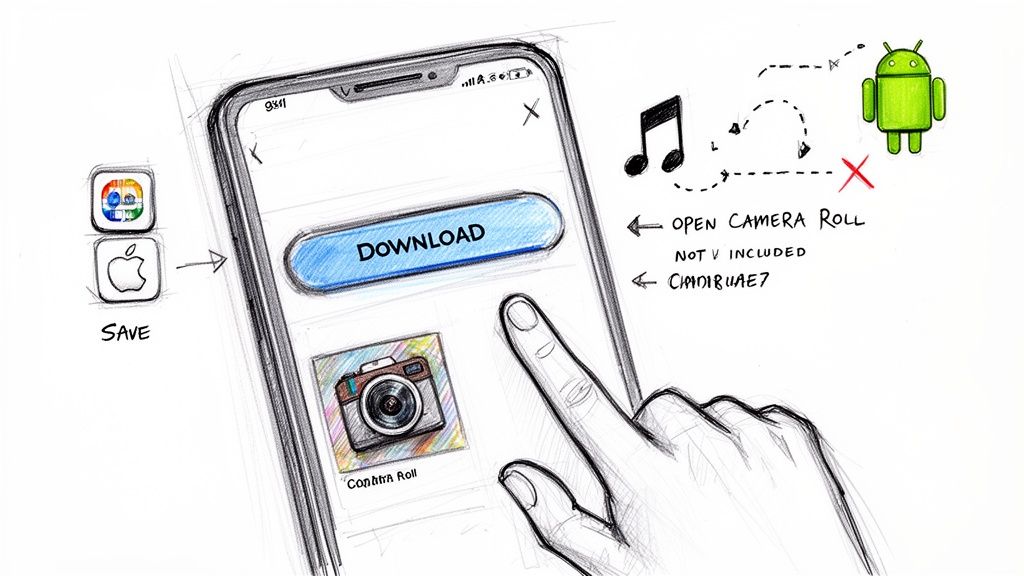
Right before you tap that final "Share" button, keep an eye out for a little download icon. It usually looks like a downward-pointing arrow. This tiny button is your key to saving the video directly to your phone's camera roll.
Just tap it. Instagram will do its thing and save a clean copy of the video file right to your device. It’s designed to be a quick, one-tap solution.
How to Find it on Your Phone
Now, Instagram likes to move things around with app updates, but this download button is almost always on one of the final editing screens—after you’ve added all your clips, text, and effects, but before you actually publish.
- On an iPhone (iOS): You’ll typically see the download icon at the top of your editing options on the last screen where you write your caption and add hashtags.
- On an Android: The location is pretty much the same as on an iPhone. Look for it on that final "Share" screen before you post.
Tapping that button gives you an actual video file you can then share with the team for feedback or upload to another platform.
Here's the catch, and it's a big one: audio. If you used a trending song from Instagram’s music library, the downloaded video will have no music. Due to licensing rules, the downloaded video will be completely silent.
This is a huge deal for church teams. It means the powerful worship song you added will be stripped right out, leaving only your original clip audio.
To avoid this headache, it’s best to add your own approved, royalty-free music before you even start building the Reel in Instagram. An even better workflow is to manage everything—sermon clips, approved music, and graphic overlays—in one central place. This is exactly what a tool like ChurchSocial.ai is built for. It lets your team create powerful Reels with pre-approved audio and visuals from the get-go, so there are no last-minute surprises.
Creative Workarounds When Direct Download Is Not Working
We’ve all been there. You’ve crafted the perfect Reel, but for some reason, the download button is nowhere to be found. It could be an app glitch, a weird update, or some other mystery, but the result is the same: your hard work is stuck.
When the standard method fails, don't panic. You just need a solid Plan B to get that video saved so you can move it into your church’s workflow for approvals or scheduling.
Try Screen Recording Your Draft
Your phone’s built-in screen recorder is your best friend in this situation. It's a surprisingly simple and effective solution.
Just open your Reel draft, tap to preview it in full-screen, and hit the record button on your phone. Let the entire video play through from beginning to end.
Once you stop the recording, the video is saved right to your camera roll. You'll just need to do a quick trim to snip off the beginning and end where you see the phone's interface. For more tips on editing video, our guide on how to cut clips from YouTube videos shares some principles that apply here, too.
The quality you get from screen recording is genuinely impressive, especially on newer phones. This is also the best method for capturing Reels that use a lot of stickers, polls, or other interactive elements that often get lost with other download tricks.
Use the Share to Story Trick
Here’s another clever little workaround that uses the Instagram Stories feature. Instead of trying to save the Reel directly from the editor, you’re going to act like you're posting it as a Story.
It sounds strange, but it works like a charm.
- First, open your Reel draft and go all the way to the final sharing screen.
- Instead of being on the “Reels” tab, tap over to the “Stories” tab.
- Go ahead and tap “Share.” This will post your Reel draft to your Story.
- Immediately go view your Story, tap the three dots in the corner, and select “Save Video.”
- As soon as it’s saved, you can delete the Story—most of the time, no one will have even seen it.
This whole process is incredibly fast. Once the video is safely on your phone, you can upload it into a central hub like ChurchSocial.ai. That way, your entire team can access the file, let AI write some caption ideas, and schedule it across all your church's social media accounts from one simple calendar.
Building a Smarter Reels Workflow for Your Ministry
Downloading a Reel draft isn't just a technical trick—it's the first step toward building an organized, strategic content engine for your church. When you move beyond the chaos of last-minute posting, you open the door to creating more intentional and impactful content for your community.
Think about it. A volunteer edits a powerful clip from the Sunday sermon. Instead of leaving it trapped in their personal Instagram drafts, they download it. Suddenly, that video file can be easily shared with the ministry team for review and approval. No more passing around account passwords.
From a Single Clip to a Coordinated Campaign
This is where your workflow can truly shine. Once that sermon clip or event promo is downloaded, it transforms from a one-off post into a versatile asset for your ministry.
Using a platform like ChurchSocial.ai, you can upload your sermon and have AI generate sermon clips, social posts, blogs, and more. Then use our graphic templates and editor to create photos and carousels. Finally, you can simply drag and drop the finished post onto your content calendar to schedule it for the perfect time.
When the direct download feature acts up (and we know it does), having a backup plan is key. This simple workaround always gets the job done.
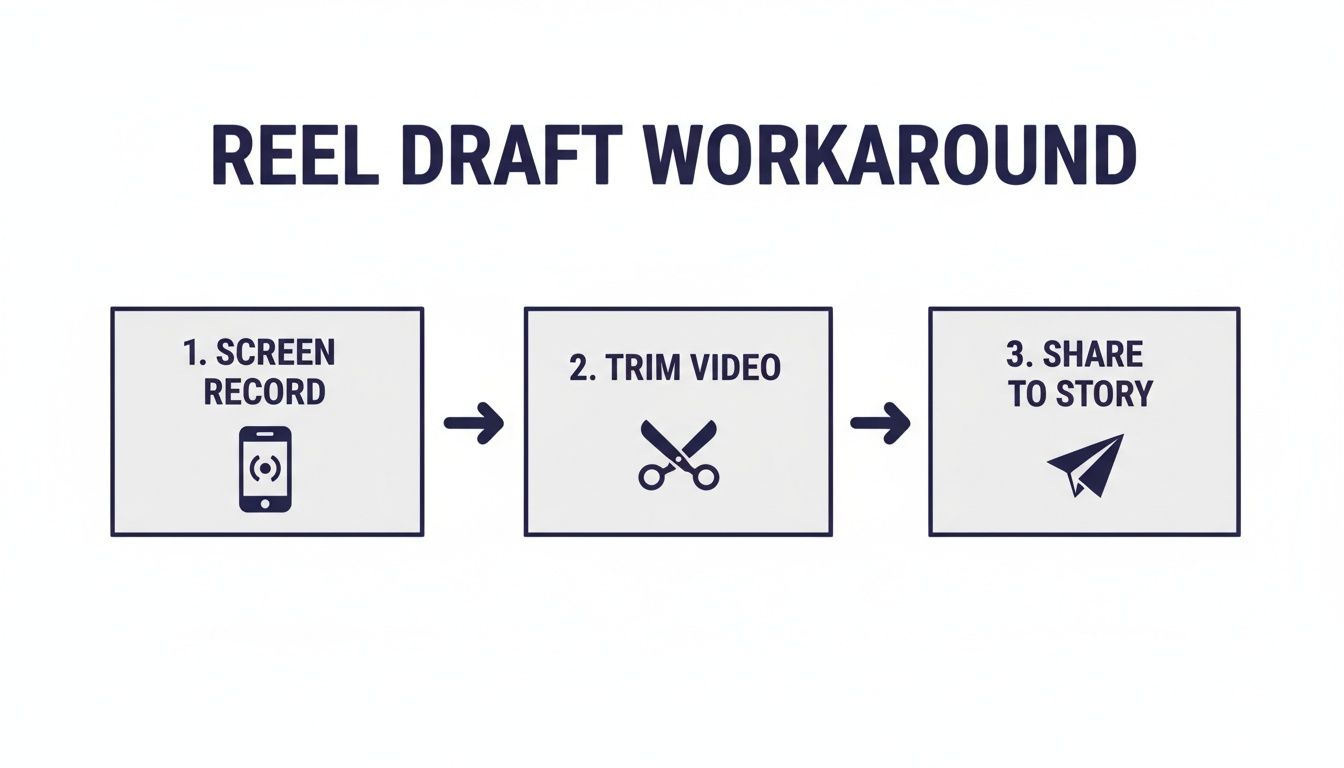
Each part of this process—screen recording, trimming, and sharing—ensures you can always secure your video content and plug it into your broader strategy.
Your church's message deserves more than a single post. A solid workflow ensures that one piece of content, like a downloaded Reel draft, can be repurposed and scheduled across multiple platforms, maximizing its reach and impact without demanding hours of extra work.
Leveraging Data for Greater Reach
Timing is everything on social media. People play over 200 billion Reels every single day across Instagram and Facebook. While the average Reel gets plenty of views, we see a huge jump in engagement on Sundays, making it a prime time to share faith-based content. Understanding these patterns helps you post when your community is most likely to be listening.
With ChurchSocial.ai, this becomes much easier. It can automatically turn a full sermon into several engaging, shareable Reels. You’re not just creating video; you’re feeding the algorithm what it loves, which can seriously expand your church's digital footprint. It’s all about working smarter, not harder. For more ideas, check out our guide on how to repurpose content with AI.
To really level up your content strategy, look for ways to streamline your process and even automate Reel sending to maximize your impact.
Traditional Reels Workflow vs ChurchSocial.ai Workflow
Putting a system in place completely changes the game for busy church staff and volunteers. It shifts the focus from just making content to strategically managing it. Here’s a quick look at how an integrated platform streamlines the entire process.
By centralizing your tools, you free up valuable time that can be reinvested into other areas of your ministry, all while creating a more consistent and powerful online presence.
Got Questions About Reels Drafts? We've Got Answers.
Juggling Instagram Reels for your church can bring up some tricky technical questions. If you've ever felt stuck trying to get a draft off your phone and into your content calendar, you're not alone. Here are some quick, clear answers to the most common roadblocks ministry teams run into.
"Why Did the Music Disappear from My Downloaded Draft?"
This is hands-down the most common frustration, and the reason is simple: music licensing. When you pick a trending, copyrighted song from Instagram’s music library, Instagram doesn't have the legal rights to let you save a copy of that audio file to your phone. So, when you export the video, it's completely silent.
The easiest way around this is to use original audio your church owns. Think voiceovers, a powerful clip from the Sunday sermon, or worship music your church has the license to use.
For a smoother workflow, it's a great practice to manage all your approved audio and video clips in a central hub like ChurchSocial.ai before you even start building the Reel. That way, you know every element is cleared for use and won't cause any last-minute headaches.
"Can I Download a Reels Draft on My Computer?"
Unfortunately, no. Instagram was built from the ground up as a mobile-first app, and all of its draft features are locked to your phone or tablet. Trying to find and download a draft from your desktop is a guaranteed dead end.
So, what’s the best workflow for a church team? Have one person handle the mobile-only part: creating and downloading the draft. Once they have the video file, they can immediately upload it to a shared drive or, even better, directly into your ChurchSocial.ai media library. This makes the video instantly available for the rest of the team to write captions or schedule it from their own computers.
"How Do I Get the Best Possible Video Quality?"
You want your church’s message to look as clear and professional as it sounds. Luckily, there's a simple setting in the Instagram app you can flip on to make a big difference.
Just head to your Profile > Settings and Privacy > Media Quality and make sure the toggle for "Upload at highest quality" is switched on.
While this setting is technically for uploads, it seems to help maintain better quality for all media you're working with inside the app. And if you ever have to use the screen recording workaround, double-check that your phone's screen recording resolution is set to the highest option (like 1080p). A quick check here prevents that fuzzy, pixelated look.
Saving a draft inside Instagram is fine for quick ideas you plan to finish and post right away. But for planned ministry content that needs team approval or will be repurposed for your website or Facebook, always download the video. This gives you a master file that isn't trapped inside a single app.
"Is It Better to Save a Draft or Download the Video?"
Think of it this way: saving a draft is like putting a file on a temporary sticky note, while downloading the video is like saving it permanently to your hard drive. A draft is vulnerable—it can disappear with app glitches or random updates, which is a nightmare for a busy ministry team.
The best practice for churches is a simple two-step process:
- Create and edit your Reel inside the Instagram app.
- Download the final video file to your phone before you post it.
This gives you a secure copy of your work that can be uploaded to ChurchSocial.ai for scheduling, captioning, and sharing across all your platforms. That tiny extra step transforms a one-off video into a reusable asset for your ministry’s digital outreach.
Ready to stop juggling drafts and start building a streamlined social media ministry? ChurchSocial.ai gives you an all-in-one platform to turn sermon clips into engaging Reels, generate AI-powered captions, and manage all your content on one simple calendar. See how it works at https://churchsocial.ai.