You've got a sermon clip ready. The message is strong, the audio is clear enough, and you want to post it to YouTube, Instagram, Facebook, or TikTok before Sunday night. Then the practical question hits: how do you add captions to videos without turning this into a three-hour side project?
That's where a lot of church teams get stuck. Volunteers know captions matter, but the process can feel technical, inconsistent across platforms, and easy to get wrong. One tool wants an SRT file. Another auto-generates text but misses names and Bible terms. A short-form app puts the words directly on the screen, while YouTube gives you more control.
The good news is that captioning isn't as complicated as it first looks. Once you understand the basic workflow, you can build a repeatable system for sermons, announcements, testimonies, and event promos. If you manage church social media, learning how to add captions to videos is one of the clearest ways to make your content more accessible, easier to follow, and more effective in crowded feeds.
Why Captions Are Essential for Your Church's Mission
A church video without captions leaves people out. Some viewers are deaf or hard of hearing. Others are watching in a waiting room, on a bus, or late at night with the sound off. Many prefer to read along while they listen.
That makes captions more than a technical add-on. They're digital hospitality. They help your church communicate the gospel clearly to the people already in your community and to people who are discovering your content for the first time.

Captions help people stay with the message
The engagement case is strong. Closed captioned YouTube videos generate 40% more views than videos without captions, and when captions are available, 80% of Facebook viewers complete the video according to Rev's roundup of closed caption statistics. That same roundup notes a joint study from Verizon and Publicis Media showing that up to 80% of viewers are more likely to finish a video when subtitles are present.
For churches, that matters because your content usually asks for attention, not just a quick glance. A sermon clip often carries a key idea that unfolds over several sentences. A testimony depends on emotional clarity. A pastor's invitation to prayer can get lost if someone scrolls past before turning on audio.
Practical rule: If a person can understand your video with the sound off, you've removed one of the biggest barriers to engagement.
Captions are part of accessibility, not just performance
Accessibility isn't separate from ministry. It is ministry. When you add captions, you make room for members who rely on text to follow the sermon. You also help newcomers who may feel uncertain about church language, names, or references.
Captions also improve comprehension for educational content. That's useful for Bible studies, volunteer training videos, children's ministry updates, and short teaching clips. If your church posts midweek devotionals or discipleship content, captions make those videos easier to absorb and revisit.
A simple way to think about it is this:
- For accessibility: Captions help deaf and hard-of-hearing viewers participate.
- For attention: They keep sound-off scrollers from skipping past.
- For clarity: They support people who process spoken content better when they can read along.
Church teams that want stronger video content should also tighten the rest of their production habits. If you're reviewing lighting, framing, audio, and editing basics, LesFM's guide for video projects is a useful companion resource because better production makes captioning easier and more accurate.
Captions support the mission outside the church building
Every week, churches publish content into noisy, distracted environments. Social feeds are not sanctuaries. People are multitasking. They're half-watching. They're deciding in seconds whether to stop scrolling.
Captions give your content a better chance to serve them in that moment. They help a sermon clip land. They make an event invitation understandable right away. They let a parent catch the point of a kids ministry update while standing in line at the grocery store.
That's why learning how to add captions to videos belongs in the same category as clear audio and readable graphics. It's basic care for the people you're trying to reach.
Your First Step in Creating Video Captions
The first decision is simple. Are you going to generate captions automatically and then edit them, or are you going to create them manually from scratch?
Most churches should start with the first option. Automatic captions save time. Manual creation gives you control, but it's slower and usually unnecessary unless the audio is rough or the wording must be exact from the start.
Start with a draft, not a final version
Auto-generated captions are useful because they give you a fast first pass. On YouTube, for example, you can upload a video and use auto-sync with a transcript. Other tools can transcribe spoken audio and give you text you can refine before publishing.
But the draft still needs a person to review it. According to Pope Tech's guide to YouTube captions, automated captions alone typically exhibit 85-90% accuracy, whereas human-edited hybrid captions can reach 98-99% accuracy. That gap matters when your video includes Scripture references, names, theological terms, or phrases like “justification,” “Philippians,” or a missionary's last name.
A volunteer can usually spot those mistakes quickly. The platform can't always.
The fastest reliable workflow is usually auto-transcription first, careful editing second.
Know the file types without getting intimidated
You don't need to become a captioning specialist, but it helps to know two basic file ideas:
| Format | What it does | Where you'll run into it |
|---|---|---|
| SRT | A caption file with text and timecodes | Often used when uploading captions to platforms like Facebook |
| WebVTT | A caption format supported by many HTML5 players | Common in website and embedded video workflows |
If you need to build or clean up a subtitle file yourself, this guide to making SRTs gives a practical overview without assuming you already know the terminology.
For many church teams, the easiest starting point is to create a transcript first and then turn that into captions. If you need help with that stage, ChurchSocial's article on how to transcribe video to text is a useful place to start before you move into timing and platform-specific caption setup.
Choose the right method for the video
Different church videos call for different levels of effort.
Weekend sermon clip
Use auto-generated captions, then review for names, verses, and timing.Event announcement
If it's short and scripted, manual captions can be quick because the wording is already finalized.Testimony video
Start with automation, but expect to do more editing. Personal stories often include names, pauses, and emotional phrasing that auto-captions mishandle.Training or teaching content
If the transcript already exists, use it. Clean source text makes captioning much easier.
The key is not to aim for instant perfection. Aim for a good draft, then improve it. That mindset removes a lot of the stress from learning how to add captions to videos.
How to Edit Captions for Accuracy and Impact
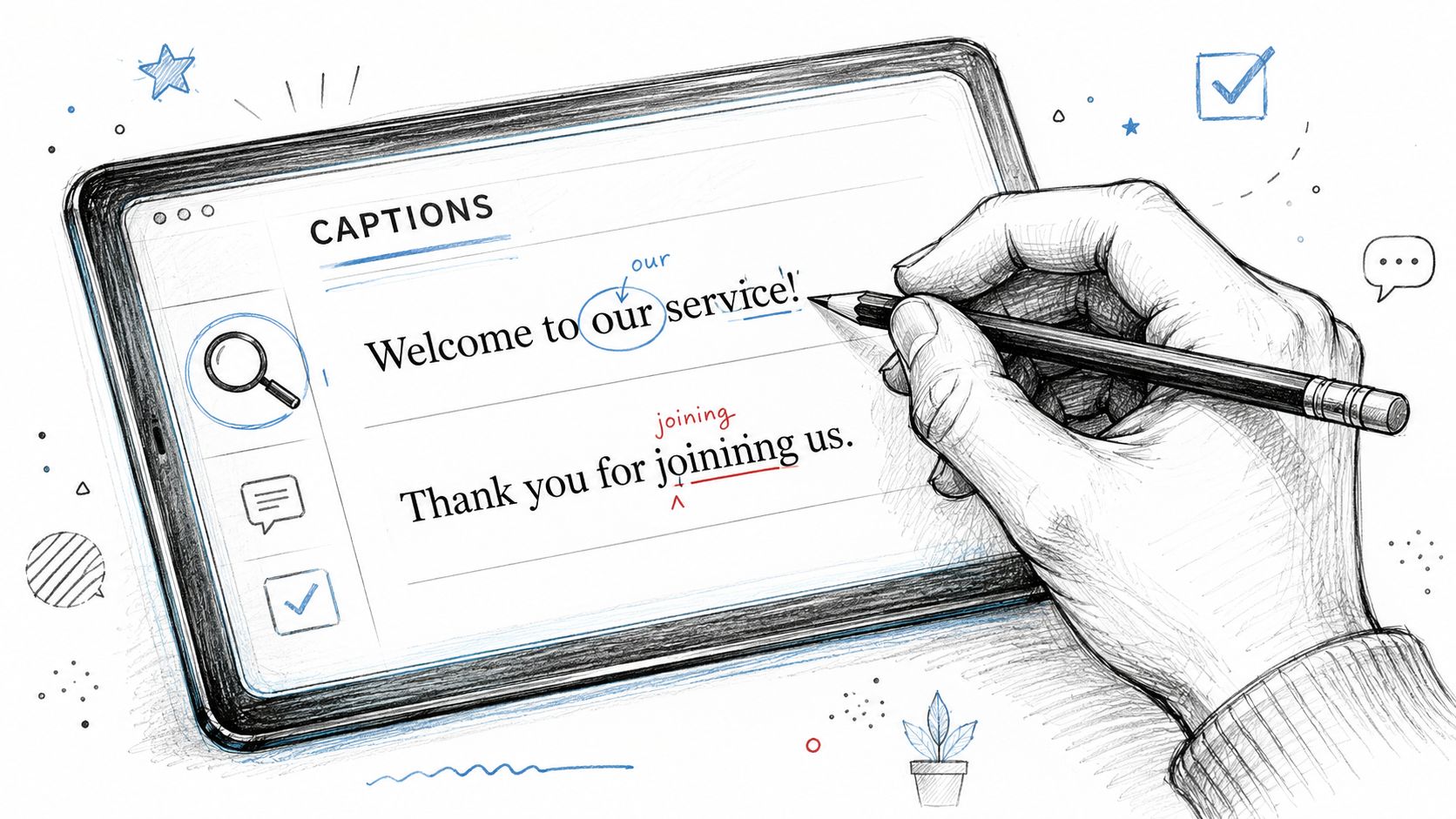
Editing captions is where a rough transcript becomes something people can follow. This step isn't just proofreading. You're shaping readability, timing, and trust.
When a caption editor gets church language wrong, viewers notice. A misspelled staff name, a mistaken Bible book, or awkward punctuation can distract from the message fast.
What to check first
Start with meaning before style. Ask, “Does this caption say what the speaker said?” Then move into formatting.
Here's a solid editing checklist:
- Fix misheard words: Pay special attention to names, Bible references, ministry titles, and uncommon words.
- Clean punctuation: Commas and periods help viewers process spoken thought units more naturally.
- Add sound cues when needed: If applause, music, or laughter matters to understanding, label it clearly with brackets.
- Watch the timing: A perfect sentence is still frustrating if it appears too late or disappears too fast.
Line breaks matter more than most people think
Bad line breaks make captions harder to read even when every word is technically correct. The Section 508 guidance on captions and transcripts notes that a critical pitfall is incorrect line breaks that split sentences unnaturally, and that captions should end at logical syntactic points like commas or periods.
That means this is harder to read:
- The Lord is my shepherd I
- shall not want
This is easier:
- The Lord is my shepherd.
- I shall not want.
The same source also notes that poor contrast can reduce readability by over 50% for viewers with visual impairments. If your captions sit on top of bright stage lights, a white shirt, or a busy LED wall, add enough contrast so the words stay legible.
Editing mindset: Don't ask only whether the text is accurate. Ask whether a tired, distracted viewer can read it comfortably on a phone.
A few church-specific fixes
Church content has predictable trouble spots. Auto-caption systems often stumble on these:
- Speaker names and ministries: “Pastor Shawna” might turn into something close, but wrong.
- Worship moments: Add labels like [WORSHIP MUSIC] or [APPLAUSE] when they help the viewer follow the moment.
- Language shifts: If someone prays or speaks briefly in another language, identify that clearly so people aren't confused.
A final pass should always include visual review on a phone screen. If the captions cover a lower-third name graphic, a baptism moment, or a Scripture slide, adjust placement or simplify the layout before posting.
Adding Captions on YouTube Instagram and TikTok
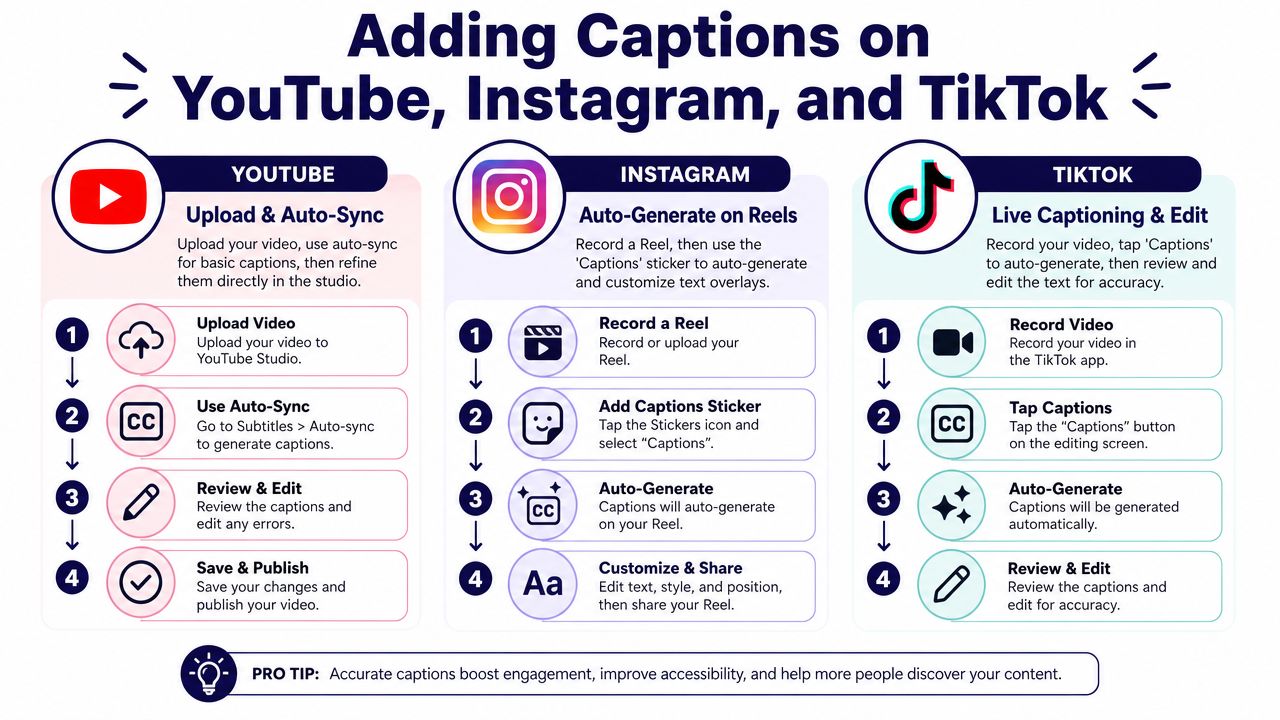
One reason captioning feels messy is that every platform handles it differently. YouTube gives you stronger caption controls. Instagram Reels and TikTok lean toward text burned into the video. Facebook often expects a prepared subtitle file for certain workflows.
Once you know which path belongs to which platform, the process gets much easier.
A quick platform comparison
The core difference is whether the platform supports a separate caption file or expects the words to be part of the video itself.
| Platform | Common caption method | What to remember |
|---|---|---|
| YouTube | Auto-sync or upload caption files | Good control for editing and refining |
| Often upload a pre-transcribed SRT file | Prepare text before publishing | |
| Instagram Reels | Burn captions into the video | Style matters because viewers can't toggle them |
| TikTok | Burn captions into the video | Review auto-generated text carefully |
According to Brightcove's caption workflow documentation, YouTube supports auto-sync and uploaded caption files, Facebook often requires uploading pre-transcribed SRT files, while platforms like Instagram (Reels) and TikTok require creators to burn captions directly into the video file before publishing.
What this looks like in practice
For YouTube, upload the video, generate a draft using auto-sync or a transcript, and then edit the result in YouTube Studio. This is usually the most flexible option for longer sermon clips, teaching videos, and testimony content.
For Instagram Reels, you're usually dealing with captions that become part of the final visual. That means font choice, placement, and readability matter more. Keep captions away from interface elements and from the lower edge where app controls can interfere.
For TikTok, the process is similar. Let the app generate captions, then review each section before publishing. Short clips move fast, so even small wording errors are noticeable.
If your church is repurposing a sermon into Shorts, Reels, and TikTok clips, it helps to start with a transcript that's already organized for short-form edits. ChurchSocial's post on YouTube Shorts transcript workflows can help you think through that repurposing step before you export clips to each platform.
A platform-native workflow is often simplest, but only if you still review the text before you post.
Don't use one platform's assumptions on another
Volunteers lose time at this point. Someone learns one caption method and assumes it works everywhere.
It doesn't.
YouTube treats captions more like a separate accessibility layer. Reels and TikTok often treat them like visual design. Facebook can sit in the middle depending on the post type. If you build your church workflow around that distinction, you'll avoid most of the confusion.
A Streamlined Caption Workflow with ChurchSocial.ai
Most church teams don't struggle because captioning is impossible. They struggle because captioning is one more task in a long list. You're already collecting sermon notes, trimming clips, writing captions for social posts, building graphics, checking event dates, and trying to keep multiple platforms active with a small team.
That's why the main issue isn't only how to add captions to videos. It's how to fit captions into a sustainable weekly workflow.

A ministry workflow works better than a one-off fix
A healthy church content process usually starts with the sermon. From there, the team pulls clips, drafts social posts, builds a blog or devotional follow-up, and schedules everything across the week. If captions live outside that system, they tend to get skipped when time is tight.
A more practical rhythm looks like this:
- Start with the sermon transcript so you have clean source material.
- Pull short clips for the channels you use.
- Edit captions once with platform needs in mind.
- Schedule posts in a shared calendar so nothing gets lost.
That kind of workflow matters because church teams are busy. According to Story & Stone's church social media strategy article, churches that use strategic content tools and workflows report saving 5–10 hours per week on social media content creation, and that time can go back into community engagement and outreach.
Where an all-in-one tool can help
If your church wants fewer handoffs, one option is ChurchSocial.ai, which can create AI generated reels from sermons, generate content from the sermon transcript such as social posts and blogs, provide graphic templates and an editor for photos and carousels, and let teams manage posting with a simple drag-and-drop calendar. It also integrates with Planning Center and other church calendars to create content for events.
For captioning specifically, that kind of setup helps because the transcript, clip creation, and publishing steps stay connected. Instead of moving between separate tools for transcription, clip editing, caption styling, and scheduling, the team can keep the process closer together.
If your starting point is still the sermon audio itself, ChurchSocial's page about its sermon transcription service explains the transcript side of that workflow, which is often the foundation for cleaner captions later.
A simple weekly process for a small church
Here's a realistic example of how a volunteer might handle a week of content without overcomplicating it:
- Monday: Upload the sermon and review the transcript.
- Tuesday: Pull two or three strong moments into short clips.
- Wednesday: Edit captions for names, Scripture references, and readability.
- Thursday: Build supporting graphics or carousel posts tied to the sermon theme.
- Friday: Schedule everything for YouTube, Facebook, Instagram, and TikTok.
- Weekend: Monitor comments and direct messages, then save strong posts as templates for next time.
That's easier to maintain than treating every captioned video like a brand-new production.
Keep the visuals clean and readable
Churches also benefit from a few visual habits that reduce caption problems before they start:
- Use simpler backgrounds: Avoid cluttered shots when possible. Images and video frames without people can work well for promos, scripture clips, or announcement graphics.
- Add text only where it makes sense: Put text on paper, whiteboards, slides, or as a clear overlay added after the fact. Don't scatter text randomly across the image.
- Leave room for captions: If you know a Reel or TikTok will have burned-in text, compose the frame so captions won't block a face, baptism moment, or lower-third.
These are small production choices, but they make editing much smoother.
One strong habit: Build your weekly social process around reusable assets from the sermon, not around starting from scratch for every post.
The goal isn't just efficiency
An efficient system saves time, but that's not the whole point. A better workflow gives your church more consistency. It helps volunteers feel less intimidated. It keeps accessibility from becoming optional when the week gets busy.
And it frees your team to focus on people.
When captions are built into your process, more viewers can understand your videos, more members can stay connected during the week, and more guests can encounter your church's message in a format that works for how they use social media.
If your church wants a simpler way to turn sermons into captioned clips, social posts, blogs, graphics, and scheduled content from one calendar, take a look at ChurchSocial.ai. It's built for church teams that need a practical workflow they can keep up with.