Every church has that one week when the sermon archive, a partner landing page, or an old event hub gets reorganized and the videos vanish from the place everyone bookmarked. The panic usually isn't about the media itself, it's about the workflow around it, because once the page changes, the clips you meant to reuse for Sunday recap posts, reels, and carousels can disappear with almost no warning.
That's why download all videos from website isn't just a technical phrase. For a church comms team, it's the difference between scrambling for a lost file and keeping a usable archive that can feed tomorrow's social posts, next month's sermon clips, and the graphics queue you manage on ChurchSocial.ai.
The Moment Your Church Video Library Disappears
The first time this really hits, it usually feels mundane. A volunteer opens an old sermon series page to grab a clip for Instagram, only to find the hosting platform has changed the layout, the embed no longer resolves, or the church's own site now points somewhere else entirely. The video may still exist somewhere on the web, but the page the team trusted is gone.
That's the point where browser inspection matters more than a fancy downloader. Modern guides describe a repeatable workflow, open DevTools, switch to the Network panel, filter for Media, then refresh and play the page so the browser exposes the actual video requests. The practical goal is to find the direct media URL, not to guess what the page is doing behind the scenes. As one church-focused guide puts it, this is a shift from saving the page to extracting the stream itself, which is exactly why the old “right-click and save” habit breaks on so many sites today. See the related church workflow note in this ChurchSocial.ai guide on ripping videos from a website.
The universal first pass that still works
Start with Chrome or Firefox, open DevTools, and go straight to the Network tab. Filter by Media, or search for extensions like .mp4, .webm, and .m3u8, then reload the page and hit play. That one habit captures more useful evidence than guessing from the page source alone.
Practical rule: if you can see the request in Network, you can usually verify whether the file is real before you spend time downloading it.
Right-click the request, open it in a new tab, and check whether the browser can stream it cleanly. If it does, use Save As and store it locally with a filename that means something to your team. That works well when you only need a few clips for a recap video, a volunteer highlight, or a single reel pulled from a sermon page.
The common trap is that the first visible request isn't always the full video. On many sites, it's a playlist or manifest, not the final asset. That's where the download workflow stops being a simple save action and starts becoming a stream-handling problem.
Scaling Up With yt-dlp
Once a church team outgrows one-off saves, yt-dlp becomes the workhorse. It's the tool I'd reach for when a youth event playlist, a guest speaker series, or a denominational resource hub needs to be captured in a way that doesn't depend on manual clicking. Install it on Windows, macOS, or Linux, then use it to pull a single URL at the best available quality.
A clean starting point looks like this, conceptually: download the page URL, let yt-dlp resolve the site's media source, and let it choose the best quality it can obtain. From there, format selection matters. Some sites expose multiple versions, and yt-dlp can pick among them instead of forcing you to guess.
For church media teams, the biggest value is scale without chaos. A sermon archive on a YouTube playlist, a conference speaker channel, or a page that lists every weekly testimony video can all be handled more cleanly by a downloader that understands playlists, archives, and duplicate skipping. That's also where a resource like the AI YouTube video creation guide can help teams think beyond downloading and into repurposing, especially when the same source video needs to become multiple social assets.
Where yt-dlp earns its keep
- Playlist capture: use it when the page already organizes content into a playlist or channel-style feed.
- Duplicate skipping: keep an archive file so you don't download the same sermon twice.
- Output naming: set names that match your church's series, date, or campus structure.
- Quality handling: let it select the best version it can merge and play.
When a page looks simple but keeps serving odd files, yt-dlp usually does better than a browser extension because it's built to resolve the source, not just scrape the surface.
It's also the right bridge into segmented streaming. If the site uses HLS or another adaptive format, yt-dlp can often follow the manifest and reassemble the result more reliably than a manual save ever will.
Recursive Crawlers for Whole-Site Archives
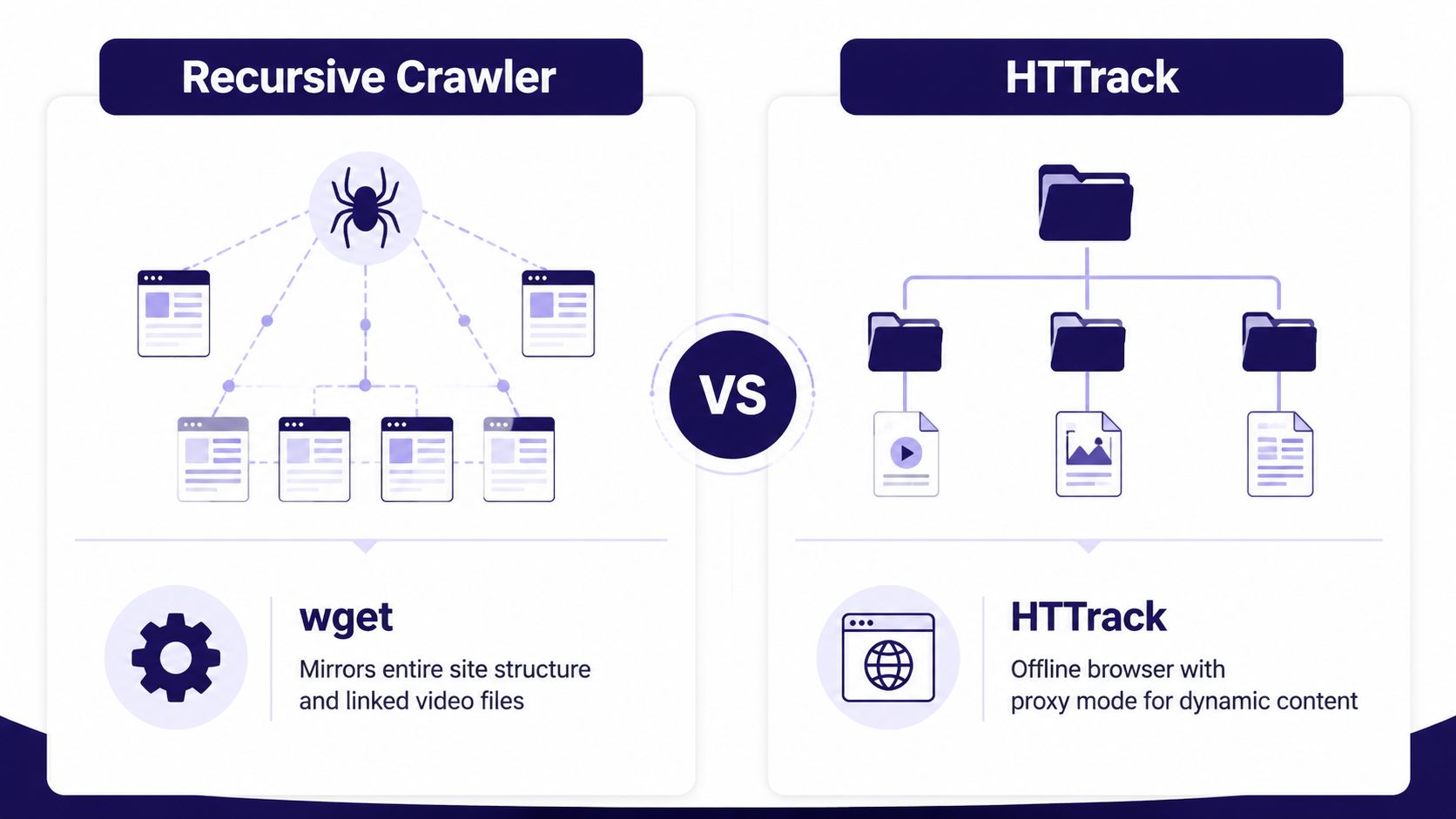
Recursive crawlers like wget and HTTrack are useful when the job is bigger than a single page. Think of a church website before a redesign, a missions microsite with embedded testimony clips, or a legacy media page that still has a pile of direct MP4 files linked in the HTML. A crawler mirrors pages and follows links, so it's good at defensive backups when you need breadth more than precision.
Where crawlers shine and where they stall
Static brochure-style sites are their comfort zone. If the page source exposes video links directly, a crawler can grab them while mirroring the rest of the site structure. That makes it a practical backup tool for ministry pages that need an offline copy before a migration.
They struggle when JavaScript loads the media after the page renders, or when the asset lives behind session logic. They also deserve care on the operational side, because a broad crawl can chew disk space, create unnecessary server load, and irritate site owners if rate limits and robots rules are ignored. Church teams should treat crawler jobs like any other bulk task, run them deliberately, not casually.
Bottom line: use recursive crawlers for defensive archiving, not for delicate video extraction from dynamic pages.
The best mental model is simple. DevTools finds the exact request, yt-dlp resolves the stream, and crawlers back up the wider site when the structure itself matters. That division keeps the job from turning into guesswork.
Handling HLS, DASH, and Segmented Streams
A copied URL that downloads a two-second clip or a broken file usually means the site isn't serving a single flat video. It's serving a stream. The most common pattern is HLS, which uses an .m3u8 playlist that points to segmented media, often split into small pieces, while DASH uses an .mpd manifest with separate audio and video tracks.
That's why the highest quality option in a downloader isn't always the largest file in practice. The video and audio may live in different streams and have to be put back together. If the tool can't mux them, you end up with a half-finished download or a file that plays without sound.
A quick diagnostic check
- Look at the extension. If it ends in .m3u8 or .mpd, you're not looking at a simple file.
- Read the URL text. Words like manifest or playlist usually mean stream handling is required.
- Open it in VLC first. If VLC can't interpret it, the file may be incomplete, not necessarily corrupt.
- Use yt-dlp with merge support. For segmented sources, it can follow the site's extractor and hand the streams off for merging.
- Keep ffmpeg available. It's the safety net when separate audio and video tracks need to be joined.
The useful comparison is simple. wget and HTTrack are strong on static archives, but they don't solve the HLS problem by themselves. yt-dlp is the more capable choice when the site is streaming adaptively, because it understands the manifest layer rather than pretending the manifest is the media.
Authenticated Pages and Session Export
Church staff pages, paid training portals, Planning Center libraries, and private resource hubs add a different wrinkle. The content is there, but only for logged-in users. In those cases, exporting your own browser session is the cleanest route, because the downloader needs the same access your browser already has.
The usual method is to export cookies from Chrome or Firefox, save them in a cookies.txt file in Netscape format, and pass that file to yt-dlp. That lets the tool reuse your authenticated session without asking you to paste passwords into a downloader. It also keeps the workflow more stable than copying a URL from an already-open tab.
What can break overnight
Authenticated downloads often fail for reasons that look mysterious but aren't. Sessions expire. Tokens age out. Some sites bind access to your IP or device state, so a link that worked during a lunch break can fail the next morning. That's why a clean download session is not proof that the same link will keep working later.
Reusing someone else's credentials is a bad idea operationally and ethically. Export your own session, or ask for a proper authorized download path. The point is access control, not bypassing it.
When the access is legitimate, the payoff is strong. A locked-down sermon library can still become a usable archive for public channels, and that archive can feed the same repurposing pipeline that turns long-form video into reels, posts, and carousels for church social accounts.
Organizing, Naming, and Feeding Your Content Pipeline
A downloaded library is only useful if someone can find the right clip six months later. I've seen too many churches save files into one giant folder called “Videos” and then spend an hour hunting for a single baptism clip. A better structure starts with series, then date, then source. That gives volunteers a path they can understand without deciphering someone else's desktop habits.
Make the archive readable by humans
Use filenames that tell the truth. Include the sermon series, campus, date, and a short descriptor that matches how the church talks about the content. Sidecar notes help too, especially when a file needs context like speaker name, service type, or whether it was pulled from a livestream, a YouTube upload, or a cloud folder.
- Series first: group related sermons together so the archive mirrors ministry language.
- Date second: keep the chronology obvious for future volunteers.
- Source last: note where the file came from so you can trace access issues later.
- Metadata files: add a simple text note or spreadsheet if the folder is going to be shared.
That organization matters because the archive isn't the end of the job. On ChurchSocial.ai, an archived sermon can become source material for AI-generated reels, a transcript can become social posts or a blog draft, and event footage can move into branded carousels on a drag-and-drop calendar. The download step feeds the content engine.
For internal workflow reference, I'd also keep this ChurchSocial.ai guide on downloading a video file handy when the source is your own uploaded material, a livestream export, or a file you already have the right to save.
Keep the legal line clear
Public domain and Creative Commons content are the most straightforward cases for lawful downloading and reuse, as long as the license terms are followed. YouTube's Terms of Service generally prohibit third-party downloading unless YouTube gives you an authorized download link or feature, and subscription platforms with DRM add a stricter layer that you should not try to bypass. If the platform offers an official offline button, use that. If it doesn't, assume you need permission before saving the file.
Troubleshooting and Building a Repeatable Workflow
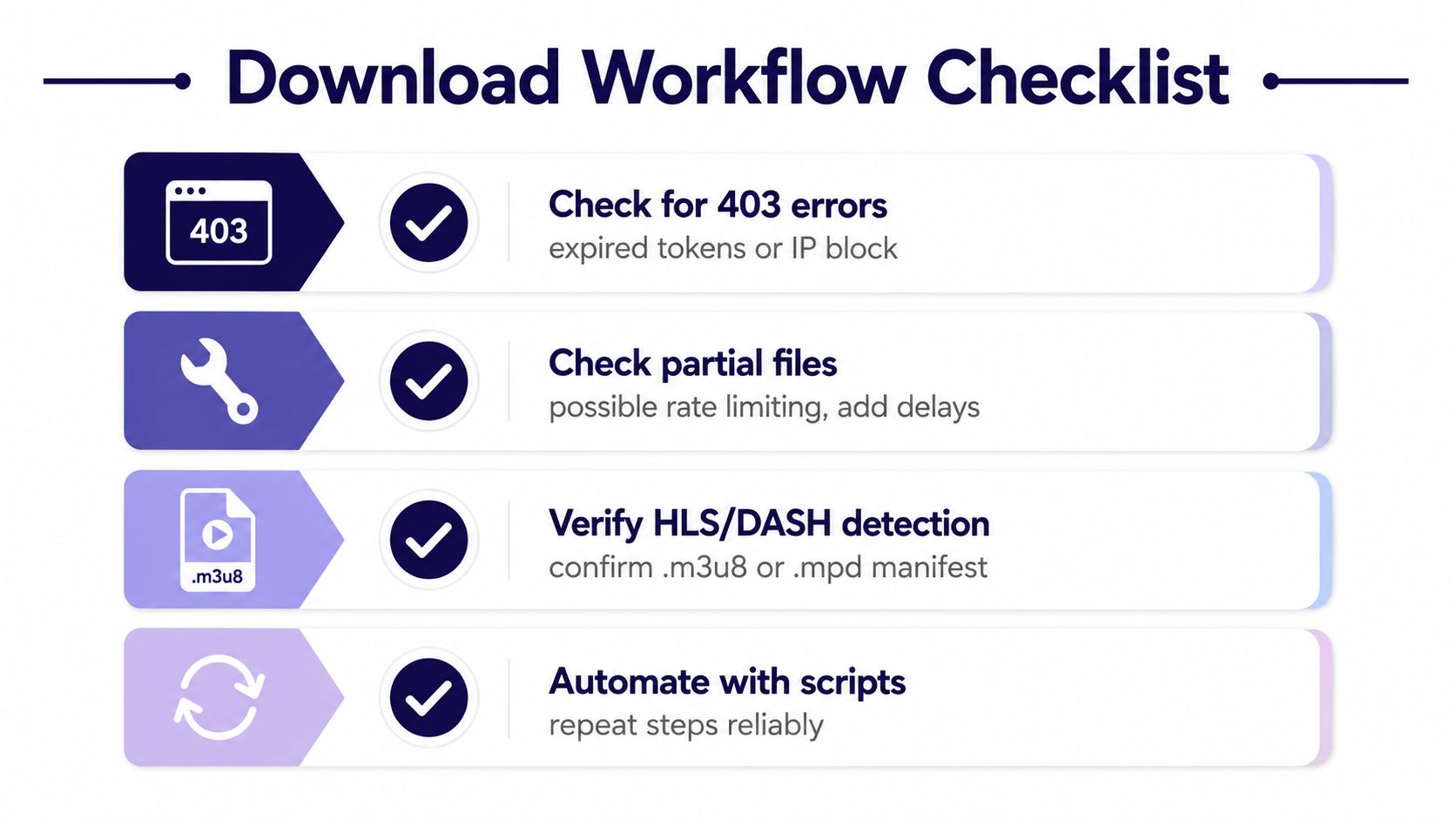
The recurring failures usually point to the problem. A 403 usually means an expired token, a stale cookie, or an IP restriction. Partial files usually mean rate limiting or a download that was interrupted midstream. If the site uses DRM, no browser-side trick is going to turn that into a clean export.
The workflow that holds up
- Check Network first. Grab one request in DevTools and confirm the media is exposed.
- Move to yt-dlp for playlists. Use it when the page has multiple videos or a manifest-based stream.
- Watch for HLS or DASH. If you see .m3u8 or .mpd, treat it as segmented media.
- Automate the known feeds. Once a source is stable, schedule the mirror job instead of repeating manual saves.
That sequence keeps the work predictable. It also fits a church media pipeline that does more than archive files. Save the original footage, sort it clearly, then feed it into the same repurposing workflow that produces social clips, posts, and carousels without making volunteers repeat the capture work every week.
If a source keeps failing, stop guessing and check the access path, the stream type, and the file naming before you try another tool. A guide to safe video downloading practices helps here, especially when the source is your own uploaded material, a livestream export, or a file you have the right to save.
If your team wants one place to turn archived sermons into clips, posts, blogs, and scheduled social content, ChurchSocial.ai fits that middle layer between raw video and public posting. Visit ChurchSocial.ai to see how the same church media library can support archiving, repurposing, and calendar-based publishing without forcing volunteers to juggle separate tools.