A volunteer records Sunday service on a smartphone from the back of a dim sanctuary. The worship team moves quickly, the phone struggles with the shadows, and the uploaded Facebook clip comes back blocky, soft, and hard to hear. The camera wasn't necessarily the main problem.
To improve video quality for church social media, you need to manage the whole chain, from light and sound at capture to compression during editing and upload. A modest phone can produce usable footage when its settings, surroundings, export choices, and publishing workflow work together. The same is true in reverse: a capable camera can still deliver a poor clip when the platform compresses an already-thin file.
Why Church Videos Look Bad on a Budget
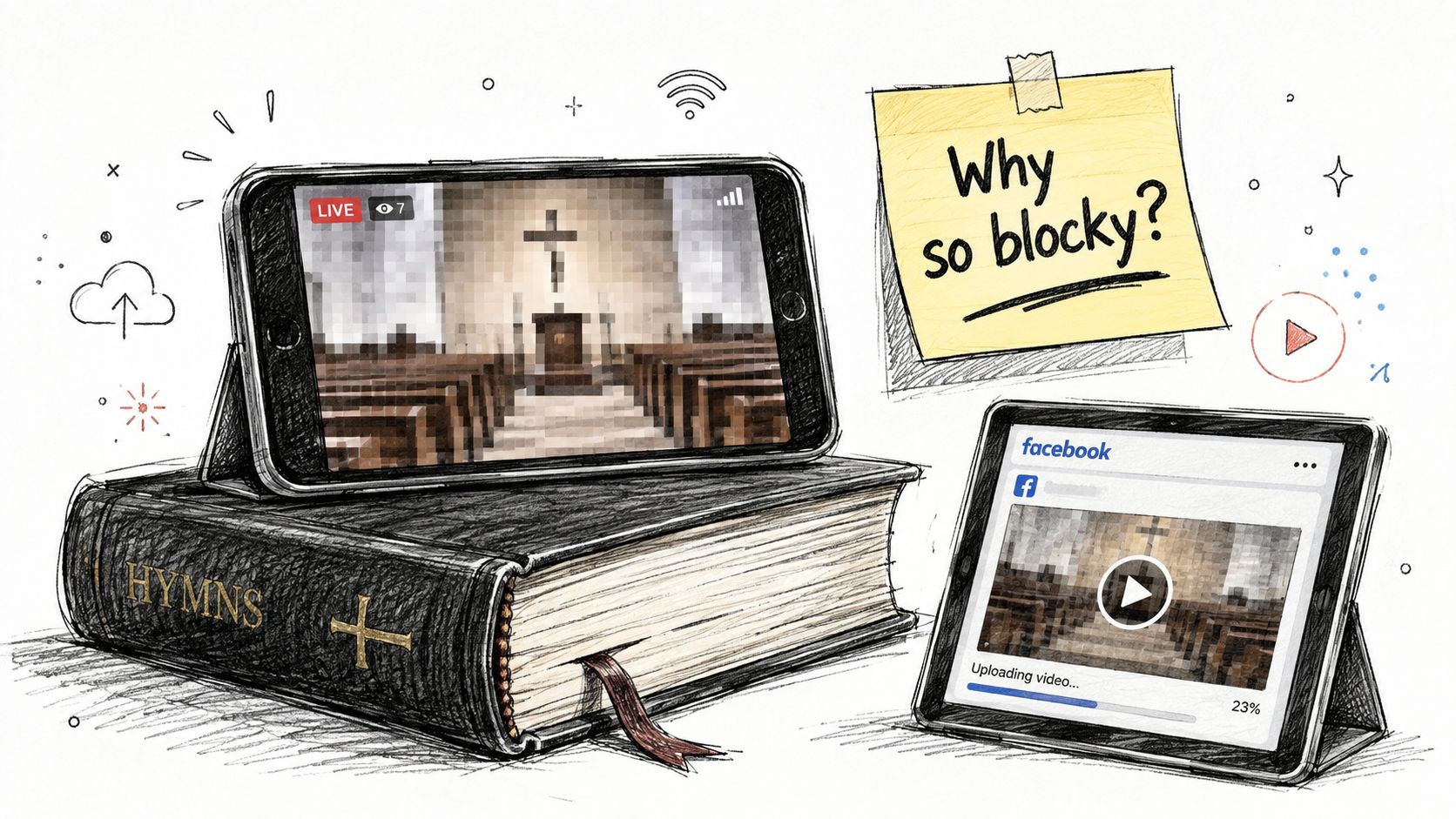
Start with the file, not the brand name on the phone. Bitrate controls how much visual information the video can preserve, while resolution describes the number of pixels and frame rate describes how often the image changes. Those settings work together. More pixels or more motion require enough bitrate to retain detail, otherwise faces, hands, guitar strings, and dark backgrounds break into blocks.
A 2026 subjective video-quality study found that perceived quality rose as bitrate increased, but the gains weren't linear. At low bitrates such as 5 Mbps, 120 fps footage showed noticeable spatiotemporal compression artifacts. At higher bitrates around 15 Mbps, 120 fps performed best in motion-heavy scenes. The practical lesson is simple: frame rate alone won't rescue a compressed recording.
Practical rule: Choose the highest resolution and frame rate your audience's connection and devices can sustain reliably, then give that format enough bitrate.
The camera isn't the delivery path
A platform may re-encode your upload. If the original file already contains noise, shaky motion, or aggressive compression, that second processing pass can make the flaws more obvious. Uploading a very large 4K file also isn't automatically better if the audience receives a lower-resolution stream or if your editing device has to compress it heavily.
The ITU-T Technical Report JSTR-OPTR connects resolution, frame rate, bandwidth, and perceived quality. It identifies QVGA, 320 × 240 at 15 fps, as medium quality with a mean opinion score around 3, while good quality with a MOS above 4 requires at least 640 × 360 at 15 fps. Under limits, a lower-resolution file can look better than a higher-resolution file that buffers or receives excessive compression.
Prevent the footage you can't repair
Before Sunday, decide which moments need video and which can become still graphics, captions, or event reminders. A planned shot of the sermon, a worship detail, or an empty sanctuary is easier to frame and expose than hurried footage captured while managing several tasks at once.
ChurchSocial.ai can help churches organize that publishing plan, so volunteers aren't filming everything without knowing how each clip will be used. Better planning won't repair a dark file, but it reduces rushed capture and gives each recording a clear destination.
Set Your Phone and Camera for Better Footage
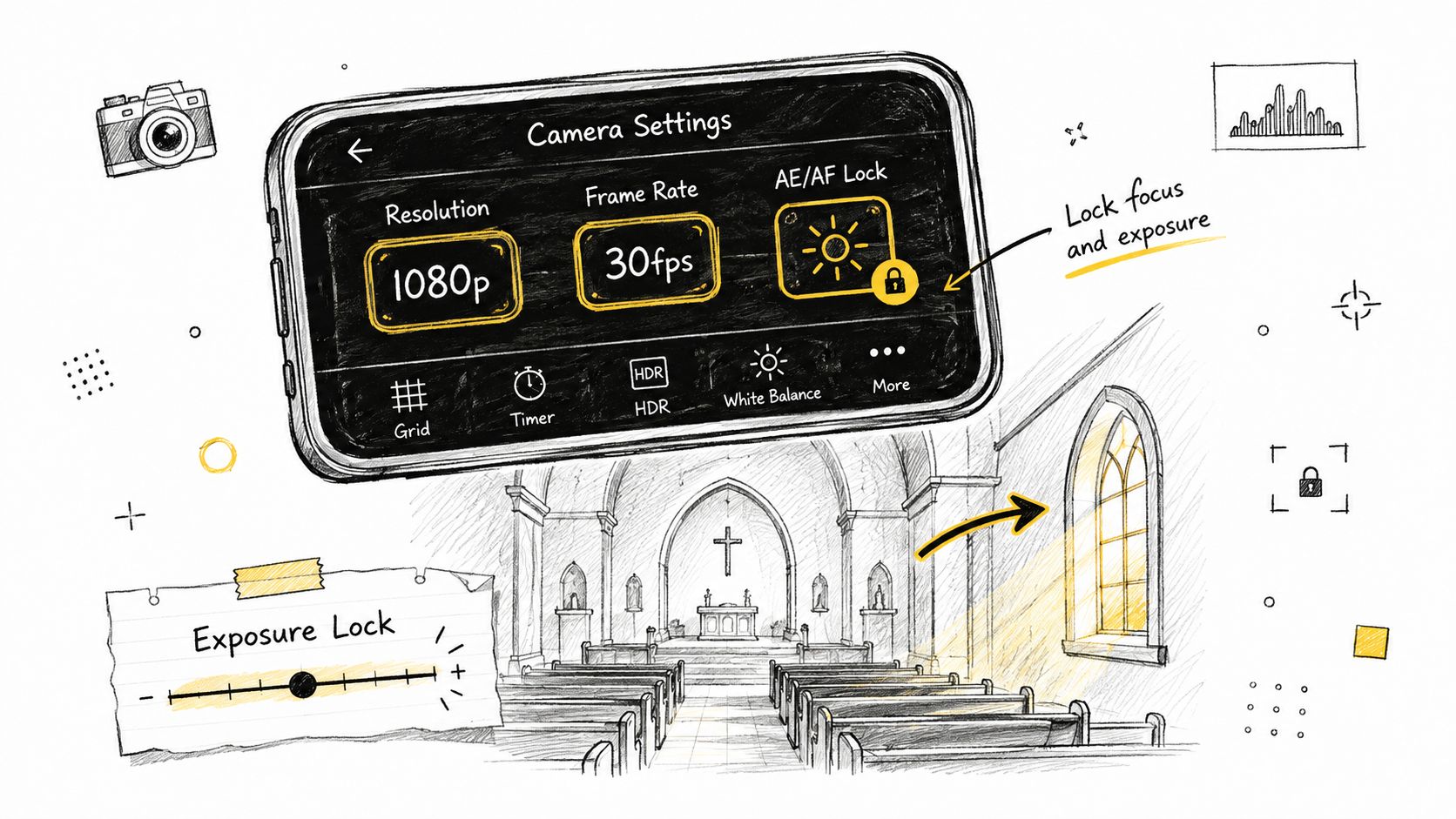
A repeatable pre-shoot check beats changing settings in the middle of worship. For most church social clips, start with 1080p at 30 fps when storage, editing power, or bandwidth is limited. A higher resolution creates a larger file and can demand more from the device and delivery path. The camera guidance for church livestreaming can help you compare equipment choices, but a steady, well-exposed 1080p recording often serves a volunteer better than an oversized file captured without control.
Use the main camera and lock the image
Clean the lens before the service. Use the main rear camera when possible, because it generally gives you a stronger image than a front-facing camera. Avoid digital zoom if you can move closer safely, and frame the pulpit, lectern, or worship area before recording.
Tap the subject to set focus and exposure, then hold to lock them if your phone supports it. This prevents the image from brightening and darkening every time a worship leader crosses a bright screen or a dark section of the stage. Lower the exposure slightly if projected lyrics or stage lights are losing detail, but don't make the congregation or speaker disappear into shadow.
Turn on grid lines to keep verticals straight and place the speaker cleanly in the frame. Disable auto-framing if it hunts for faces or repeatedly changes the crop. Those small movements can look worse after social platforms compress the file.
A short sanctuary checklist
- Format: Select 1080p and 30 fps for standard social clips when higher settings would strain storage or delivery.
- Exposure: Lock exposure on the speaker rather than trusting the brightest screen in the room.
- Focus: Lock focus before the sermon begins, especially with a static phone position.
- Stability: Use a tripod, clamp, or fixed surface instead of handholding a long take.
- Transfer: Move the original file by cable or cloud storage rather than a messaging app that may compress it.
Bitrate still matters after these choices. A clean frame recorded at a sensible format can be damaged by an export preset that uses too few bits, so check the editor's output settings before publishing.
Light and Sound Fixes That Cost Nothing
Low light creates a problem that upscaling can't solve. The phone raises sensitivity, shadows fill with noise, and movement becomes smeared. In a church sanctuary, denoising, stabilization, and deblurring often matter more than adding pixels, as research and practical enhancement guidance summarized by Forasoft's AI video quality enhancement overview explains.
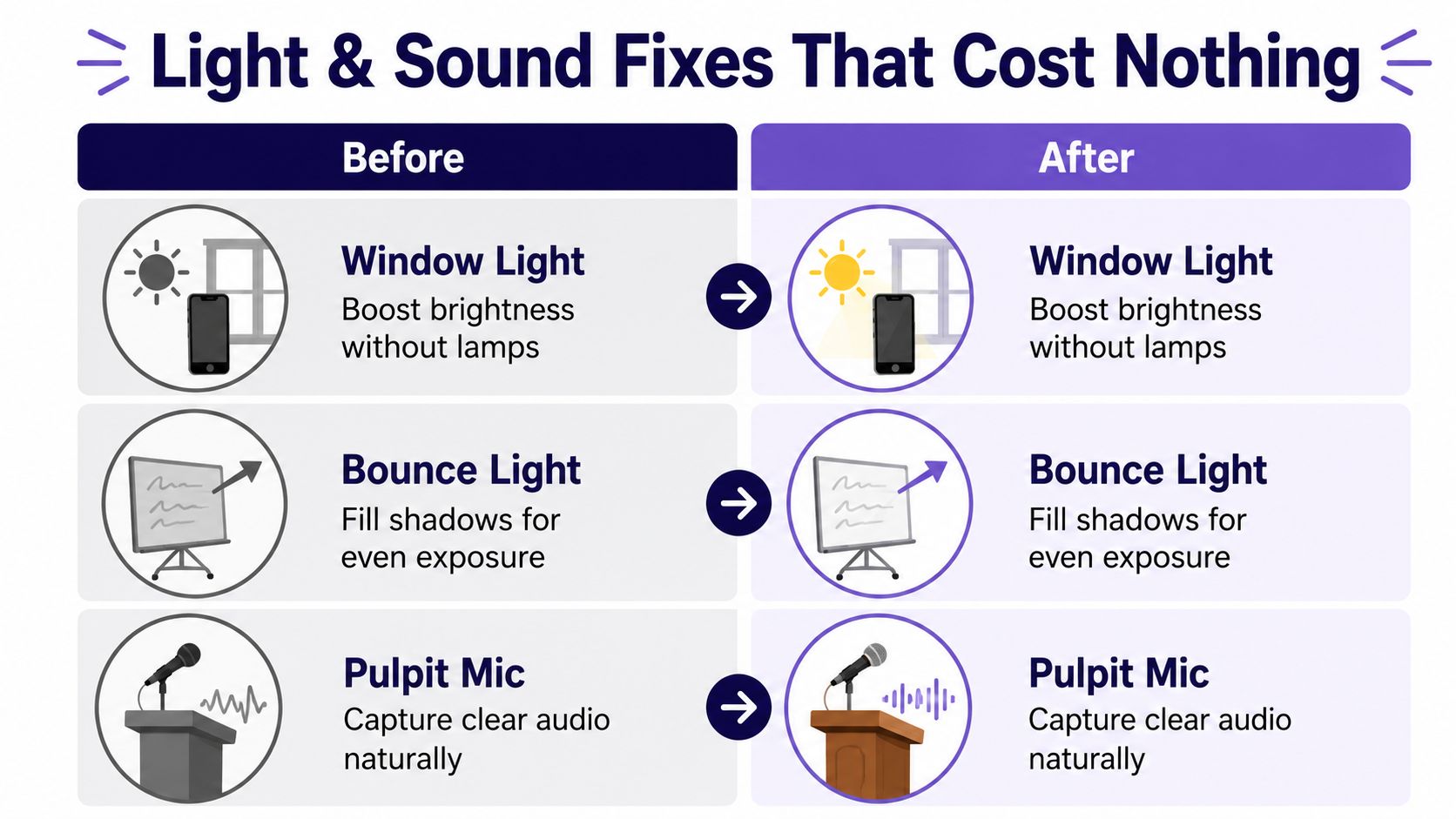
Place the phone near a window when you're recording an interview, testimony, or announcement outside the main service. Keep the subject facing the light rather than putting the window behind them. If the face still has a hard shadow, angle a whiteboard or another pale surface toward the subject to bounce light back into the darker side.
A lamp beside the speaker can make a bigger difference than a new camera. Compare a dim clip with noisy skin tones to one where a simple lamp brightens the face. The second file gives an editor cleaner information to work with, even if the room behind the subject stays dark.
Improve sound before editing
Audio problems are harder for viewers to tolerate than a slightly soft image. Keep the phone close to the speaker for an announcement, or place it near the pulpit microphone when the setup is safe and doesn't interfere with service. Avoid setting it on a hollow, vibrating surface that adds handling noise.
For a practical walkthrough of phone microphone placement and recording habits, DigiDevice's smartphone audio how-to is a useful companion. If your church is reviewing its broader setup, this guide to sound systems in churches provides additional context for separating room sound from the recording source.
Work with the room
- Window light: Face the subject toward available daylight.
- Whiteboard bounce: Reflect light into shadows without adding another lamp.
- Pulpit position: Keep the phone near the speech source when you can't connect a microphone.
- Quiet placement: Move away from fans, HVAC noise, and footsteps whenever possible.
Don't sharpen a noisy clip aggressively. Sharpening can make grain and compression blocks more obvious. Correct brightness gently, reduce noise, and stabilize only as much as needed.
Frame Steady and Export Without Losing Quality
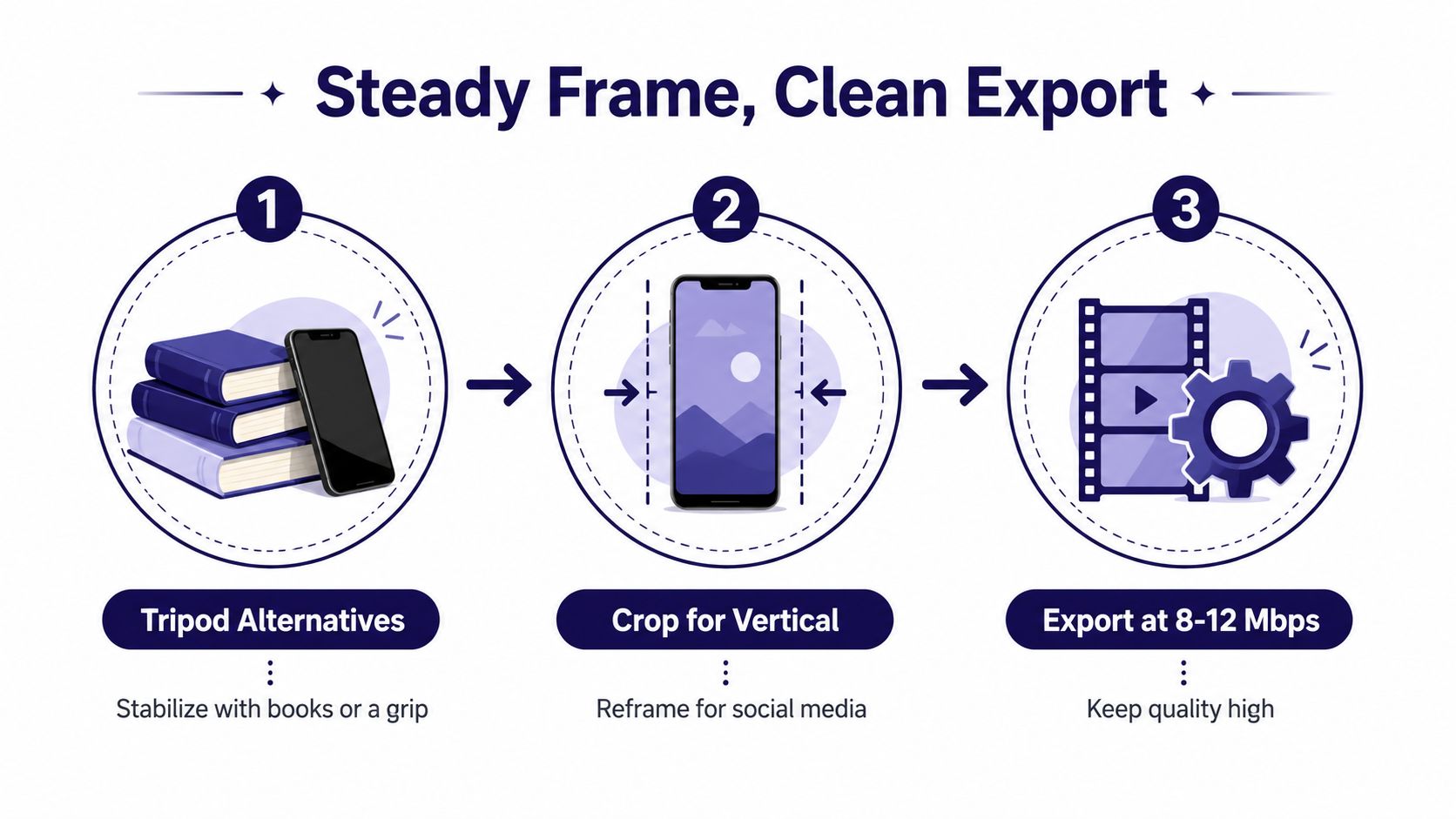
A steady frame makes ordinary footage look intentional. If you don't have a tripod, lean the phone against a stack of books, use a clamp, or rest it on a stable shelf. Check that the speaker's headroom is comfortable and that a bright cross, screen, or window isn't pulling attention away from the subject.
Shoot wider than you think you'll need if the same clip may become a vertical Reel and a horizontal YouTube post. A vertical crop needs room around the person or object. If the original frame is already tight, reframing can cut off a face, microphone, or meaningful gesture.
Use a clean editing sequence
Trim dead air first. Then correct exposure and color, reduce noise, stabilize movement, and add captions only where they improve access or understanding. Export once from the original whenever possible. Repeatedly downloading and re-uploading an already compressed social clip compounds quality loss.
For a deeper beginner workflow, use these video editing tips for beginners. AI upscaling can help in selected situations, but it can't recreate reliable detail that the camera never captured. RenderIO's explanation of AI upscaling for developers is useful for understanding the difference between enlarging an image and improving damaged footage.
Export for the destination
For crisp vertical 1080p social playback, a commonly used target is 1080 × 1920, 30 fps, and a bitrate around 8 to 12 Mbps, as outlined in this social media video specifications guide. Higher bitrates make more sense for 4K or fast motion, but the platform may still re-encode the upload.
Don't spend bits blindly. A bitrate ladder should keep only the resolution and bitrate combinations that deliver a measurable quality gain. Benchmarking with VMAF, a perceptual metric on a 0 to 100 scale, found that moving from 5000 kbps to 8000 kbps at 1080p produced only about a 0.5% VMAF gain, while moving from 200 kbps to 500 kbps produced roughly an 11% gain. Around 2500 kbps, most tested codecs were already near maximum quality at 1080p in that benchmark, so more bandwidth offered little visible improvement. See the VMAF bitrate benchmarking discussion for the full context.
ChurchSocial.ai's graphic templates and editor also help keep text in deliberate areas, rather than placing words over a busy background. Use negative space, strong contrast, and text only when it adds meaning. Shutterstock's guidance on adding text to photos supports placing copy where the image already gives it visual breathing room.
Upload Smart on Facebook Instagram TikTok YouTube
A good export can still look poor after upload if the platform receives the wrong format or a heavily compressed copy. Match the file to the destination, keep the original available, and upload over a stable connection. Platform requirements differ, so check resolution, aspect ratio, frame rate, file format, and bitrate instead of assuming one preset works everywhere.
A practical baseline from platform specification guidance is 1280 × 720, 30 fps, and 256 kbps audio bitrate, listed by Sprout Social's social media video specs guide. For vertical content, the 1080 × 1920 format and 8 to 12 Mbps bitrate range described earlier are more appropriate when the platform and source support them. Don't force a horizontal sermon clip into a vertical frame without checking the crop. Reframe the speaker, remove distracting edges, and keep captions away from interface controls.
Build one sermon into several useful posts
A sermon doesn't need to become one long upload. Select a clear teaching moment, create a Reel or Short, then use a related still image or carousel for the same idea. A transcript can become a caption, discussion prompt, blog post, or follow-up question, giving the congregation multiple ways to engage without asking a volunteer to invent a new subject each day.
ChurchSocial.ai's drag-and-drop calendar lets churches plan and manage social accounts from one visual workspace. It can create AI-generated Reels from sermons, turn sermon transcripts into social posts and blogs, use graphic templates and an editor for photos and carousels, and support posting across Facebook, Instagram, TikTok, and YouTube. Planning Center and other church-calendar integrations can also turn events into planned content instead of leaving announcements until the last minute.
Keep image text intentional
Avoid putting words on random parts of a photograph. If text belongs on the image, place it in built-in negative space or use an overlay that looks deliberately added after capture. A Facebook ad design guide cites Meta's recommendation to keep text at 20% or less of the image area for best performance on Facebook. Treat that as a design constraint, not a reason to fill every image with copy.
Your Church Video Workflow with ChurchSocial ai
The most sustainable church video process separates capture, cleanup, and distribution. Volunteers don't need to record every possible moment. They need a small set of usable originals, captured with enough light, stable framing, and clear sound, then a plan that turns those originals into consistent communication.
Start with the calendar. Mark worship services, teaching series, community events, youth gatherings, and seasonal moments. Planning Center or another church calendar can supply event information, while the social calendar gives the volunteer a place to decide what should be posted before and after each event.
A workable volunteer rhythm
Before the service, choose the clip purpose. Is it a sermon excerpt, an invitation, a behind-the-scenes detail, or a reminder? Set the phone to the intended format, clean the lens, lock exposure and focus, and position the device where the speaker is visible and audible.
After the service, preserve the original file. Trim the strongest section, correct the image without exaggerating sharpening, reduce noise, and reframe for vertical use when appropriate. Captions should support comprehension, not cover the speaker's face or important visual details.
During planning, use ChurchSocial.ai to create AI-generated Reels from sermon footage and generate content from the sermon transcript, including social posts and blogs. Its graphic templates and editor can produce photos and carousels, while the drag-and-drop calendar helps the church schedule, review, and update content across its social accounts.
Measure effort as well as appearance
A video workflow fails when only one volunteer understands it. Save simple capture and export presets, keep source files organized, and write down where the phone should be placed in the sanctuary. Use a consistent visual approach for overlays, but don't force text onto images that already communicate clearly.
The goal isn't cinematic perfection. It's a dependable stream of clear, accessible clips that arrive on the right platform without exhausting the person responsible for them. When a sermon transcript can become a Reel, caption, blog, and carousel, the church spends less time starting from zero and more time serving its audience consistently.
ChurchSocial.ai helps churches turn sermons into AI-generated Reels and written content, design photos and carousels with templates, and manage publishing from a drag-and-drop calendar with church-event integrations. Visit ChurchSocial.ai to organize your video workflow, reduce rushed posting, and give every usable recording a clear path from sanctuary to social media.