A volunteer finishes color-correcting Sunday's sermon recap, the worship leader asks when the YouTube video will go live, and Monday's announcements still need titles, thumbnails, captions, and links before people leave for work. That familiar rush makes a church communications team feel behind before the week has even started.
A YouTube upload scheduler helps by separating upload work from publish time. You can prepare the video while the team has breathing room, keep it private during processing and review, and let YouTube release it at the selected moment. But YouTube Studio isn't a complete church content system. The strongest workflow connects the sermon, Planning Center events, social clips, graphics, and website updates on one calendar.
Why Sunday Night Should Not Be Your Publishing Marathon
At a mid-sized church, Sunday night rarely feels like a clean production window. The sermon file may still be exporting, a volunteer may be checking captions, and someone else may be waiting for the final service details before writing Monday's post. If every task ends with one person manually clicking Publish, the communications calendar depends on whoever happens to be awake and available.
YouTube's scheduling feature was created to remove that dependency. In its June 26, 2012 announcement, YouTube explained that scheduled videos would remain private until the selected publish time and would appear in subscriber feeds according to that scheduled time, not the earlier upload time (YouTube's scheduled publishing announcement). That distinction still matters for churches. Uploading is a technical task. Publishing is an audience-facing decision.
Practical rule: Upload when the file is ready. Publish when your congregation is ready to watch.
The native workflow volunteers can follow
Open YouTube Studio and start the normal upload process. Add the video file, then complete the title, description, thumbnail, playlist, audience settings, and other metadata before moving to visibility.
Choose the Schedule card, then enter the exact publish date, time, and time zone. YouTube requires the creator to select the time zone rather than infer it automatically, a detail that matters when a church has multiple campuses or volunteers working across regions (YouTube scheduling guidance). Review the details, select Schedule, and confirm that the video shows as scheduled in the content list.
YouTube's current help documentation confirms that scheduled publishing remains available in YouTube Studio and the mobile app. The video stays non-public until the scheduled moment, allowing the team to prepare metadata, thumbnails, and visibility settings ahead of release (YouTube Help on scheduling video publishing).
If you need to change the release, return to the video in YouTube Studio, open its visibility settings, and revise the scheduled date or time. Don't assume that uploading early means the audience sees the video early. YouTube's scheduling workflow uses the time the video is marked public, not its original upload time.

Scheduled release or Premiere
Use a plain scheduled release for routine sermon uploads, sermon recaps, devotionals, and regular teaching content. It gives the team a dependable publish moment without requiring someone to host a live viewing experience.
A Premiere makes more sense for a new sermon series launch, a major event announcement, or a church watch party. It creates a public viewing moment with a countdown and chat, so assign a moderator and prepare the lobby before the scheduled start. Don't use a Premiere because the option exists. A quiet, well-prepared scheduled video is better than a public countdown nobody is ready to manage.
The scheduler should become the operating rhythm for the content week. Sunday is for ministry. Monday is for organizing the message and event priorities. Uploading and scheduling earlier lets volunteers review the work without turning Sunday night into a publishing marathon.
Choosing the Right Time to Schedule
The darkest purple blocks in YouTube Studio's Audience report are more useful than a generic posting rule. Open the When your viewers are on YouTube report and identify the period when your viewers are most active. Treat that period as the viewing spike, not automatically as the moment your video should publish.
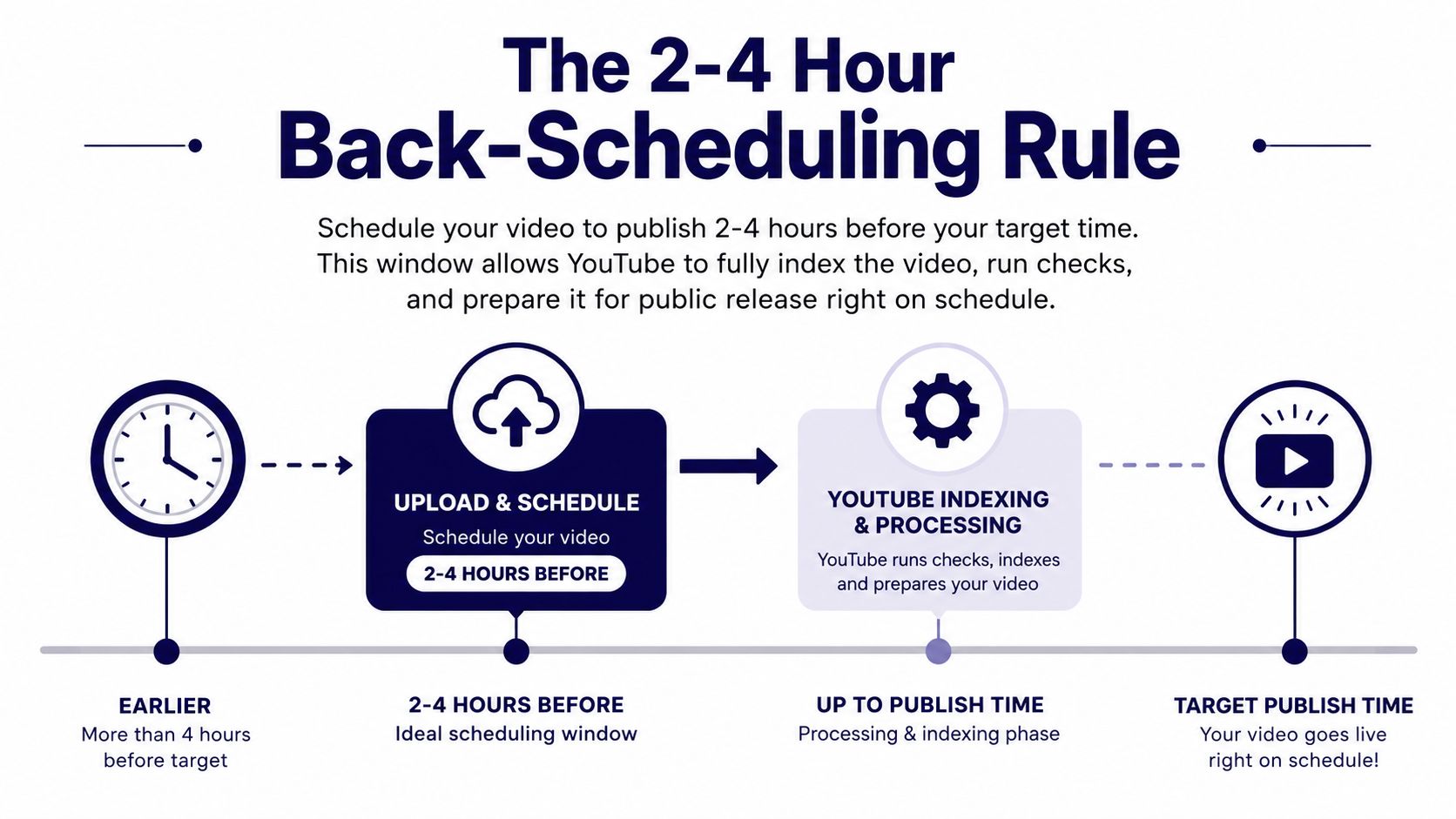
Independent industry analysis recommends uploading roughly 2 to 4 hours before the intended viewing spike, giving YouTube time to index the video, run initial click-through tests, and begin distribution before viewers arrive (Buffer's YouTube timing analysis). For a church, that buffer protects the launch from an export that takes longer than expected or a thumbnail that needs one last review.
A practical timing process
- Check the audience report: Find the darkest purple blocks in YouTube Studio's Audience section.
- Identify the viewing moment: Decide when you want the congregation to encounter the video, not merely when your team wants the upload finished.
- Back-schedule the release: Plan the upload and scheduled publish roughly 2 to 4 hours ahead of the spike, following the benchmark above.
- Confirm the time zone: Select the intended church or audience time zone manually.
- Match the format: A sermon recap may benefit from a predictable weekly release, while an event announcement may need to publish while registration is active and details are still fresh.
Don't force every format into the same window. A Sunday sermon recap, a midweek devotional, and a registration reminder serve different purposes. Use audience behavior as a starting point, then adjust for freshness, pastoral approval, and the event itself. Churches can also compare this YouTube approach with broader channel guidance in this guide to the best times to post on social media.
Lock the pre-flight details
A scheduled video can still fail as a communication piece if the team leaves the important details unfinished. Before confirming the schedule, complete the following:
- Write a clear title: Include the sermon series and date when those details help viewers identify the message.
- Build a useful description: Add timestamps, a short summary, and one clear next step, such as visiting a connect card or registering for an event.
- Add navigation: Use end screens and cards to point viewers toward a connect card, related sermon, or next action.
- Check the thumbnail: Make sure the design remains readable on a mobile screen, and keep images focused rather than crowded.
- Review visibility: Confirm whether the video is Private, Scheduled, or set up as a Premiere.
- Assign moderation: For a Premiere, name the person responsible for the lobby and chat.
If your church is also coordinating website pages or other scheduling systems, explore scheduling with Solo for ideas about organizing timed publishing work beyond YouTube.
Why YouTube Studio Alone Is Not a Team Workflow
YouTube Studio is the right tool for publishing a video to YouTube. It isn't the right place to manage a church's entire communications week.
The built-in scheduler only schedules YouTube. It doesn't provide a visual calendar, bulk queueing, or a team approval workflow (analysis of YouTube's scheduler limitations). A volunteer may know that the sermon is scheduled, while the Instagram clip, Facebook reminder, website banner, and event registration post remain scattered across messages and personal notes.
That gap is where a platform such as ChurchSocial.ai fits. Churches can manage social accounts from a drag-and-drop calendar, create AI-generated reels from sermons, turn sermon transcripts into social posts and blogs, and use graphic templates and an editor for branded photos and carousels. Its Planning Center and church-calendar integrations can also help connect events to planned content.
The trade-off is straightforward. YouTube Studio is tightly connected to YouTube and handles native scheduling without adding another publishing layer. A multi-channel tool introduces another system to learn, but it can reduce context switching when the same sermon must become a full video, short clips, captions, graphics, and event reminders.
For a volunteer managing one channel, native scheduling may be enough. For a church coordinating multiple channels and contributors, the calendar around YouTube matters more than the YouTube scheduling card itself.
Connecting Planning Center Events to Your Publishing Schedule
Church content usually starts with the church calendar. Services, registrations, groups, seasonal programs, and campus events create the moments your audience needs to hear about. Planning Center Calendar can connect events with products such as Registrations, Groups, and Services, then share selected events to Church Center or embed a month-view calendar on a website (Planning Center Calendar).
Treat each event as a content trigger, not just an appointment. A recurring service can prompt a sermon upload, a discussion post, a short clip, and a reminder. A registration event can trigger announcement graphics and a final call before the deadline.
Planning Center supports recurring events with an end condition based on a specific date or a set number of occurrences. Events can also be marked Unpublished, Published, or Featured in Church Center, while enforced tag groups can organize the information required before an event is saved (Planning Center event creation mechanics).
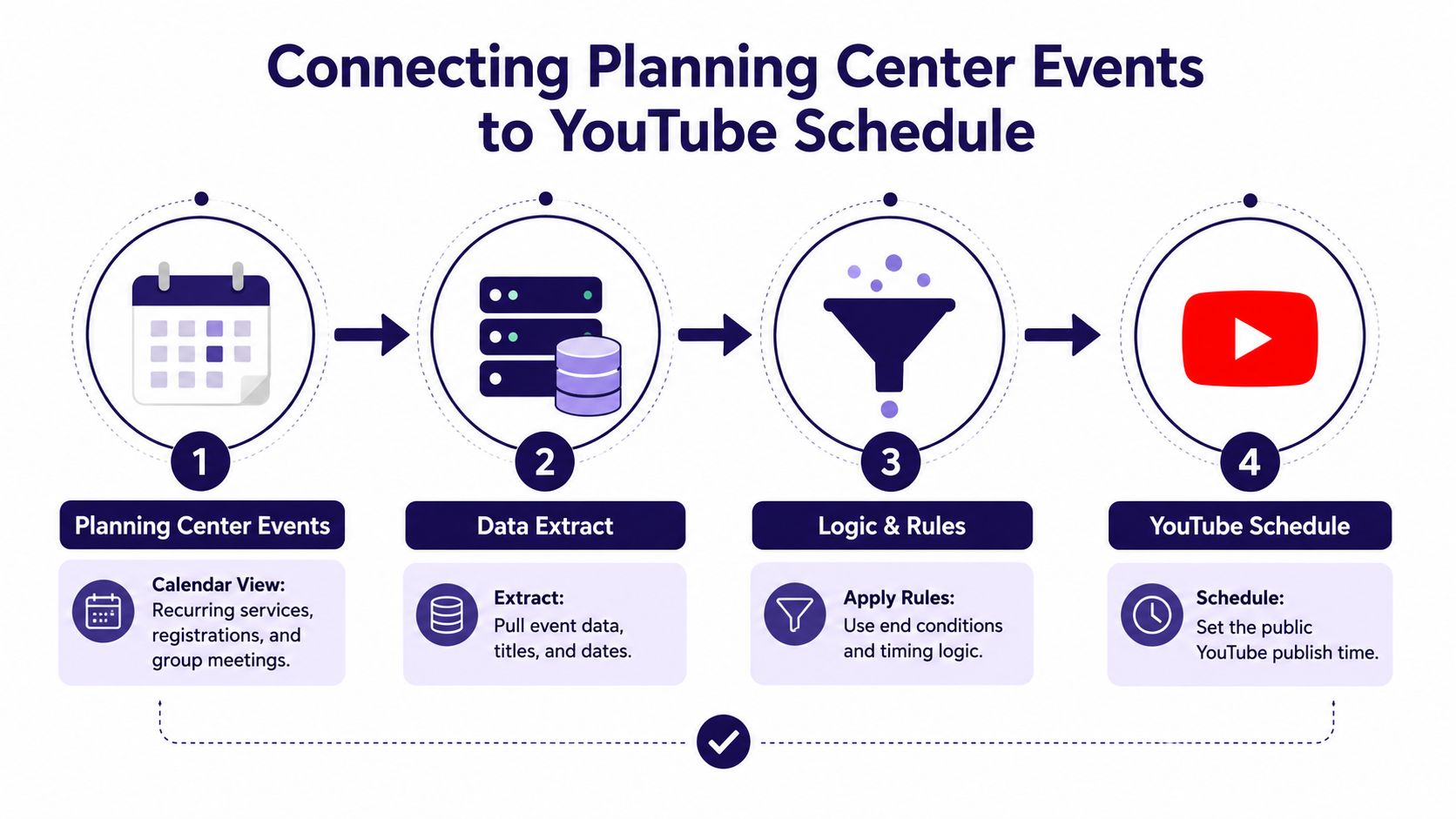
Use the calendar as the source of truth, then connect the relevant event to your content plan. ChurchSocial.ai can integrate with Planning Center and other church calendars so event details can inform planned posts, graphics, and sermon-related content. The practical workflow is outlined further in this guide to Planning Center integrations.
Don't publish every event automatically. Review the title, campus, category, visibility, and call to action first. A Featured event deserves different treatment from an internal meeting, and a recurring service may need a repeatable content pattern rather than a new strategy every week.
Building a Weekly Batching Workflow That Actually Holds
A scheduler won't rescue a team that has no shared ritual. The church needs a repeatable handoff from calendar review to creation, approval, and publishing.
Use the week as a production line
Monday: Open the shared calendar and identify services, registrations, groups, pastoral priorities, and urgent announcements. Confirm which YouTube videos need to move from raw files to scheduled releases.
Tuesday and Wednesday: Create the content. Edit the sermon video, generate sermon-based captions and discussion prompts, produce AI reels, and build branded graphics or carousels. Keep images clean, and use text only where it belongs, such as on a paper graphic, a whiteboard design, or a deliberate overlay.
Thursday: Review every asset with the right people. Check theology, dates, links, names, thumbnails, captions, and campus details. Don't let the volunteer who created the post become the only person who approves it.
Friday: Schedule the next publishing cycle. Upload the YouTube videos, select the time zone, complete the metadata, and confirm each scheduled release. Then place the related Facebook, Instagram, TikTok, and website content on the same calendar.
A sermon transcript can supply the week's raw material. Use it to draft social posts, blog content, discussion questions, and short-form clips, then schedule those pieces around the full sermon instead of treating the long video as the only output.
A sustainable calendar beats a heroic volunteer.
ChurchSocial.ai provides the drag-and-drop calendar, AI sermon repurposing, graphic templates, editor, and cross-channel planning needed for that model. Native YouTube scheduling remains useful for the final YouTube release, while the broader system keeps the rest of the week visible. Teams building a deeper batch practice can also review AIMVG's 2026 AI music video guide for ideas about planning visual production workflows. For a practical batching framework, use this content batching guide.
Troubleshooting Common Scheduling Failures
Most scheduling problems have a simple cause. Don't start by re-editing the video or blaming the platform. Check the account, the time zone, the upload status, and the visibility settings in that order.
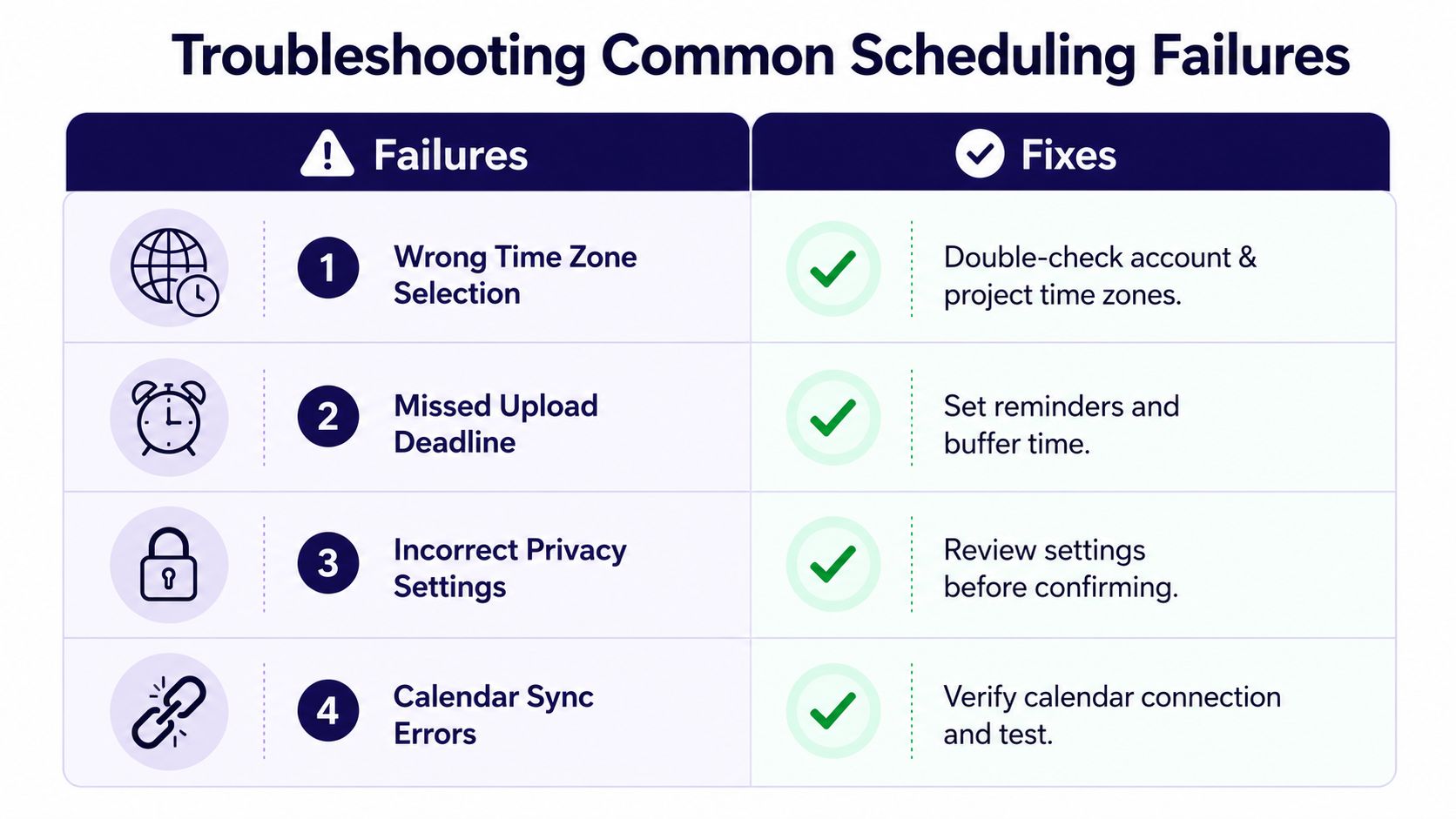
Four failures to diagnose quickly
- Wrong time zone selection: The video appears at the wrong hour for the intended audience. Open the scheduled video and verify the selected time zone rather than relying on the computer's location.
- Premiere without rehearsal: The lobby opens, but the host or moderator isn't ready, or the viewing experience becomes confusing. Use a plain scheduled release for routine content, and reserve Premieres for moments worth hosting.
- Upload bottlenecks: Batch days can still hit upload quotas, processing delays, or API limits. Scheduling changes the publish time, not the time required to upload and process the file, so start the upload with enough operational buffer.
- Mid-edit reset: A volunteer changes the video or resets its visibility, then assumes the original slot remains intact. YouTube pushes the video live according to the scheduled publish time, not the original upload time, so a mid-edit reset can affect the calendar slot (YouTube's scheduled publishing explanation).
If a video isn't live when expected, check whether the upload and processing finished, confirm the selected visibility state, inspect the scheduled date and time, and verify the account or channel being used. Then check whether someone changed the video after scheduling. This order keeps a minor settings issue from becoming a late-night crisis.
Questions volunteers ask
Does scheduling hurt reach? Scheduling separates upload time from public release time. Use the audience report and the back-scheduling approach rather than publishing manually to prove that the file is ready.
How far ahead is too far ahead? Plan routine content far enough ahead for review, but don't lock topical announcements before dates, links, and pastoral details are stable. Freshness should outweigh convenience for event-driven posts.
Can a scheduled video be removed before release? The team can revisit its visibility and content settings before the scheduled moment. Make changes deliberately, then confirm that the intended date and time still appear in the video details.
How do Premieres and live streams differ? A Premiere is a scheduled viewing of an uploaded video with a lobby and chat. A live stream requires a live production plan, technical checks, and someone responsible for the broadcast.
Your First 30 Days With a Real Publishing Calendar
Don't begin by promising a perfect year of content. Build a month that your volunteer team can maintain.
Week one: Map services, registrations, groups, and major events from Planning Center into the ChurchSocial.ai calendar. Mark public events clearly and separate congregation-facing priorities from internal items.
Week two: Schedule two weeks of YouTube content through YouTube Studio. Use the audience report, select the correct time zone, and finish the thumbnail, description, links, and visibility settings before confirming each release.
Week three: Add Facebook, Instagram, and TikTok content to the same calendar. Turn the sermon transcript into clips, social posts, blog content, discussion prompts, and graphics so the full message travels beyond one video page.
Week four: Review what held, what stalled, and which timing decisions created unnecessary pressure. Keep the cadence your team can repeat, then refine the rules instead of adding more posts.
Your Monday checklist should be simple: open the event calendar, confirm this week's priorities, check scheduled YouTube videos, assign approvals, and identify the next batch. The YouTube upload scheduler is the foundation, but the surrounding calendar is what gives your church communications team room to focus on ministry instead of last-minute uploads.
ChurchSocial.ai gives churches a unified calendar for planning YouTube and other social channels, along with sermon-to-reel creation, transcript-based posts and blogs, branded graphics, carousels, and church-calendar integrations. Visit ChurchSocial.ai to organize your next month of church publishing before Sunday night becomes another marathon.