Saturday night, a volunteer is pulling one more sermon clip for Sunday morning, the laptop is full of random downloads, and nobody can remember whether that teaching video was licensed, screen-recorded, or copied from a share link that breaks on playback. That's the church media mess. A safe video downloader isn't just about avoiding malware, it's about grabbing the right file, with the right permissions, in a way the next volunteer can use.
Church teams don't need another generic “top downloader” list. They need a clean way to verify rights, avoid shady installers, keep captions intact, and route assets into a calendar instead of a dead-end Downloads folder. That's the standard here, and it's stricter than the marketing on most downloader sites.
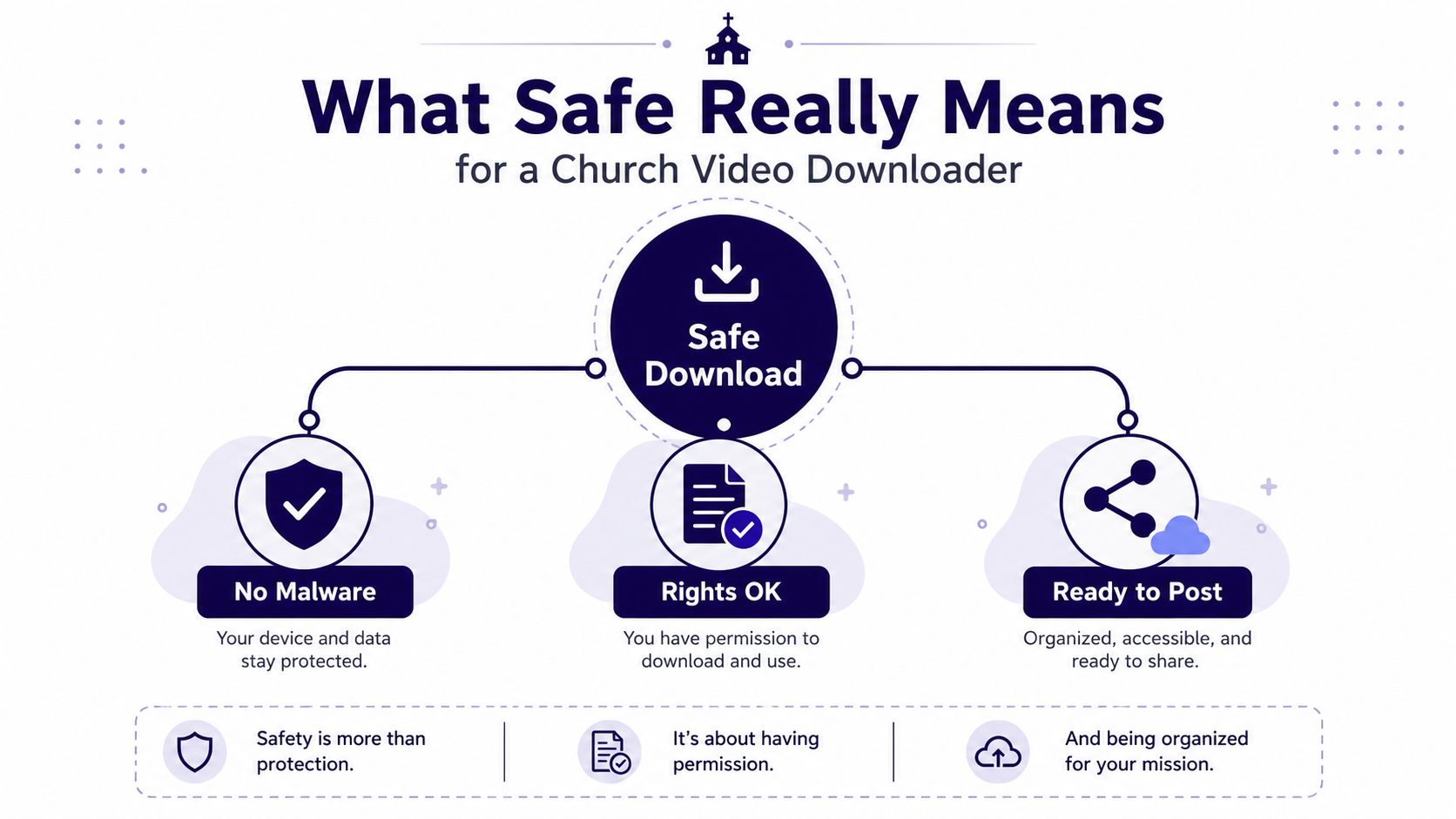
What Safe Really Means for a Church Video Downloader
A church volunteer usually isn't hunting for piracy. They're trying to pull a sermon clip, a licensed teaching segment, or a bit of b-roll and get it posted before the weekend rush hits. The trouble is that “safe” gets used to describe three completely different things, and all three matter.
The three gates that actually decide safety
First, the tool has to be clean. That means an official domain, no surprise extension or APK prompt, and no installer that smells like adware. Second, the church has to have the right to save the file in the first place. Third, the file has to survive the workflow, because a download that lands in the wrong format, loses captions, or disappears into a personal laptop isn't safe for ministry use.
Practical rule: if one of those gates fails, the download isn't safe. A clean installer doesn't fix a rights problem, and a rights-cleared video still isn't useful if nobody can find or repost it.
That's why popularity means very little. A widely cited 2016 analysis of downloader tooling estimated that the top 10 downloader tools together had about 110 million confirmed users/pirates, with SaveFrom at 40 million annual unique visits, KeepVid at 25 million, Internet Download Manager at 3.5 million, and ClipGrab at 1.5 million. The same analysis extrapolated to roughly 500 million global users of video-download tools overall, arguing that's about 1 in every 4 desktop computer users worldwide. Those numbers tell you the category is huge, not that a specific downloader is right for your church's workflow. video-download tooling analysis
If you want a church-specific screening layer before anybody downloads anything, a church volunteer background check is a smart starting point for anyone handling sensitive media or shared systems.
Rights, Licensing, and Platform Rules Before You Click Download
Most church teams treat downloader safety like a malware question. That's lazy. The harder question is whether the church is allowed to save and repost the video at all, because rights, licensing, and platform terms are separate problems.
Don't confuse ownership with access
If your team recorded the sermon, you're probably dealing with your own original asset. If the video came from a curriculum provider, a stock library, or a guest speaker, the answer is different. Creative Commons material, paid stock footage, and platform-hosted videos all come with different reuse rules, and a tool being technically clean doesn't change any of them.
Independent guidance on YouTube is blunt about the legal gray area, there isn't a fully “safe, legit, all-videos” YouTube downloader for ordinary users, because downloading usually conflicts with YouTube's Terms unless the feature is built in. For most churches, the safer path is YouTube's own offline features or Premium when that source is involved. Third-party tools may be malware-free and still be the wrong choice for the source you're trying to save.
If the platform doesn't permit the save, the fact that the downloader works doesn't matter.
For church teams that also handle audio or curriculum rights, this music licensing guide for churches is a useful companion reference because the same habit applies, know the license before you post.
A one-minute permission check
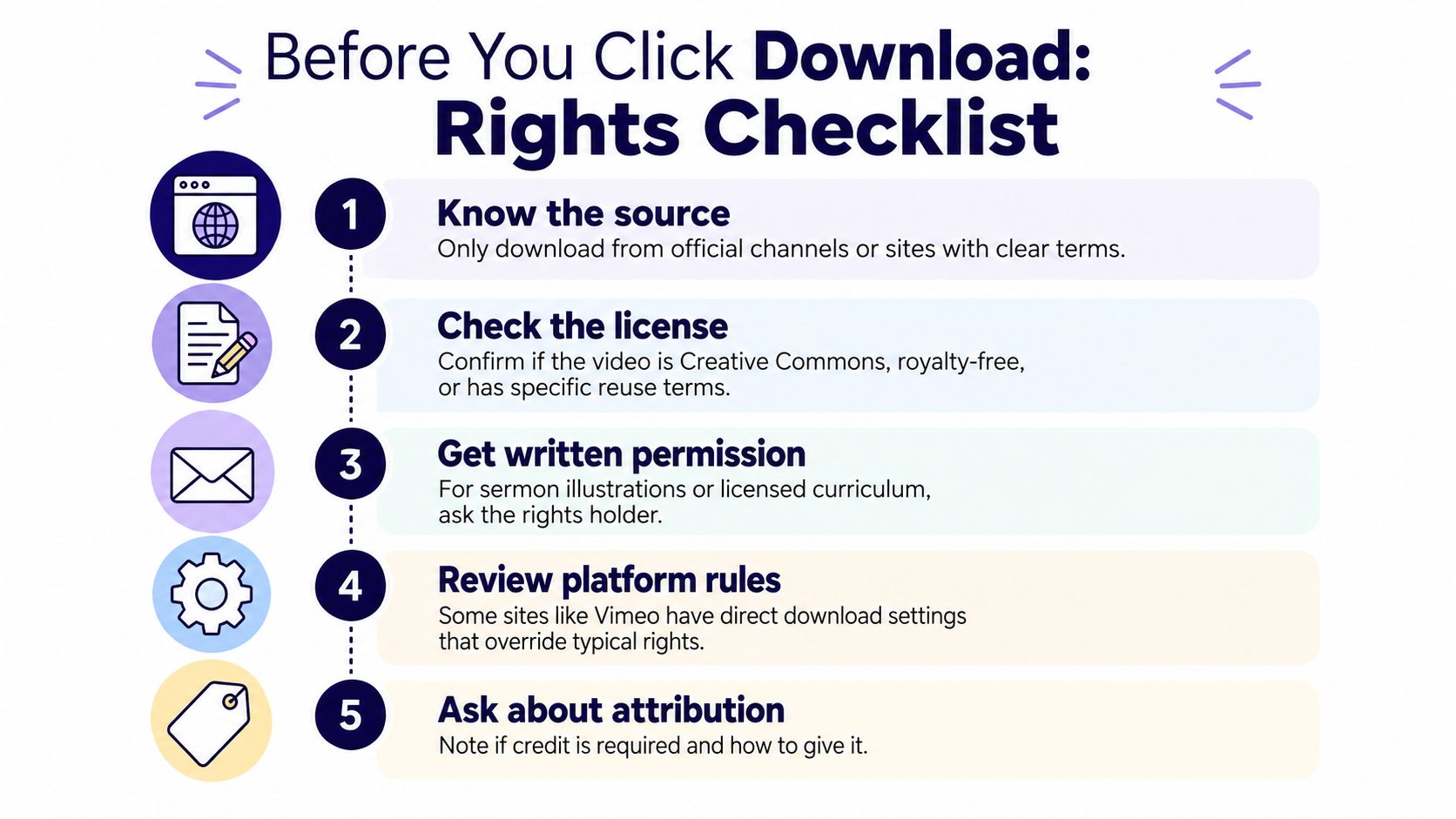
Run this in order before anyone downloads:
- Know the source. Use the official platform page or the creator's official channel, not a share redirect.
- Check the license. Confirm whether the asset is Creative Commons, royalty-free, licensed by your church, or restricted.
- Get written permission. If it's a guest sermon illustration or paid curriculum, don't rely on memory.
- Review platform rules. Some platforms expose direct download settings, and those rules override guesswork.
- Ask about attribution. If credit is required, decide how you'll show it before the file gets edited.
For data-heavy or rights-sensitive content workflows, a navigation data licensing overview is a good reminder that access and reuse are never the same thing.
Choosing a Download Method You Can Trust
Church volunteers usually end up with four workable choices. A browser-based downloader site. A desktop app. A CLI tool like yt-dlp plus FFmpeg. Or the platform's own offline feature. I rank them by three things that matter in a church media workflow, how well they protect the source, how reliably they preserve captions, and how they behave when a platform changes its player.
Browser tools, desktop apps, and platform downloads
Browser-based tools are the easiest to use, and that ease is exactly why sloppy habits show up first. The clean workflow is straightforward, copy the canonical video page URL from the address bar, paste it into the downloader, and choose an output format the tool supports. The technical trap is the share redirect, because a redirect can stop the downloader from identifying the actual stream correctly. That creates broken files, missing metadata, and wasted time for the person who has to clean up the folder later.
Desktop apps work better when they come from a trusted release channel and stay away from surprise extension installs. If the app throws an unexpected extension or APK prompt, close it. That is not a download helper, it is a trust problem.
Platform downloads are the cleanest choice when the platform itself allows them and the file lands in a format your team can use without extra repair. For church teams, that matters because the goal is not just getting a clip. The goal is keeping sermon assets usable, traceable, and ready to route into a managed ChurchSocial.ai calendar instead of a Downloads folder nobody touches again.
The power-user setup that holds up
For heavier church workflows, yt-dlp + FFmpeg is the most reliable option. Install it from the official release channel, verify the SHA-256 hash, then use a selector like -f "bestvideo+bestaudio" and, if needed, --merge-output-format mp4 to rebuild the final file. Before downloading, check the available renditions with --list-formats, because claimed downloads can fail without warning when a source uses fragmented streams or odd platform encodes.
My rule: trust starts with the installer, not with the finished file.
A lot of marketing says “supports 100+ sites,” but those claims get overstated quickly. For church teams, that is not a bragging point, it is a warning label. A tool that works on one platform today can fail on another tomorrow, and the person who discovers that failure is usually the volunteer trying to cut a sermon clip before Sunday service.
Format, Quality, and Captions That Survive the Workflow
Picking the output format shouldn't feel like a coin toss. For churches, MP4 is the safe default because it plays almost everywhere, on phones, social apps, and the editor a volunteer inherits next week. WEBM can be a sensible choice when smaller files matter and quality can flex a bit. Audio-only belongs in podcast republishing or when the visual part is irrelevant.
Which format fits the ministry job
| Output format choice for church video downloads | Best for | Caption support | Watch out for |
|---|---|---|---|
| MP4 | Sermon clips, platform-agnostic posting, most church workflows | Often safest for downstream editors, but captions may still be separate files | Bigger files than some alternatives |
| WEBM | Web-first use where file size matters more than broad compatibility | Support varies by tool and editor | Some church editing tools handle it less gracefully |
| Audio-only | Podcast reuse, sermon audio posts, teaching snippets without visuals | Captions usually irrelevant | Not useful for short-form video platforms |
| Vertical sermon clip export | Reels, Shorts, TikTok, and other phone-first posts | Depends on the downloader and editor | Cropping can cut off faces or captions |
Many downloaders strip subtitles, so captions need their own check. If the tool passes through SRT or VTT files, keep them with the clip and re-attach before posting. If it doesn't, you've got a file that looks ready but still needs cleanup. That's why caption planning belongs in the download decision, not just in editing.
For churches that want a deeper workflow on this step, the internal process in how to add captions to videos is the kind of reference a volunteer should keep handy.
Match clip length to the platform
Short-form sermon clips usually work best in the 45 to 60 second window, which sits inside the broader 30 to 90 second range commonly recommended for short-form platforms. Deeper teaching segments can live longer on YouTube, around 2 to 5 minutes. Those ranges matter because a file can be technically perfect and still feel wrong for the place you're posting it.
Storage, Naming, and a Clean Handoff to Your Calendar
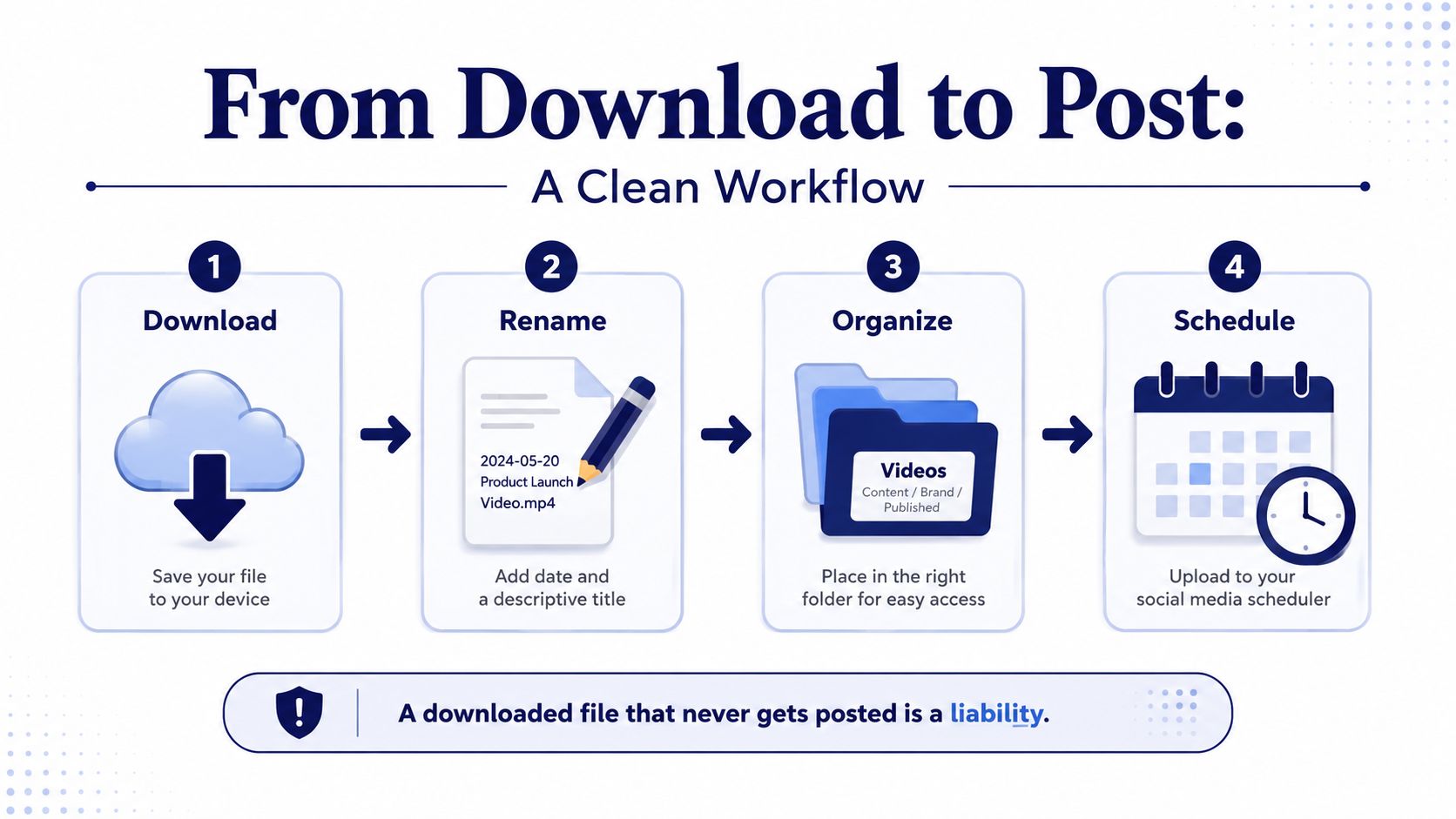
The download itself is the easy part. The problem is what happens after the file lands. If it goes into a personal laptop folder named Downloads, then into a desktop, and then into someone's cloud account, you've built a media library that only one person understands.
Use folders that make sense to a stranger
Keep three buckets, originals, edited clips, and per-platform exports. Originals stay untouched. Edited clips hold your working versions. Exports are the final files ready for Instagram, Facebook, TikTok, or YouTube.
Naming matters just as much. Use a convention that includes the date, sermon series, and platform, so a volunteer three months later can find the right file without scrolling through 200 mystery names. A filename should tell the story at a glance, not force someone to open it.
A downloaded file that no one can find next month was never really managed.
Keep the file off personal clutter
Use a shared staff laptop or a church NAS instead of a personal cloud account. Scan files that came from an untrusted uploader. Don't let a Downloads folder become the de facto media library, because that's how churches lose track of what's current, what's approved, and what's still waiting on captions.

If your team trims clips before posting, the internal guide at clip and trim is useful because the trim step belongs right after download, not after everyone has already lost track of the source.
Handoff into a managed calendar
Once the file is saved, it should move into a scheduling system that the whole team can see. That's the difference between a media asset and digital clutter. A clean handoff means the clip gets captioned, queued, and assigned, instead of sitting untouched in a folder nobody checks.
From Downloaded File to Posted Clip Without the Chaos
A folder full of sermon MP4s is not a strategy. It is a storage problem. Churches win when the file turns into a post, because that is when the download starts doing ministry instead of sitting untouched.
The safety layer that matters most is the workflow
A managed social workflow beats a random file pile every time. The Sermon Clip Creator turns the source sermon into short-form clips, the AI Caption Writer drafts the social copy, and the drag-and-drop calendar makes it possible to schedule posts without uploading the same asset four different times. Add Planning Center into the mix, and upcoming events can sit beside the content plan so a clip promoting Sunday's service gets queued as soon as the sermon file lands.
That matters because the safest download is the one the team can use. If nobody knows where the file is, what is approved, or when it is posting, the download has already failed the ministry test.
If your team trims clips before posting, this trimming guide keeps the edit step tied to scheduling instead of turning it into another orphaned task.
If the file never reaches the calendar, it is not part of the communications system yet.
ChurchSocial.ai fits here as the handoff point, not as a separate burden. It keeps the sermon asset moving from download to draft to post, which is exactly where most church teams need the most help.
For broader system hygiene, especially if media lives on shared devices, the protect staff systems and data checklist is a good reminder that church media safety and staff security go hand in hand.
The Safe Download Checklist Every Volunteer Should Tape to the Desk
Before anyone clicks download, run the five gates. Rights confirmed. Official source page, not a share redirect. Tool from an official release channel. Output format and captions verified. File headed to a shared place a teammate can find. If one answer is fuzzy, stop and fix that before the clip gets saved.
For broader system hygiene, especially if media lives on shared devices, the protect staff systems and data checklist is a good reminder that church media safety and staff security go hand in hand.
The point isn't to turn your volunteers into video engineers. The point is to keep the church's media library clean enough that the next person can pick up where the last one left off.
ChurchSocial.ai gives churches one place to turn sermon clips into posts, captions, blogs, and scheduled content without losing track of the file after download. If your team wants a cleaner way to move from sermon source to published social post, visit ChurchSocial.ai and build a workflow that gets used.