Monday morning hits fast in a church office. The sermon is still fresh, the volunteer who clipped the best 45 seconds is already in another meeting, and somebody just asked whether the Short can go up before people forget the moment. That's the reason how to schedule YouTube Shorts matters for church teams, because the issue isn't just timing a post, it's keeping sermon momentum alive while everybody's juggling worship prep, follow-up, and the rest of the social calendar.
For a lot of churches, the bottleneck isn't creativity. It's handoffs. One person has the sermon clip, another writes the caption, someone else knows the event date, and the platform team still needs the same content adapted for YouTube Shorts, Reels, TikTok, and Facebook without losing half a Saturday to uploads.
That's why scheduling becomes a workflow decision, not a creator trick. A scheduled Short protects the energy around Sunday's message, keeps volunteers from scrambling every week, and lets one communications lead manage a tighter publishing rhythm from one calendar instead of four separate tabs. Churches that rely on volunteers feel that pressure first, because consistency disappears the moment a single person gets sick or leaves town.
The practical question is whether to keep that process inside YouTube Studio or move it into a unified system that helps the team manage everything together. Both paths work. One of them just survives church-life chaos better.
Why Scheduling YouTube Shorts Matters for Church Teams
Sunday mornings are full of good intentions. Someone records a sermon moment, says, “We should clip this,” and by Monday the clip is still sitting in a folder while the social feed goes quiet. That gap costs churches more than a missed post, because the energy of a strong sermon clip fades quickly when the team treats publishing like an afterthought.
The church calendar moves faster than a single platform
Scheduling solves the Sunday-to-weekday handoff. If the Short is ready before the week starts, the team isn't trying to upload between staff meetings or while the worship director is waiting on a graphic tweak. The clip can go live while the team is already onto the next thing, which is how volunteer-led churches avoid the familiar cycle of catching up instead of staying ahead.
It also keeps the social rhythm tied to ministry moments. A sermon clip, a midweek devotional, a children's ministry announcement, and a weekend invite all compete for the same attention. When the team can schedule in advance, the communications lead can place each piece where it belongs instead of publishing whatever happens to be finished first.
Practical rule: if a piece of content depends on Sunday's momentum, schedule it before the week gets crowded.
The other benefit is consistency. Churches don't need a perfect production setup to post regularly, but they do need a repeatable process. Scheduling turns a one-person emergency into a shared system, which matters when the same staff member is also managing graphics, captions, and last-minute event changes.
For churches with bigger content loads, the choice starts to narrow. YouTube Studio works well for a single Short. A unified calendar makes more sense when the same team also has to keep the rest of the week moving without losing track of platform-specific deadlines.
Scheduling Shorts Inside YouTube Studio on Web and Mobile
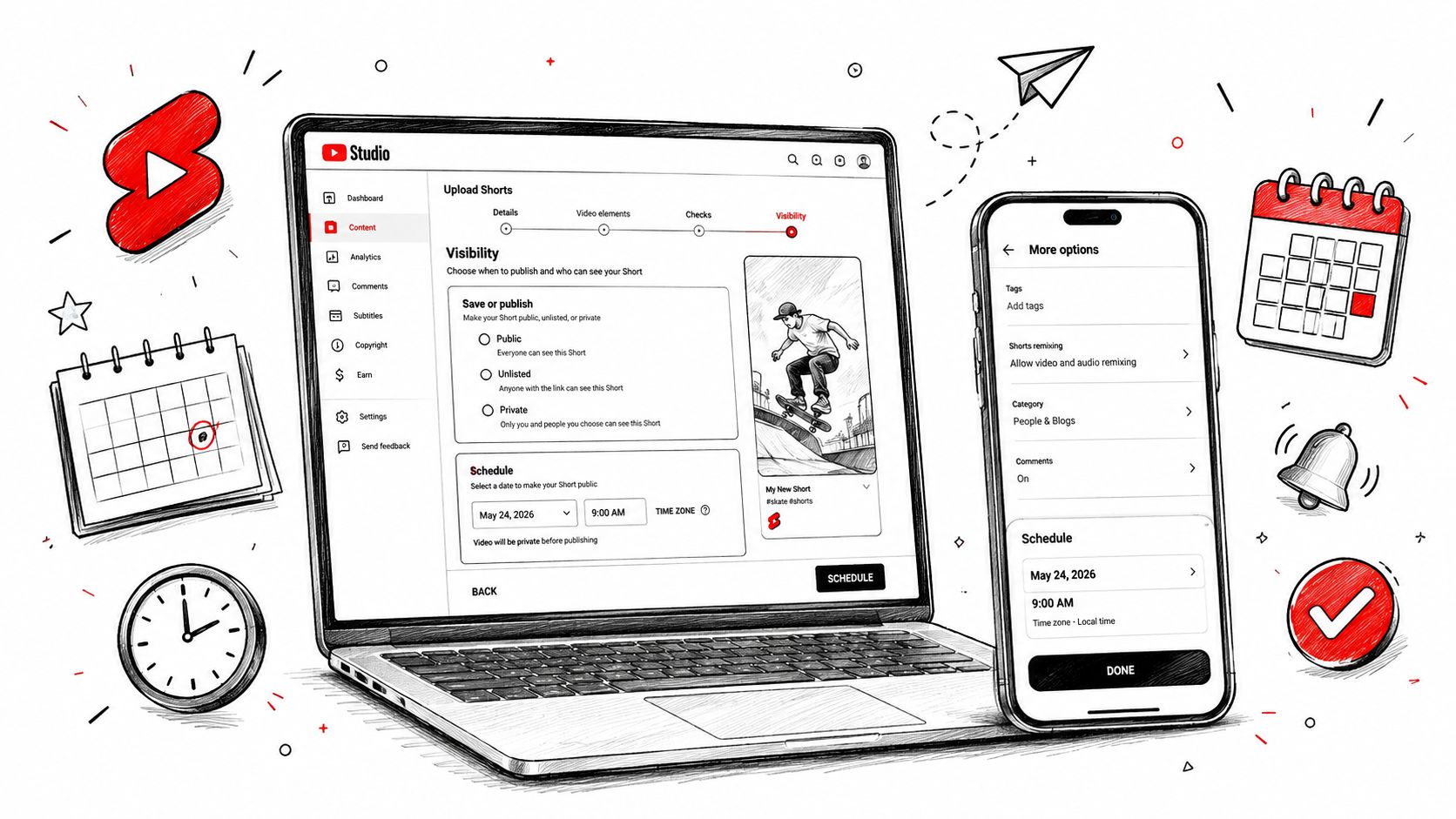
YouTube Studio lets churches schedule Shorts without leaving the platform, which helps when the same clip has to move through review, captioning, and posting from one shared calendar. On desktop, upload the vertical Short into YouTube Studio, complete the Details screen with the title, description, and any final metadata, then open Visibility, choose Schedule, set the date and time, and confirm the post.
Key Steps in the Scheduling Process
The upload has to read as a Short before the calendar matters. YouTube Shorts can run up to 3 minutes long, and the file still needs to be square or vertical, with 9:16 the expected aspect ratio for clean classification, according to YouTube Shorts format guidance. If the frame is wrong, the scheduling screen will not correct it later.
Time zone settings cause more mistakes than many expect. YouTube Studio uses the account's time zone by default, so a church can queue a post for the wrong hour if the account was set up by someone in another region. Check the local time before you confirm the schedule, especially when the post needs to line up with service times or midweek devotionals.
The Visibility setting deserves a careful check too. If the upload defaults to Private or Unlisted, it can look ready while it is still hidden. Select Schedule on purpose, then verify that the posted time appears before you click the final confirmation.
Mobile follows the same logic, just in a tighter layout. Open the YouTube app, tap the create button, upload or record the Short, fill in the details, tap Visibility, choose Schedule, set the date and time, then return to the upload screen to confirm. If the phone flow acts differently than expected, the Google help article on YouTube Shorts scheduling limits and upload tips is the first place to check before blaming the app.
When teams need to handle client videos privately on YouTube, a separate review workflow can keep drafts out of public view until they are approved.
For a desktop-first walkthrough with screenshots, this internal guide on how to upload YouTube Shorts from PC pairs well with the native Studio process.
When native scheduling is enough
YouTube Studio works well when one person owns the channel and the team only needs to queue a few Shorts. It is direct, free, and already built into the platform.
It becomes clumsy when the same clip has to be adapted for other channels, approved by multiple people, or lined up with events that live somewhere else.
Preparing Shorts Before You Hit Schedule
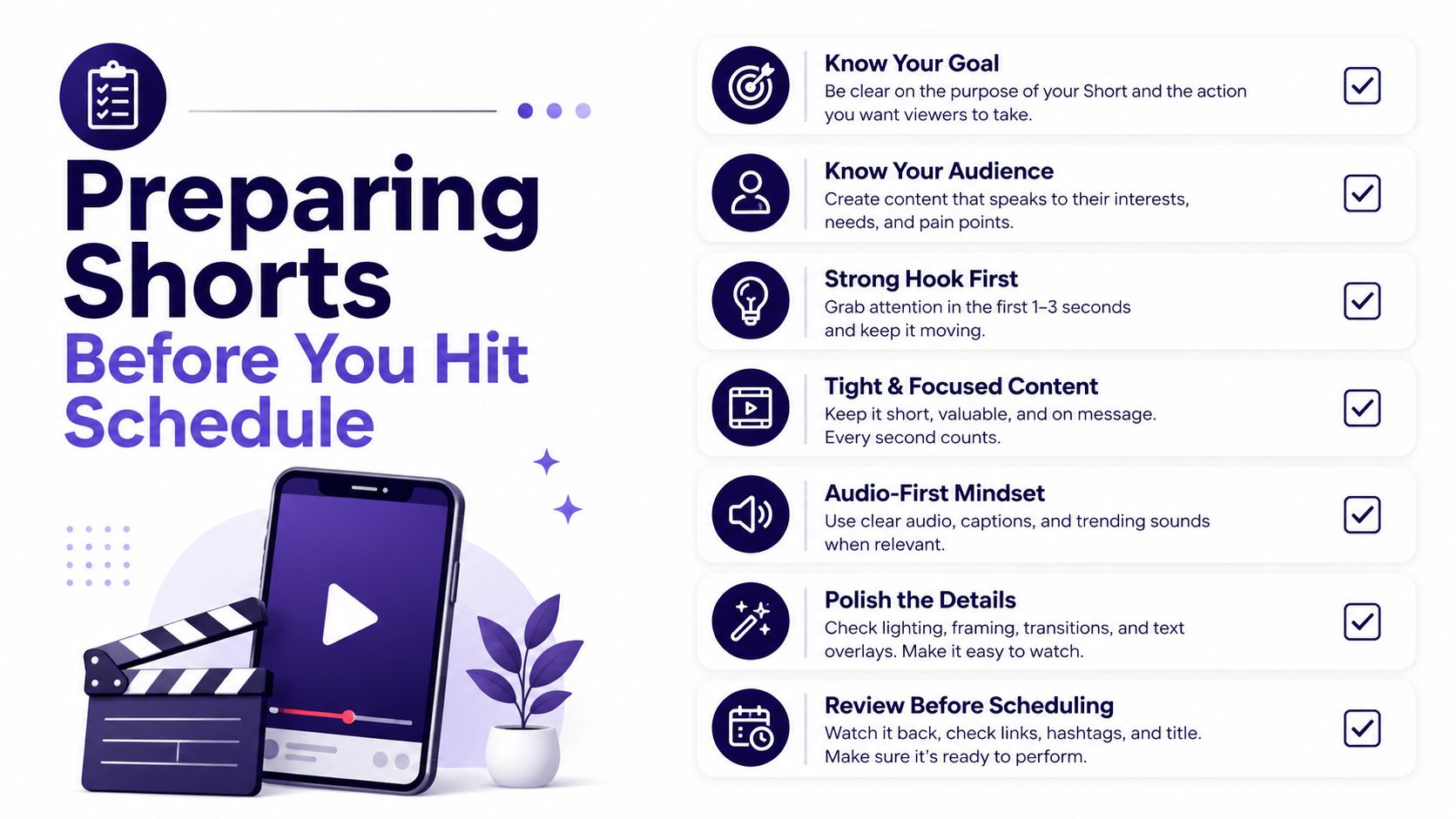
A scheduled Short that's packaged badly still lands badly. Churches feel this most with sermon clips, because a strong moment can look flat if the framing is wrong, the caption is thin, or the viewer can't follow the point without audio. The scheduling screen should be the last stop, not the place where the team discovers the asset still needs work.
The packaging checklist that saves rework
Start with the file itself. The master should be vertical 9:16, and if you're repurposing a sermon clip, the framing needs to keep the speaker readable on a small phone screen. Burned-in captions matter because a lot of people scroll with sound off, especially on mobile, so the clip needs to carry its own meaning without the audio doing all the work.
Titles and descriptions deserve more attention than they usually get. Several guides note that adding #Shorts in the title or description can help YouTube recognize the upload as a Short, even when the team is using the regular upload flow rather than a special shortcut, as discussed in creator guidance on Shorts classification. That doesn't replace good metadata, but it does help the file behave the way you expect.
Tags should follow the sermon topic, event, or ministry theme. A guest speaker clip and a youth-night invite need different keywords, even if they're both under the same channel. The thumbnail matters too, but not because it has to be flashy. It has to read at a glance on a tiny screen.
A sermon clip isn't “done” when the edit exports. It's done when a volunteer can understand it in three seconds on a phone.
For churches that clip sermons regularly, workflow discipline pays off. If the original message lives in a longer recording, pull a moment with a complete thought, not just a good soundbite. A clean close, a clear opening, and captions that preserve the argument make the Short feel intentional instead of chopped up.
If you want a deeper checklist for building stronger Shorts before publishing, this internal reference on best practices for YouTube Shorts pairs well with the scheduling workflow.
YouTube Studio vs Third-Party Schedulers for Churches
Native scheduling works, but it solves only one channel at a time. That's fine for a solo creator. It's a different story for a church team trying to keep YouTube, Instagram, Facebook, and TikTok aligned while also managing sermon clips and event promos from the same week.
Which path fits which team
| Capability | YouTube Studio | Unified scheduler |
|---|---|---|
| Queue a YouTube Short | Yes | Yes |
| Manage multiple platforms from one calendar | No | Yes |
| Adapt the same clip for Reels and TikTok | No | Yes |
| Coordinate team handoffs | Limited | Better suited |
| Keep event content next to sermon clips | No | Yes |
YouTube Studio is enough if one communicator owns the channel and the church only needs a simple publish date. It becomes a bottleneck when the team has to compare publishing windows across platforms or keep weekly content visible to multiple staff members at once.
A unified scheduler solves the coordination problem. In a church context, that usually means a drag-and-drop calendar, shared visibility, and the ability to line up a Short beside a Reel and a TikTok without jumping between apps. ChurchSocial.ai also fits here as one option, because it supports planning and scheduling across channels, including sermon clip workflows and event content tied to other church calendars.
That kind of setup matters most when the team is small. Volunteers don't need more tabs. They need fewer decisions and a clearer place to see what's already queued.
For churches that also post Instagram content, this internal guide on how to schedule Instagram Reels helps show why a shared workflow is often easier than platform-by-platform posting.
Best Times and Days to Schedule YouTube Shorts
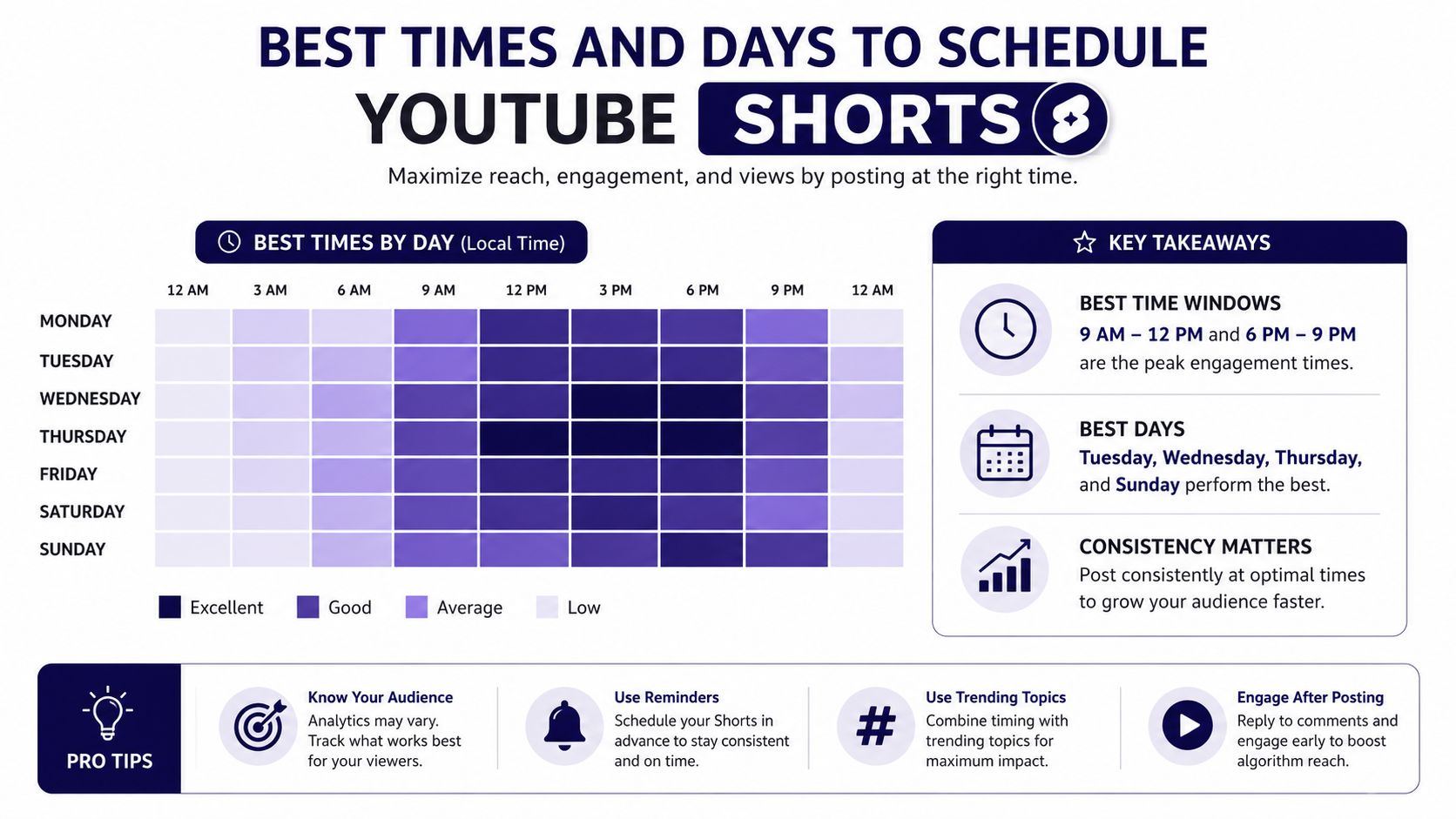
Timing isn't a vague preference, it's part of the publish decision. A great Short scheduled at the wrong moment can sit unnoticed while your audience is busy, offline, or already scrolling past something else. Churches should treat timing as a test, not a superstition.
What the timing data suggests
A large 2026 Buffer analysis of 1.8 million YouTube videos found that the strongest posting window for YouTube Shorts was Friday at 4 p.m., with Friday at 6 p.m. and Friday at 7 p.m. next in line, and Buffer described Friday as the undisputed best day in that dataset, according to Buffer's YouTube timing analysis. That points to a real pattern, content often performs best when it lands in late Friday afternoon or early evening, right before weekend viewing habits pick up.
Adobe Express gives a different benchmark, noting that Tuesdays have the most views and likes and that the most popular upload time is 4 p.m., in its YouTube Shorts timing guidance. Those two datasets don't agree on the exact day, which is the point. Audience behavior is specific, not universal.
Churches should use that conflict as a testing framework. A midweek devotional may do better on Tuesday afternoon, while a sermon clip or weekend invite may fit Friday's leisure window more naturally. The team should schedule the same style of Short across a few major windows, then watch YouTube Analytics for retention and view-through patterns.
Practical rule: schedule before the audience is fully online, not after the scroll has already moved on.
Service times matter too. If a church posts around a worship gathering, the Short can support the moment without competing with it. If the goal is a midweek nudge, the post should land when the team expects people to check their phones between work and evening plans.
The key takeaway is simple. Pick a few tested windows, keep notes, and let the church's actual audience habits beat generic advice.
Troubleshooting When a Short Will Not Schedule
A Short that will not schedule usually fails for a plain reason. The upload path was wrong, the app is outdated, or the visibility setting never changed from the default. That is frustrating, but it is usually fixable in a few minutes once someone checks the right screen.
The failures churches hit most often
If the Schedule option is missing on mobile, check the app version first. A stale YouTube app can hide the scheduling flow or put it in a different place, and that is easy to confuse with a channel problem when the issue is really software-related.
If the video appears as a regular upload instead of a Short, the file probably missed the formatting rules. Recheck whether it is vertical or square, and make sure the team did not export a widescreen edit by accident. If the format is wrong at upload, the post will stay a standard video.
If the post defaults to Public, someone likely skipped the final visibility step or assumed the scheduler saved on its own. That is where a simple checklist helps. The post should be sitting in Scheduled status before anyone leaves the computer.
If the publish time shifts, the account may be using a different time zone than the church expects. That problem shows up often when several volunteers touch the same channel, because each person assumes the clock matches their own local time.
The official upload guidance from YouTube covers the basic path and the limits around Shorts. In practice, the problems churches report usually live in the details, not in the headline steps.
If scheduling breaks, start with the file format, then the app version, then the visibility screen. That order solves most problems faster than re-uploading on instinct.
A Weekly Shorts Workflow Churches Can Actually Run
A workable church rhythm looks like this. Sunday, someone clips the sermon. Monday, the communications lead writes the caption and tags. Tuesday, the thumbnail gets approved. By Friday, the Short is already scheduled, so the team isn't rushing between services and staff meetings to publish it.
For churches that need the whole pipeline in one place, ChurchSocial.ai can sit on top of that workflow with AI-generated reels from sermons, sermon transcript content for posts or blogs, graphic templates for images and carousels, Planning Center integrations for event content, and a drag-and-drop calendar that keeps YouTube Shorts beside the rest of the week's social queue. The best move is to choose the system that matches your team size now, then schedule the first Short before the sermon buzz fades.
If your church is still bouncing between folders, calendars, and multiple social apps, ChurchSocial.ai can help centralize the work without making volunteers learn a complicated system. It gives you a single place to plan sermon clips, schedule Shorts, and keep event content moving alongside the rest of your channels. Visit ChurchSocial.ai and see how a unified church calendar can make your next Short easier to publish on time.